Github: https://github.com/1SUSHANT1/server-hardening
This is my first time doing a server hardening assessment. I've read about it, but actually implementing it is a completely different challenge than just understanding the concepts. Like most of my other projects, this paper is written as I proceed. My server runs Alpine Linux, which is very minimal with a small attack surface, and is current only hosting a simple website, so this paper may only touch on what to do, why to do it, and how to do it. Meaning, there might be more of the assessment, and less of the hardening.
Internet -> Cloudflare -> Router -> My Server -> Linux Firewall-> Apache -> Gunicorn -> Flask -> Files and Executables.
Clients on the internet searching for my website www.sushantadk.com, connect to Cloudflare. Cloudflare, acting as a reverse proxy, connects to my public IP address. My router receives that traffic and forwards ports 80 and 443, HTTP and HTTPS, to my server. Once the traffic reaches my server, the Linux firewall examines incoming packets and allows or blocks them. I have configured the firewall to allow incoming connections on port 80 and 443 . Apache is listening on ports 80 and 443, which reverse proxies the traffic to Gunicorn. Gunicorn is the bridge between Apache and my python application Flask. Flask maps URL routes to Python view functions, which may access files, execute programs, or generate responses. My Flask application can accept user input, invokes server-side executables when appropriate, and returns their output. My admin page on the website is password protected with Basic Auth. Some vulnerabilities to note are, if someone figures out my home IP address, they may bypass the security controls on Cloudflare by directly connecting to my server. Malicious traffic can be sent over HTTP or HTTPS connections. HTTPS can be downgraded to HTTP. Places I've unintentionally made secure are by making Gunicorn listen only on local host for Apache so it can't be directly accessed from the internet.This assessment is limited to the server itself. It evaluates the operating system, installed services, network configuration, user accounts, file permissions, web server, application server, and application configuration running on the host. External infrastructure such as the router, Cloudflare, DNS configuration, and client devices are considered out of scope except where they directly affect the server's operation.
cat /etc/alpine-release, cat /etc/os-release, uname -a.
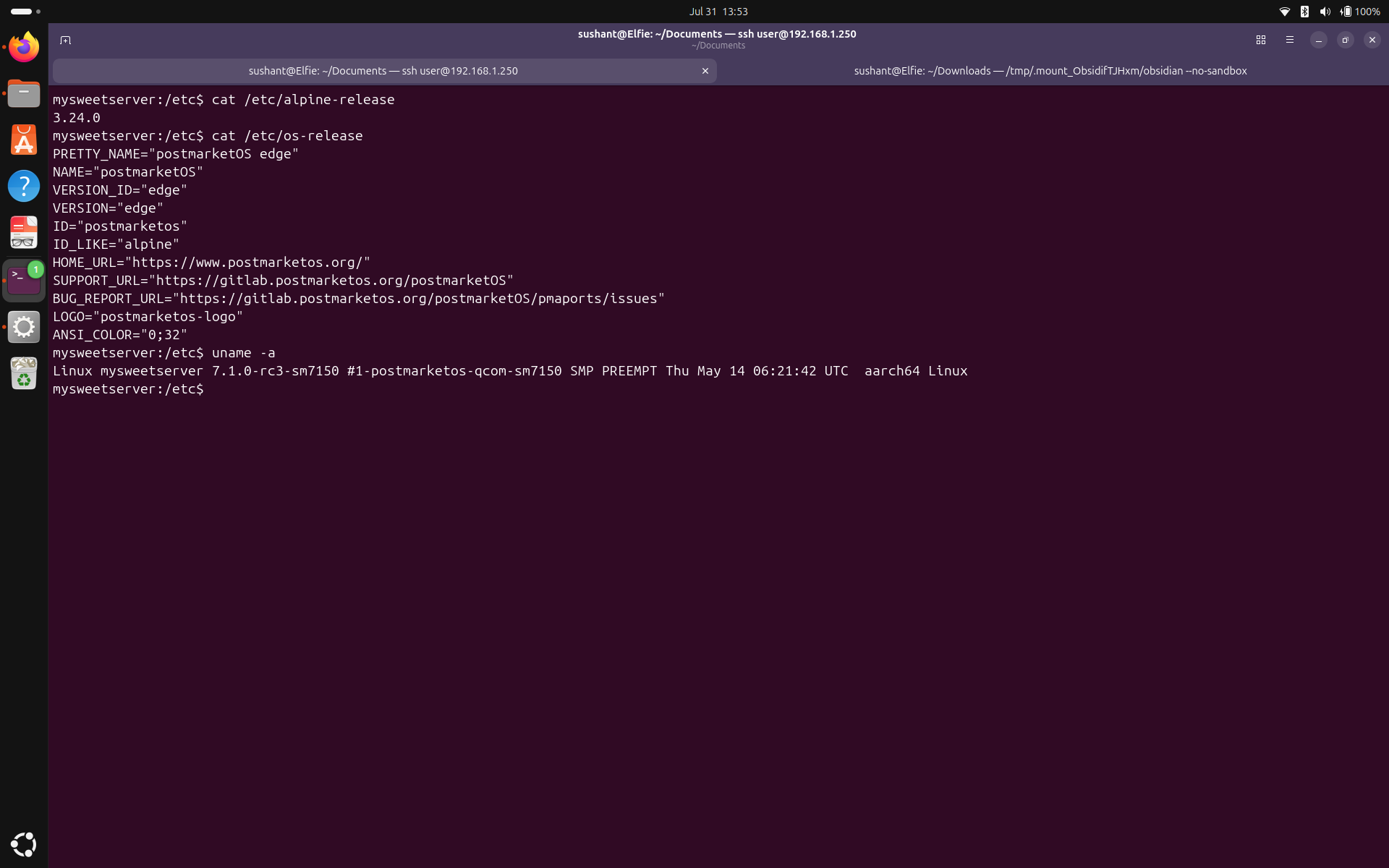 Note: Check if the OS, Alpine, and kernel are the latest version available.
Running Services
Let's take a look the status of all the OpenRC services that were started at least once since last boot. To do this, run
Note: Check if the OS, Alpine, and kernel are the latest version available.
Running Services
Let's take a look the status of all the OpenRC services that were started at least once since last boot. To do this, run rc-status.
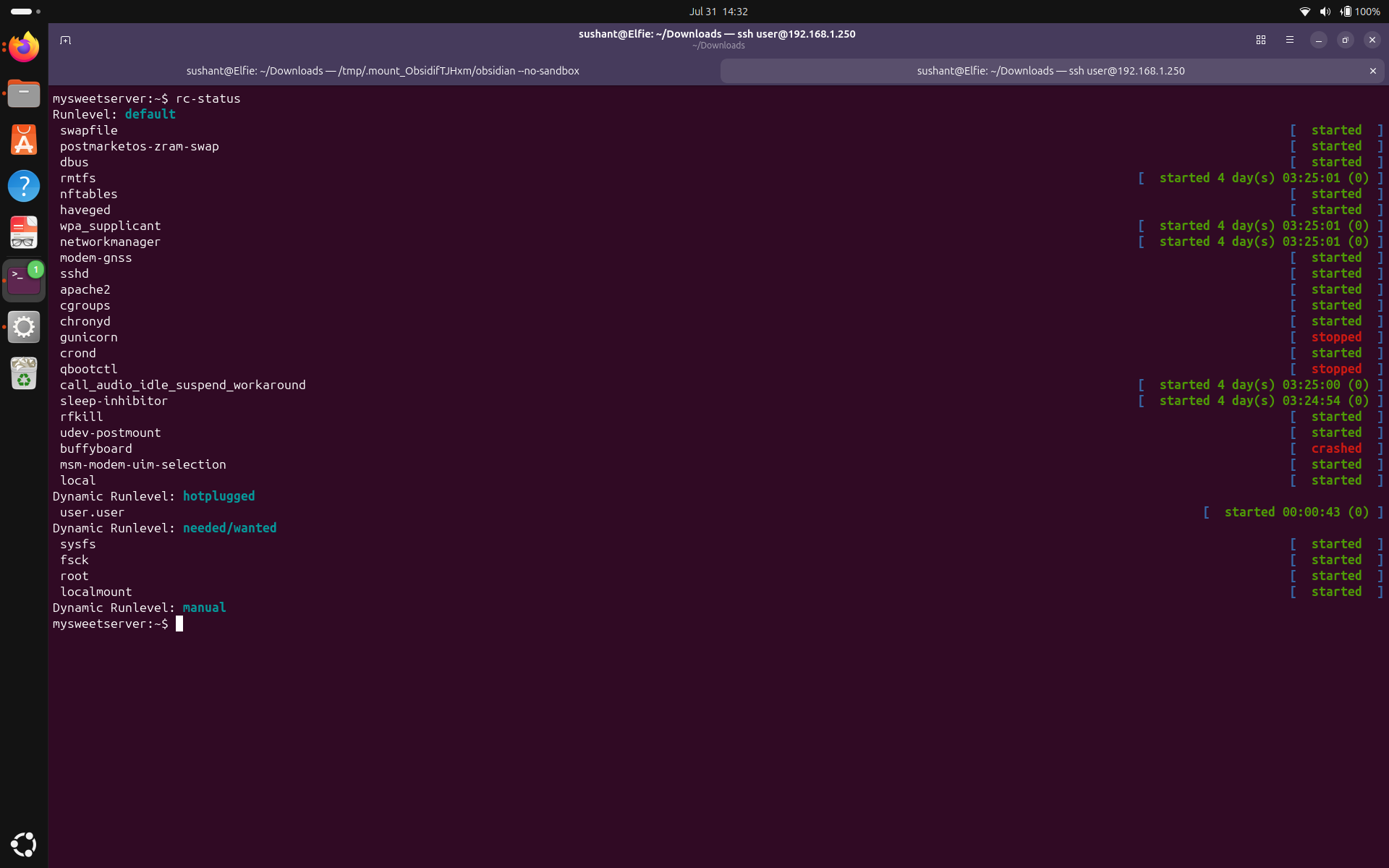 You can see that most of the OpenRC services are still running, some have stopped and some have crashed.
Next, let's inspect which services are configured for each runlevel. To do this, run
You can see that most of the OpenRC services are still running, some have stopped and some have crashed.
Next, let's inspect which services are configured for each runlevel. To do this, run rc-update show.
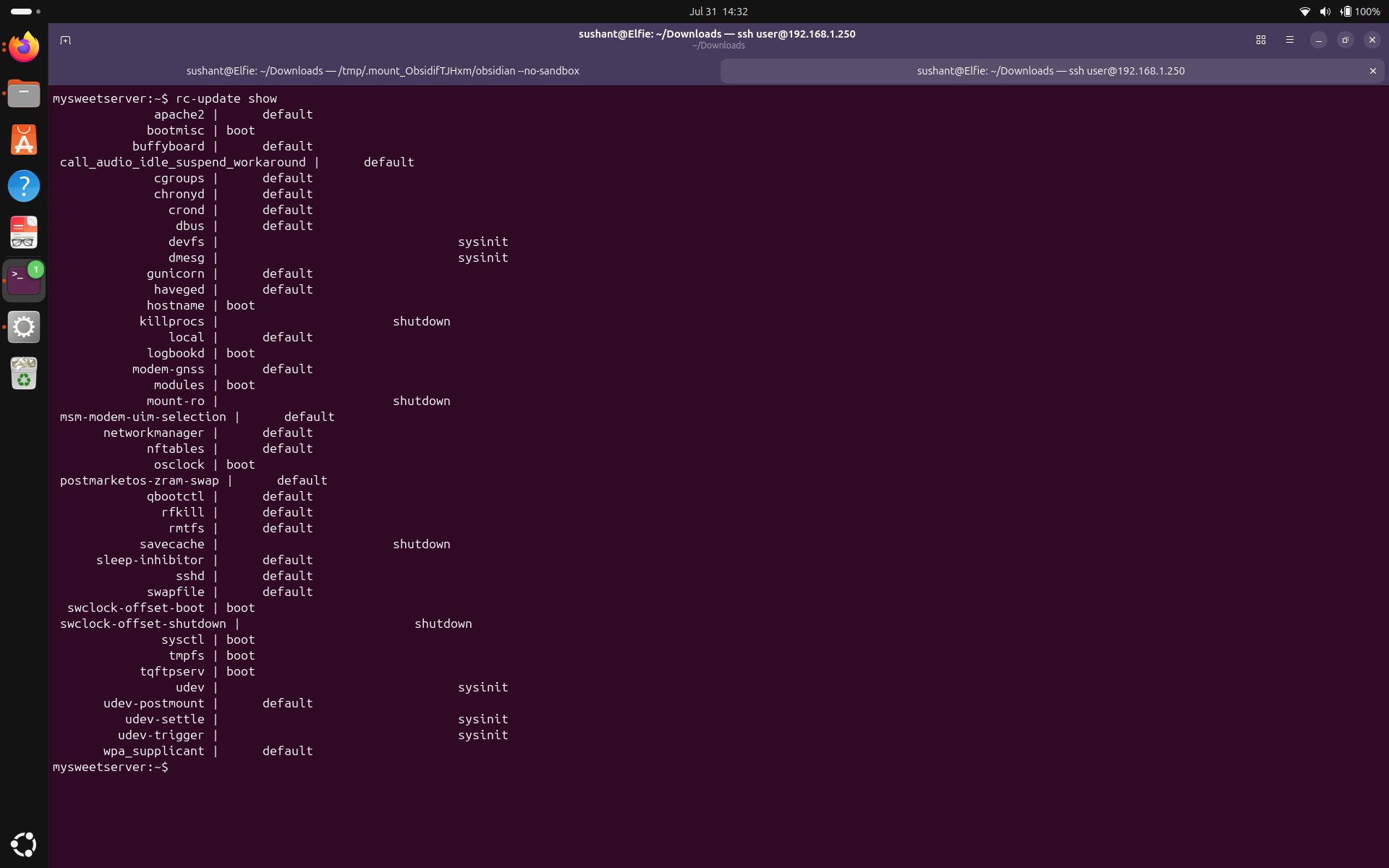 I see services operating on four different runlevels. sysinint initializes the system, boot starts core system services, default starts the services for normal operating state, and shutdown is used when the system is shutting down. I can see all the services I added to the default runlevel here.
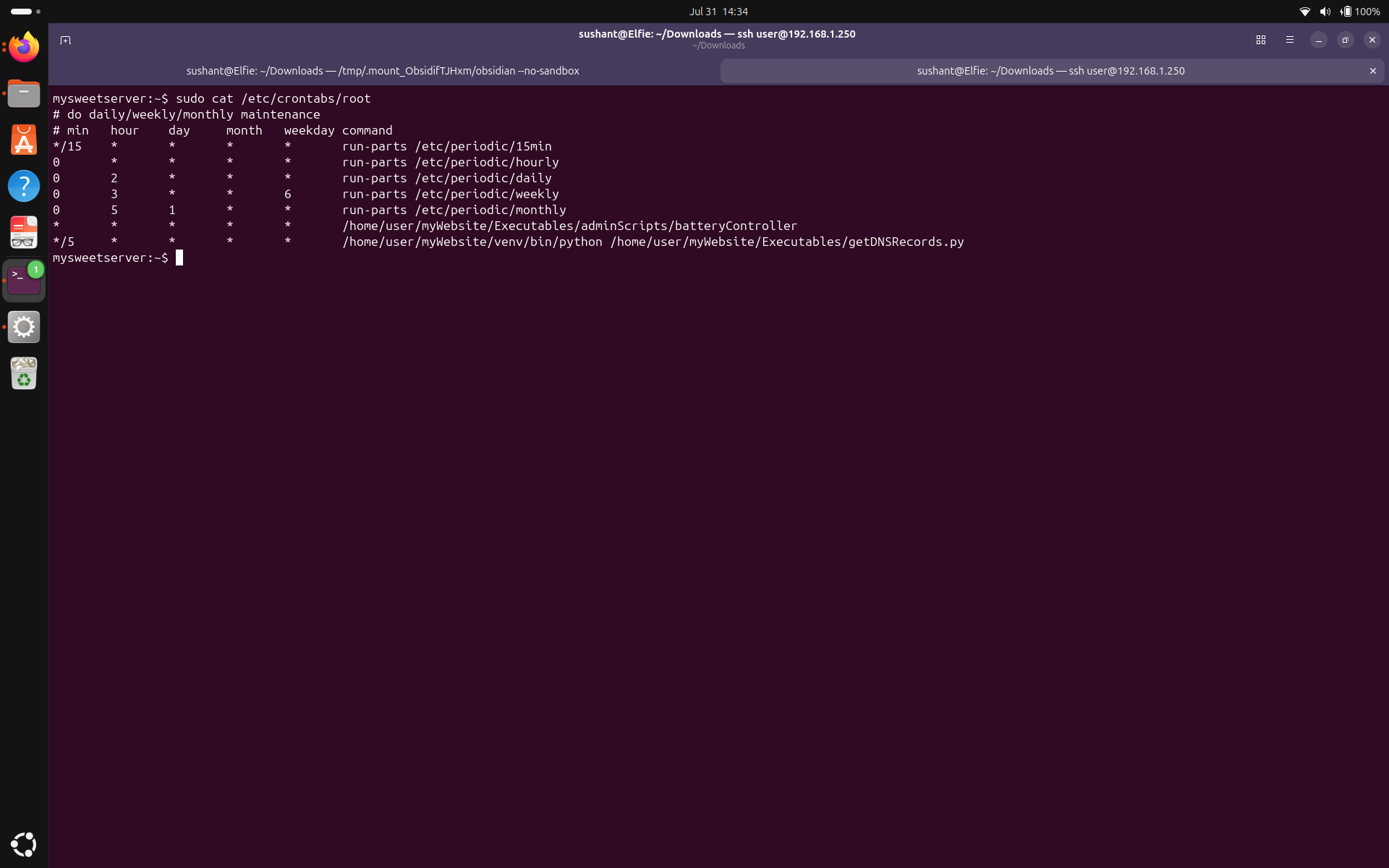
Next, let's inspect root's crontab. The first 5 jobs, I suspect came with the operating system, but the last two, battery controller, and the DDNS script were added by me.
I see services operating on four different runlevels. sysinint initializes the system, boot starts core system services, default starts the services for normal operating state, and shutdown is used when the system is shutting down. I can see all the services I added to the default runlevel here.
Next, let's inspect root's crontab. The first 5 jobs, I suspect came with the operating system, but the last two, battery controller, and the DDNS script were added by me.
 Next, let's inspect all the OpenRC services available on the system. Run
 ls /etc/init.d/
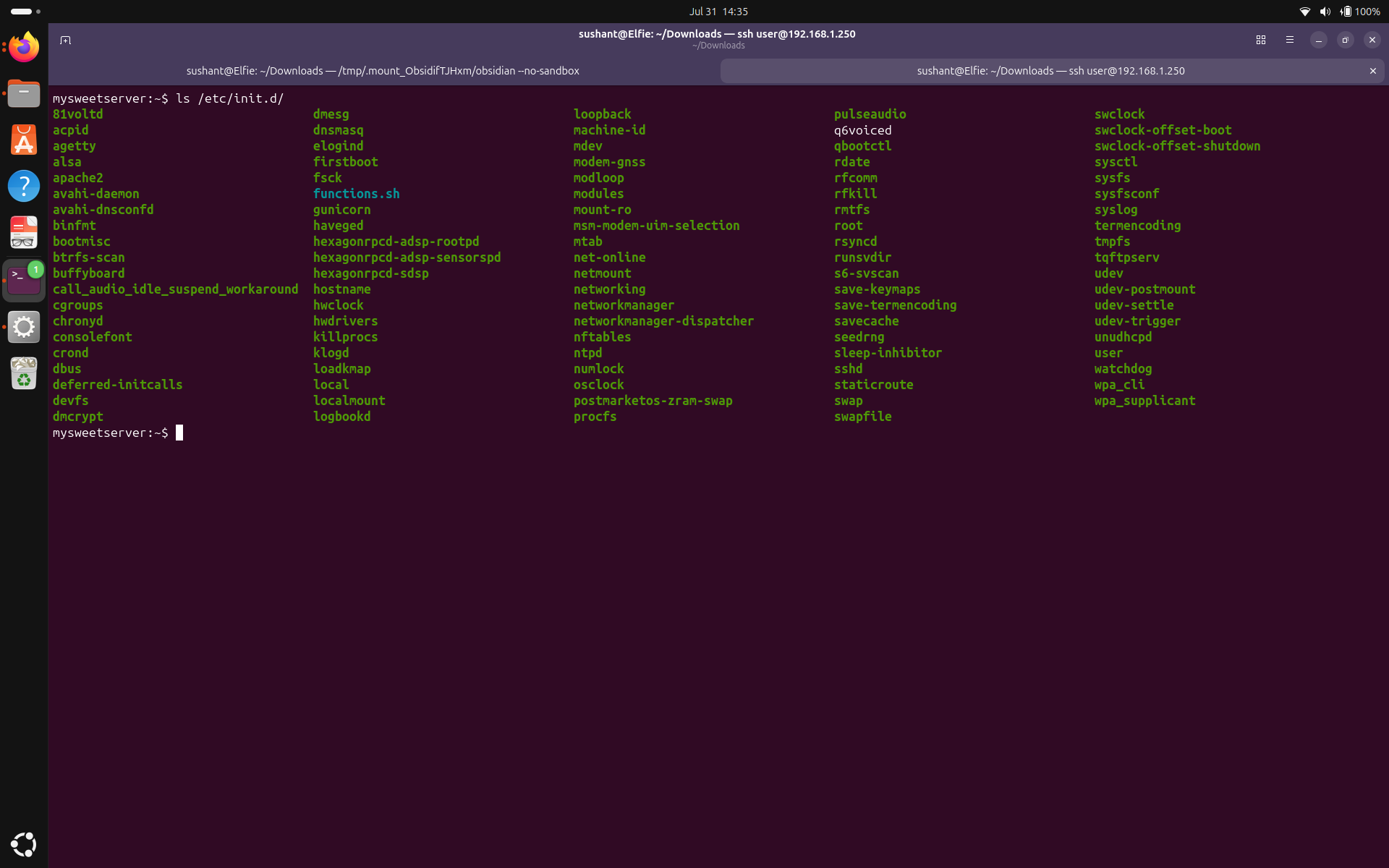 These are all the services that can be started, stopped, or added to default runlevel through OpenRC.
Note: Take a very close look at the services that are automatically initialized during boot, and cron jobs. Also, make sure init.d doesn't contain something vulnerable.
These are all the services that can be started, stopped, or added to default runlevel through OpenRC.
Note: Take a very close look at the services that are automatically initialized during boot, and cron jobs. Also, make sure init.d doesn't contain something vulnerable.
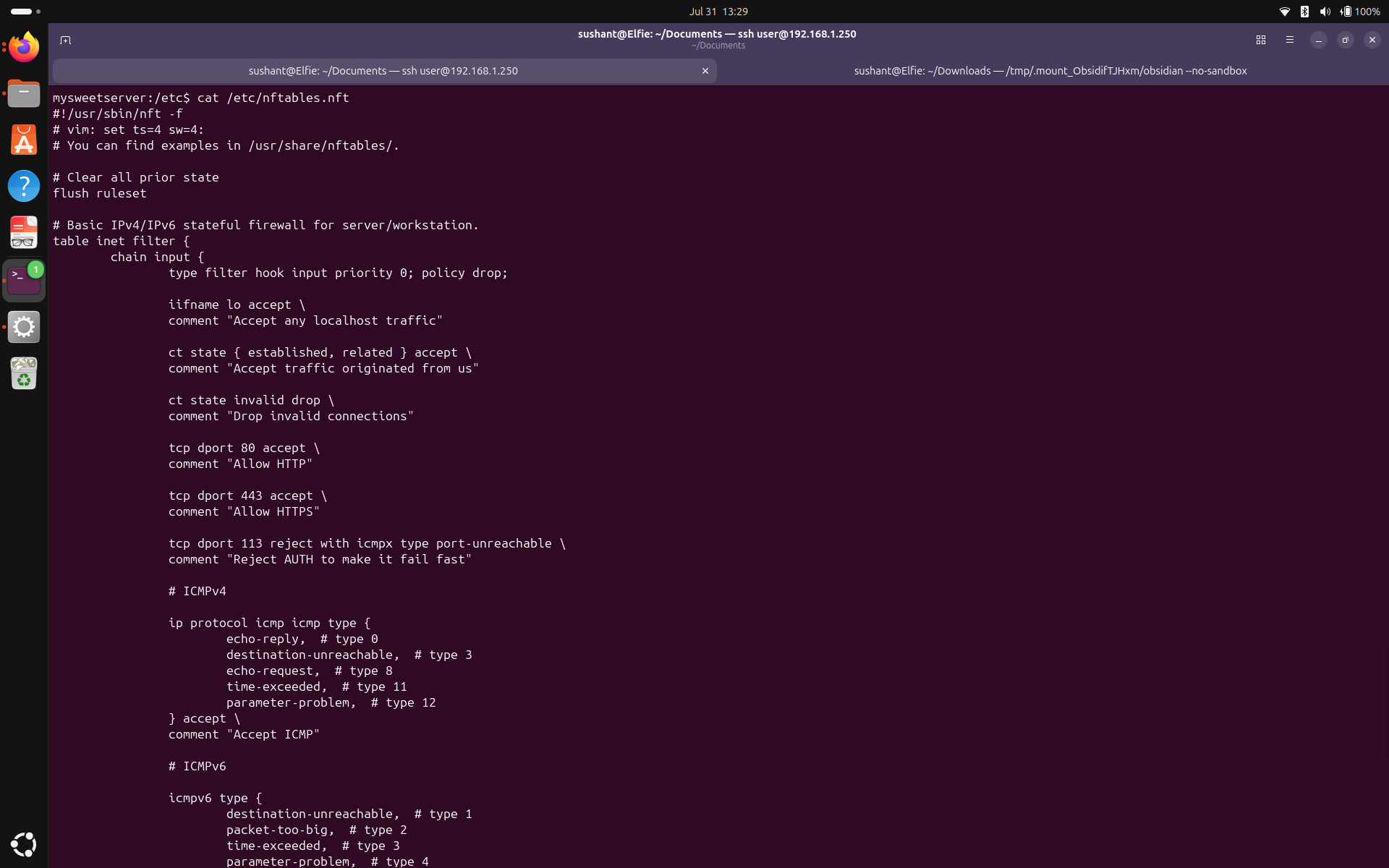
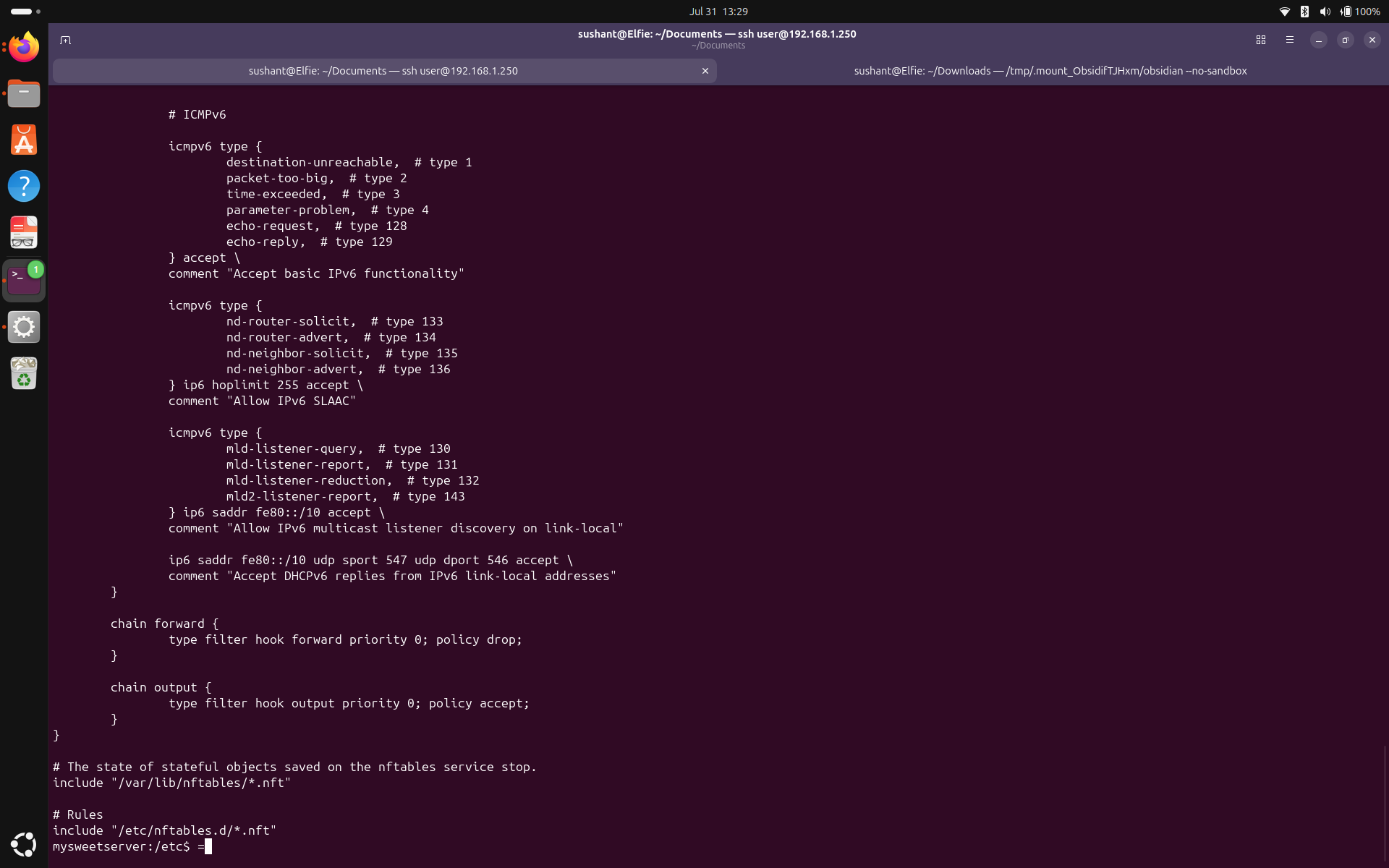 It looks like my firewall is configured to do following things:
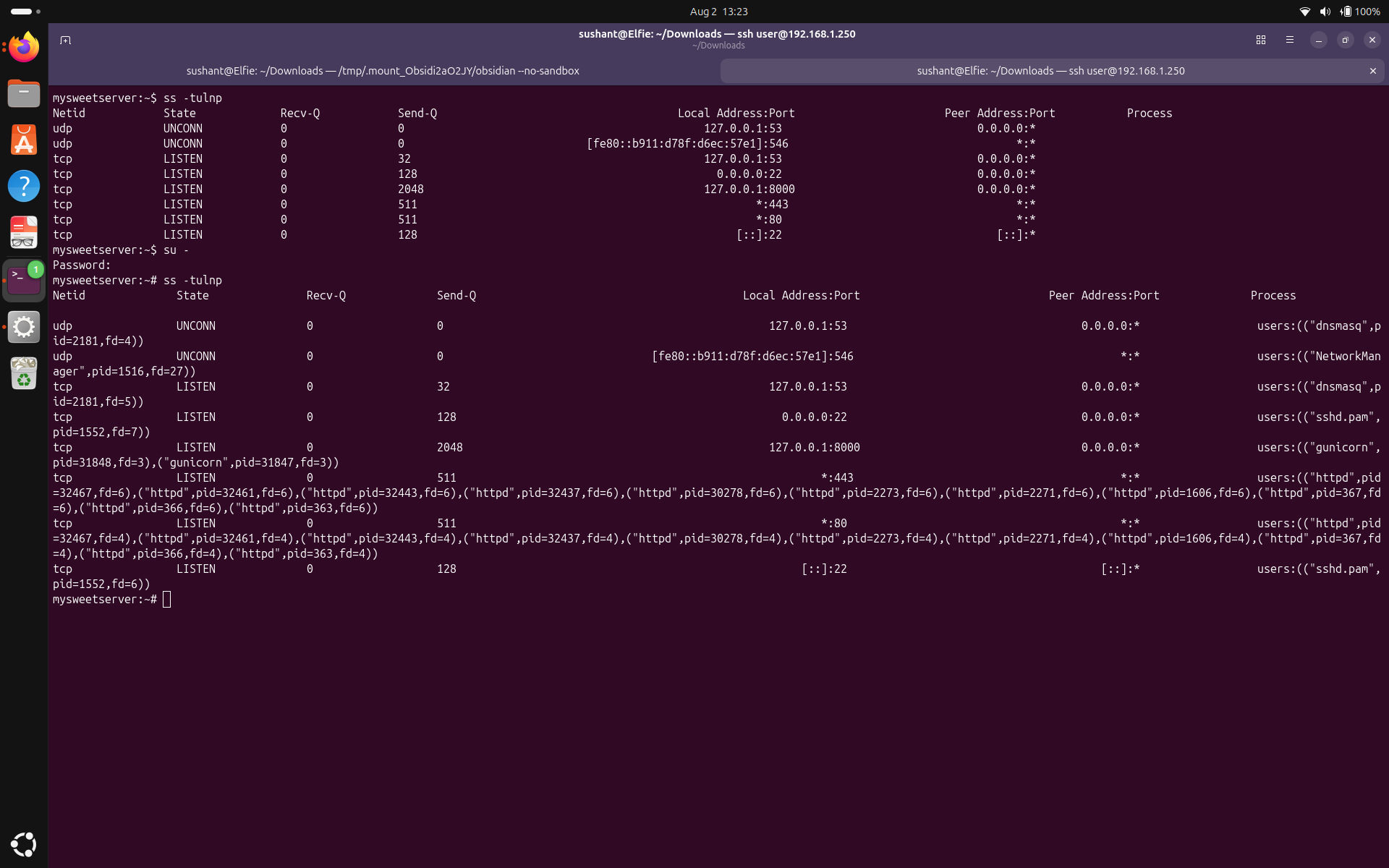 I can recognize pretty much all of these.
cat /etc/passwd.
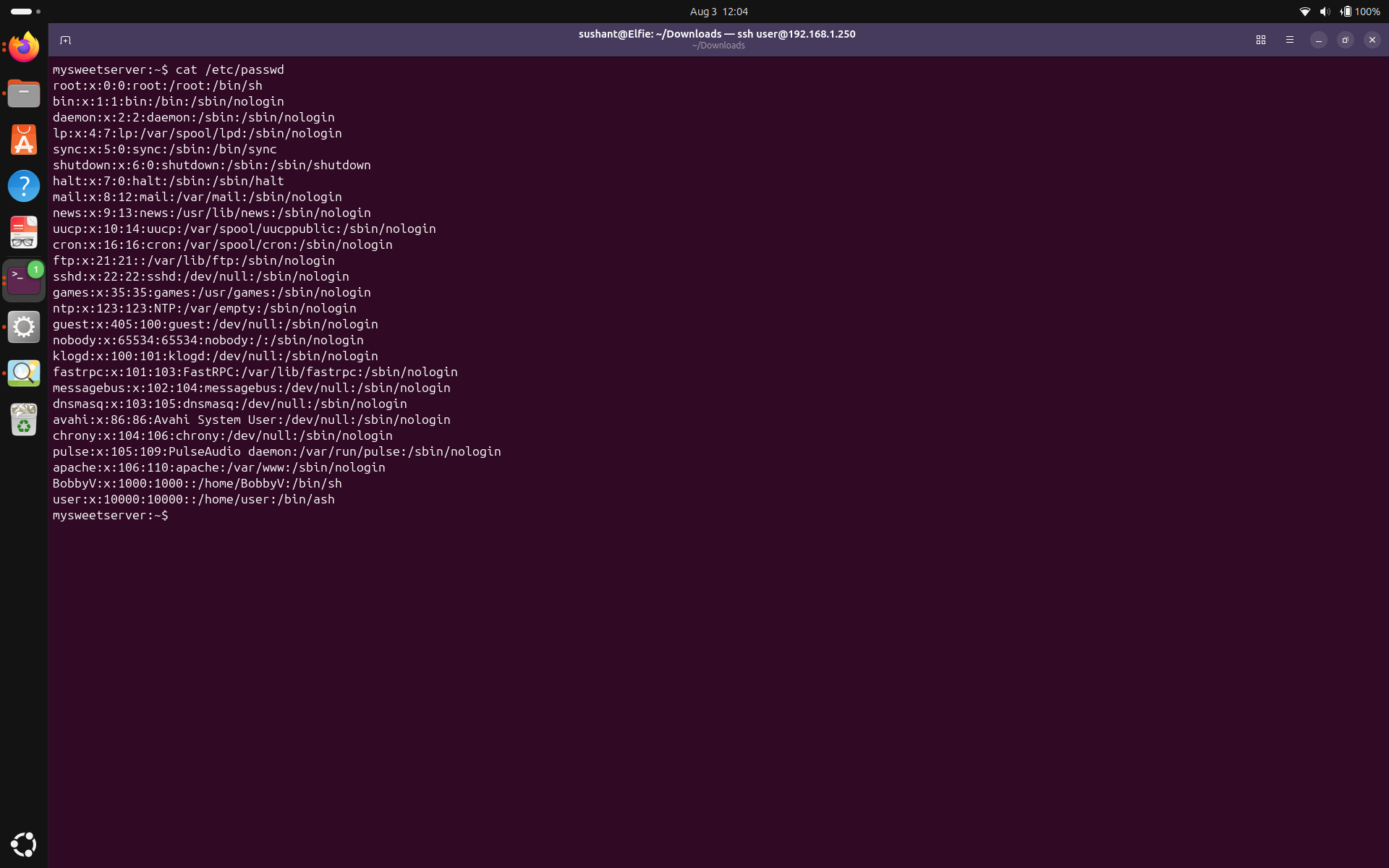 The accounts root, user, and BobbyV ending on
 /bin/sh or /bin/ash can get a shell which is expected because they are all user accounts. However, having an user account with username user is not very safe. I see sync ends in /sync, shutdown ends in /shutdown, and halt ends in /halt which is all expected behavior. For all the remaining accounts, there are some that I recognize, some that I don't but all of which end in /nologin. While further inspection is needed to make sure I recognize and want all of those accounts in the system, nothings screams obvious danger here.
Groups
Next, let's inspect groups on the system. To do this, let's run cat /etc/group. I was banging my head on the wall before I figured the file is group, not groups (I was running cat /etc/groups).
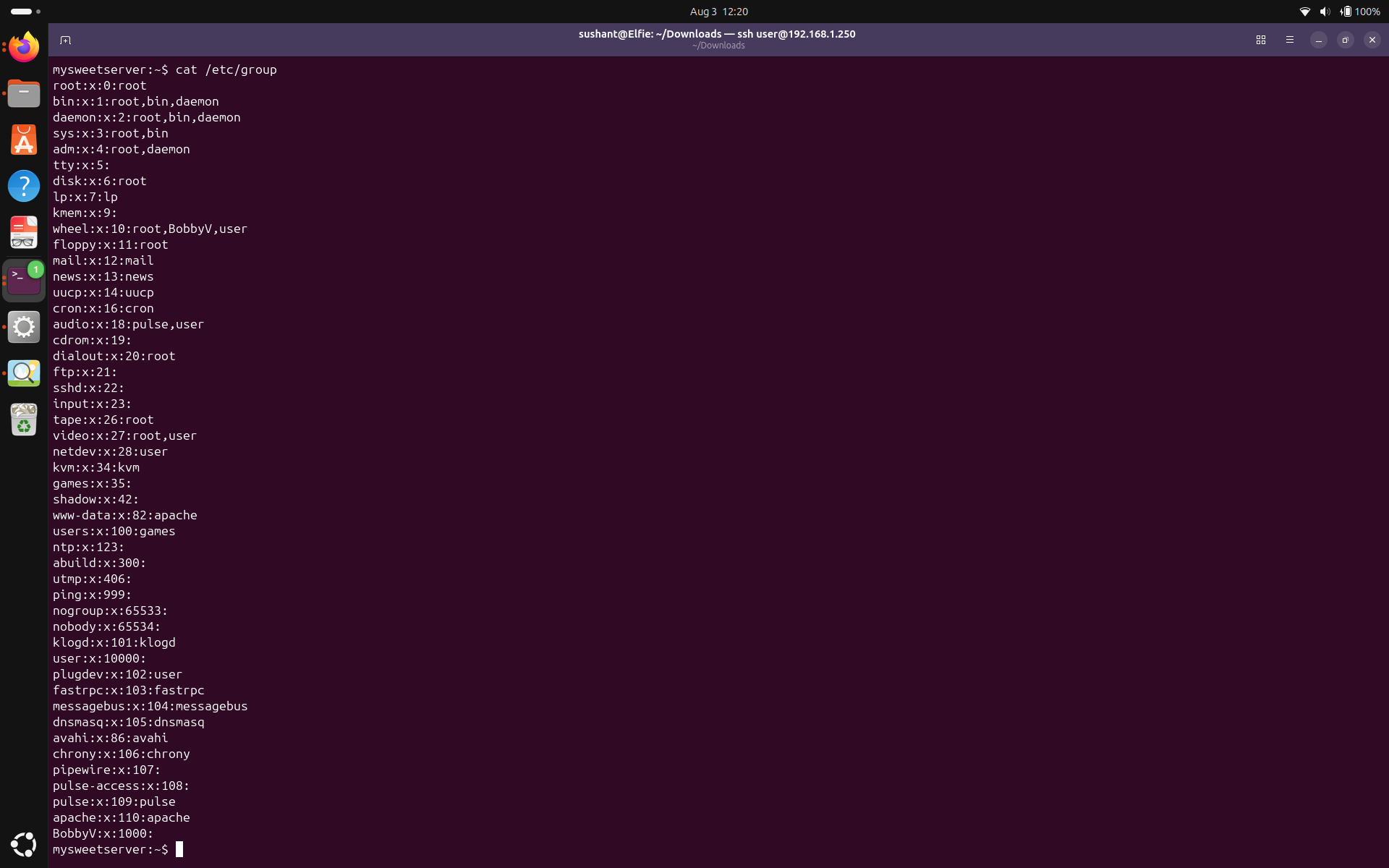 Let's look at the wheel group, which has the users who can become root. I see it has the users root, BobbyV, and user which is expected. And Again, even though I don't recognize all of these groups, and closer inspection is required, nothing here stands out so let's just move on to next assessment section.
Login Methods
Now let's take a look at login methods. We already saw in the listening ports section, ssh was listening on port 22, and was the only service listening for remote administration. So let's see how SSH is configured to handle login. Let's send test command to SSH daemon using
Let's look at the wheel group, which has the users who can become root. I see it has the users root, BobbyV, and user which is expected. And Again, even though I don't recognize all of these groups, and closer inspection is required, nothing here stands out so let's just move on to next assessment section.
Login Methods
Now let's take a look at login methods. We already saw in the listening ports section, ssh was listening on port 22, and was the only service listening for remote administration. So let's see how SSH is configured to handle login. Let's send test command to SSH daemon using sshd -t, and pipe the output to grep to filter for appropriate results. You might have to play around to see what gives you the most reliable results but what worked for me was sudo sshd -T | grep -Ei 'key|root|password' .
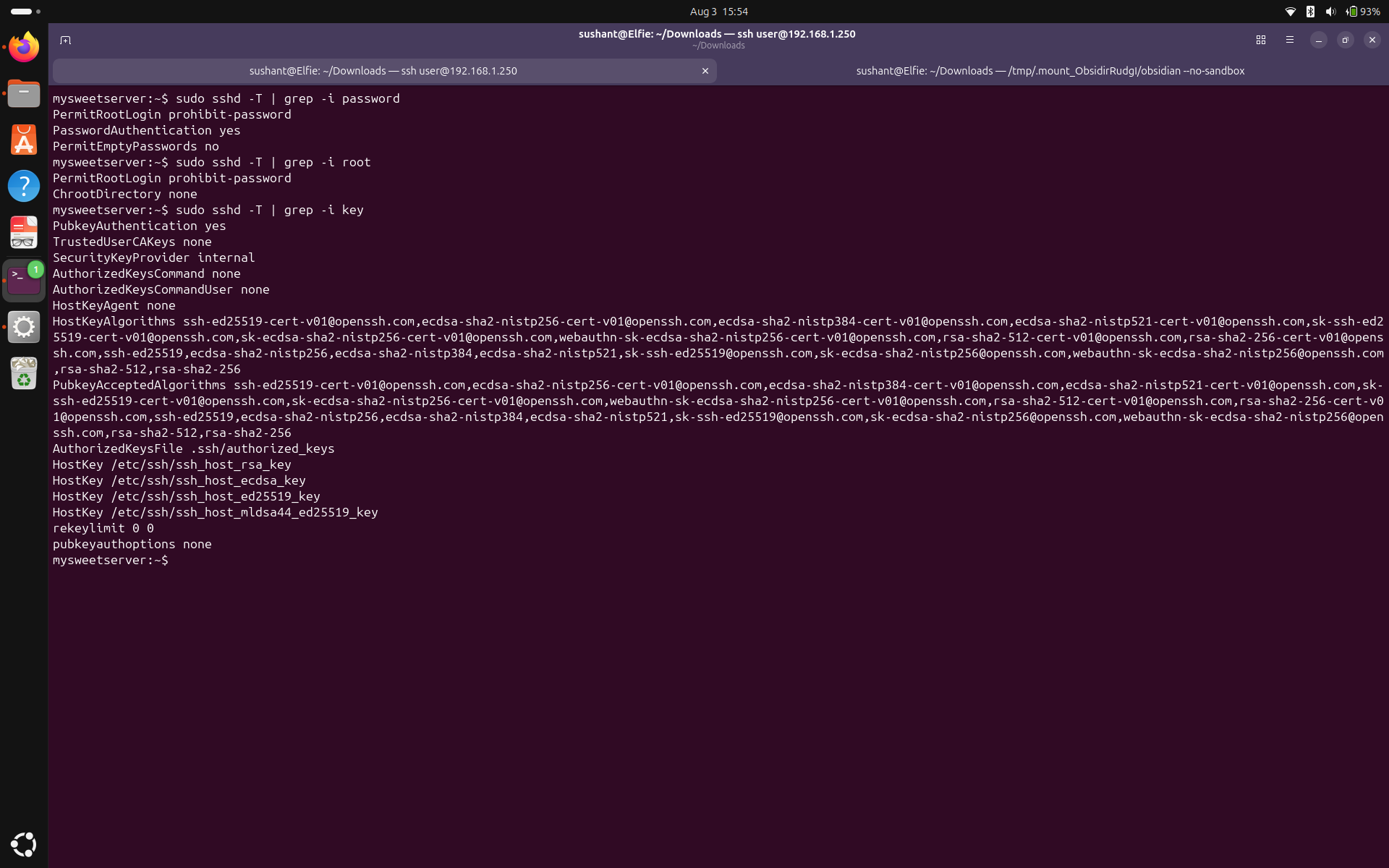 We can see that Root cannot login using password but can login using SSH key. However, the safest implementation is to disable root login entirely. We can see that password authentication is enabled. Empty passwords are not allowed. Public key authentication is accepted.
Let's inspect SSH keys for all the users. I am doing this from root account and manually taking a look at the .ssh directory for each user. Run
We can see that Root cannot login using password but can login using SSH key. However, the safest implementation is to disable root login entirely. We can see that password authentication is enabled. Empty passwords are not allowed. Public key authentication is accepted.
Let's inspect SSH keys for all the users. I am doing this from root account and manually taking a look at the .ssh directory for each user. Run ls /home/userName/.ssh.
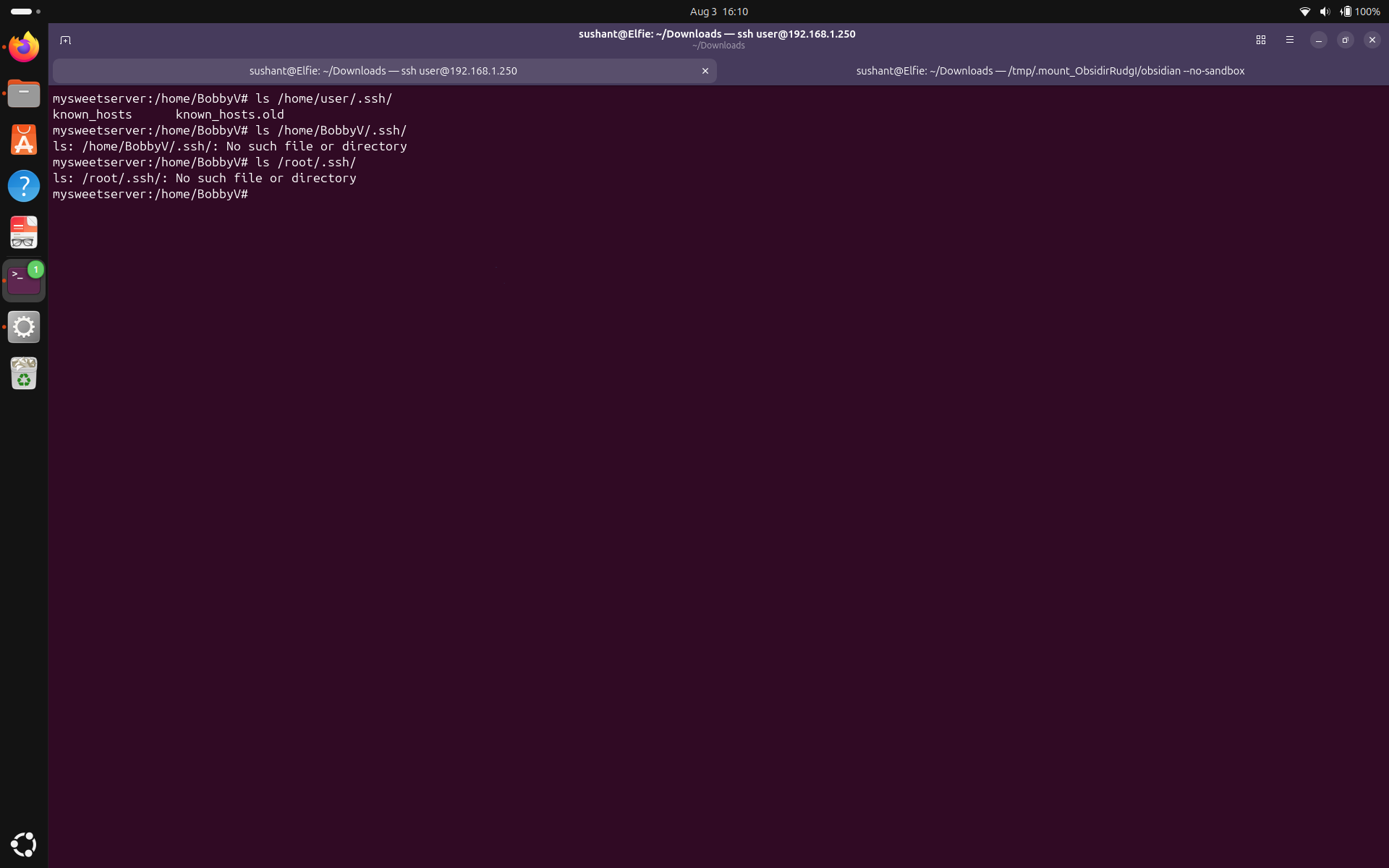 I see user has known_hosts file but no ssh keys. Root and BobbyV don't even have the .ssh directory meaning SSH keys aren't configured for any of the accounts.
Note: Change the username 'user'. Inspect all the users and groups. Consider disabling remote root login. Consider adding SSH keys for the user accounts.
I see user has known_hosts file but no ssh keys. Root and BobbyV don't even have the .ssh directory meaning SSH keys aren't configured for any of the accounts.
Note: Change the username 'user'. Inspect all the users and groups. Consider disabling remote root login. Consider adding SSH keys for the user accounts.
httpd-v and cat /etc/passwd | grep apache
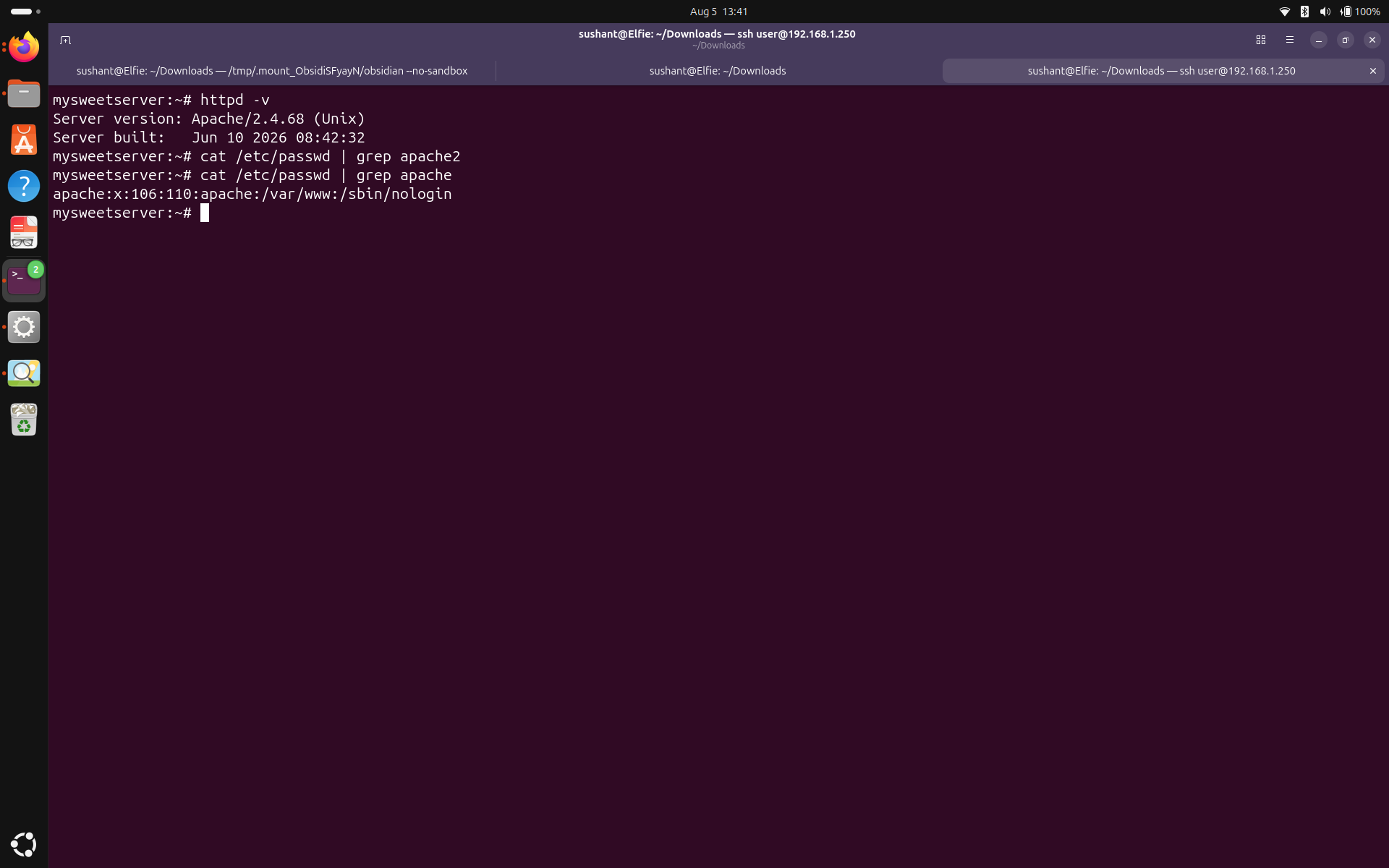 We see the running version is Apache/2.4.68 (Unix), and it is running as apache service account. We already know it is listening for all incoming connections on port 80 and 443.
Modules
We know that Apache's binary is httpd. Let's run
We see the running version is Apache/2.4.68 (Unix), and it is running as apache service account. We already know it is listening for all incoming connections on port 80 and 443.
Modules
We know that Apache's binary is httpd. Let's run httpd -M to inspect installed modules in Apache.
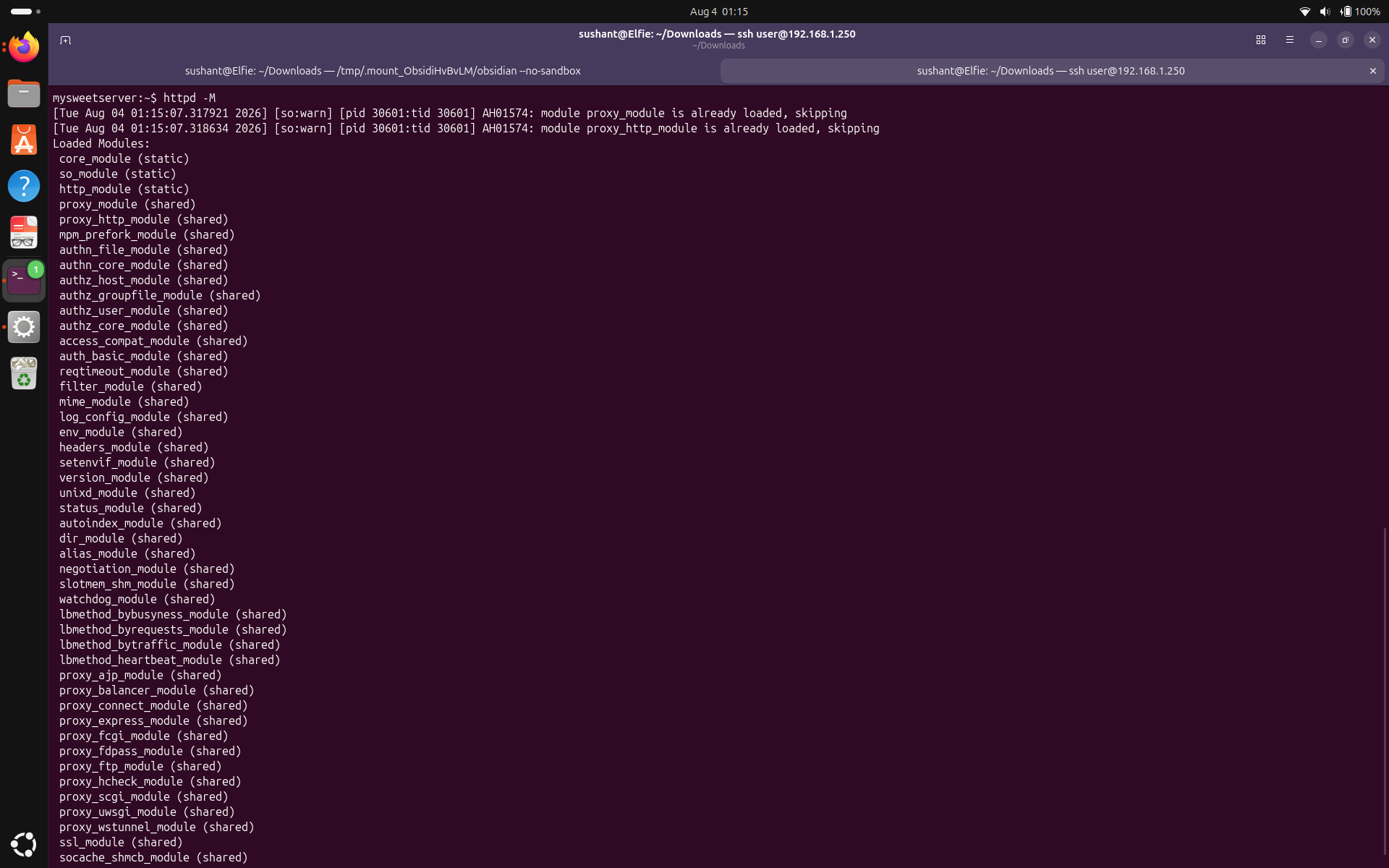 Again, I don't recognize all of these, I can see some proxy modules, some authorization and authentication modules, some familiar names like ssl_module, core_module etc. I don't think that I need all of these just to run my server, but none of these look like an obvious threat, so even though further investigation is required, let's move on for now.
HTTP to HTTPS redirection
To check for HTTP to HTTPS redirection, we can simply go to http://sushantadk.com and if the link automatically turns to https://sushantadk.com, the redirection is enabled. I tried this and the HTTP link did change to HTTPS so the redirection is enabled. But wait a minute. Is the redirection being done from the Cloudflare's orange cloud or the server? To check this, run
Again, I don't recognize all of these, I can see some proxy modules, some authorization and authentication modules, some familiar names like ssl_module, core_module etc. I don't think that I need all of these just to run my server, but none of these look like an obvious threat, so even though further investigation is required, let's move on for now.
HTTP to HTTPS redirection
To check for HTTP to HTTPS redirection, we can simply go to http://sushantadk.com and if the link automatically turns to https://sushantadk.com, the redirection is enabled. I tried this and the HTTP link did change to HTTPS so the redirection is enabled. But wait a minute. Is the redirection being done from the Cloudflare's orange cloud or the server? To check this, run curl -I http://yourPublicIPAddress
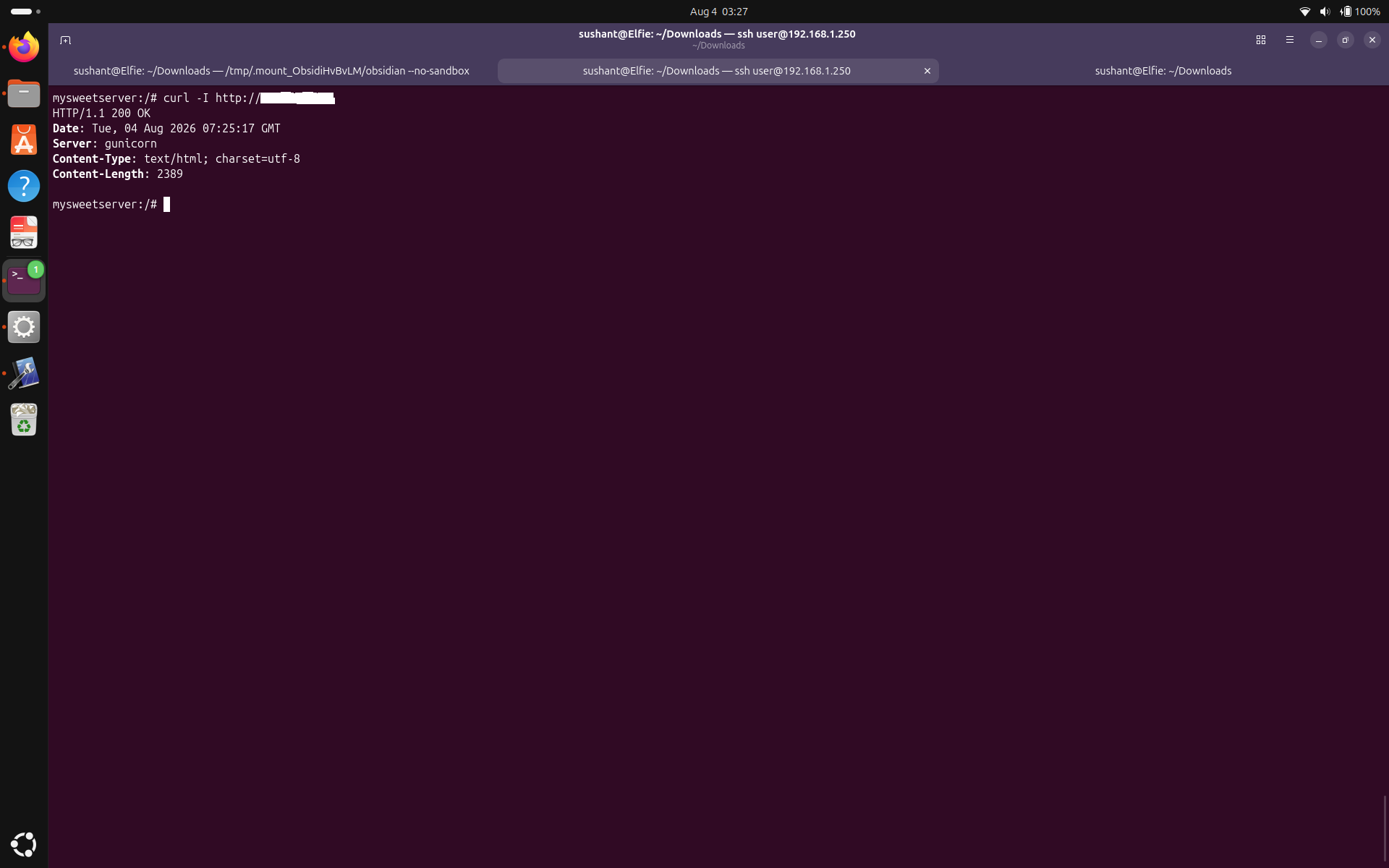 This means that Cloudflare is redirecting HTTP traffic to HTTPS but the server is not. It means that if someone accesses the server from using the public IP address, bypassing Cloudflare, they can get a HTTP connection.
Certificate
A digital certificate is crucial for HTTPS connections. Let's inspect the certificate installed on the server. Let's run
This means that Cloudflare is redirecting HTTP traffic to HTTPS but the server is not. It means that if someone accesses the server from using the public IP address, bypassing Cloudflare, they can get a HTTP connection.
Certificate
A digital certificate is crucial for HTTPS connections. Let's inspect the certificate installed on the server. Let's run openssl s_client -connect sushantadk.com:443 -servername sushantadk.com.
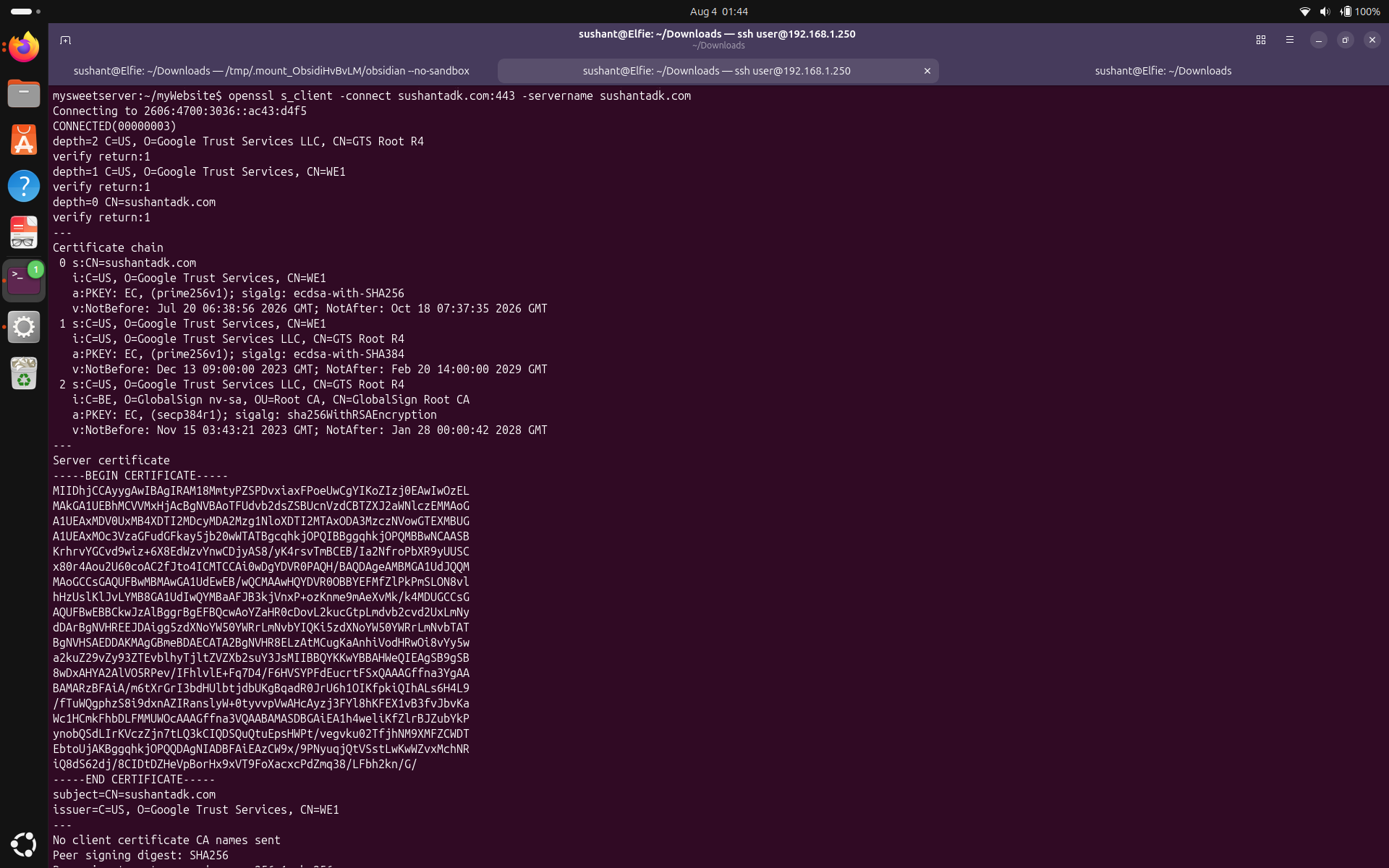 We see in the certificate chain 0, CN=sushantadk.com, the server has a Google Trust Services certificate valid until Oct 18. However, this is the certificate presented by Cloudflare. This certificate is used to secure the connection between Cloudflare and the client and is managed by Cloudflare so we don't need to worry about it's expiration and renewal. But what about the connection between the server and Cloudflare? That connection's encryption and security is handled using the certificate on the server. Let's inspect that. First, to figure out where the certificate is, run
 grep -R "SSLCertificate" /etc/apache2/.
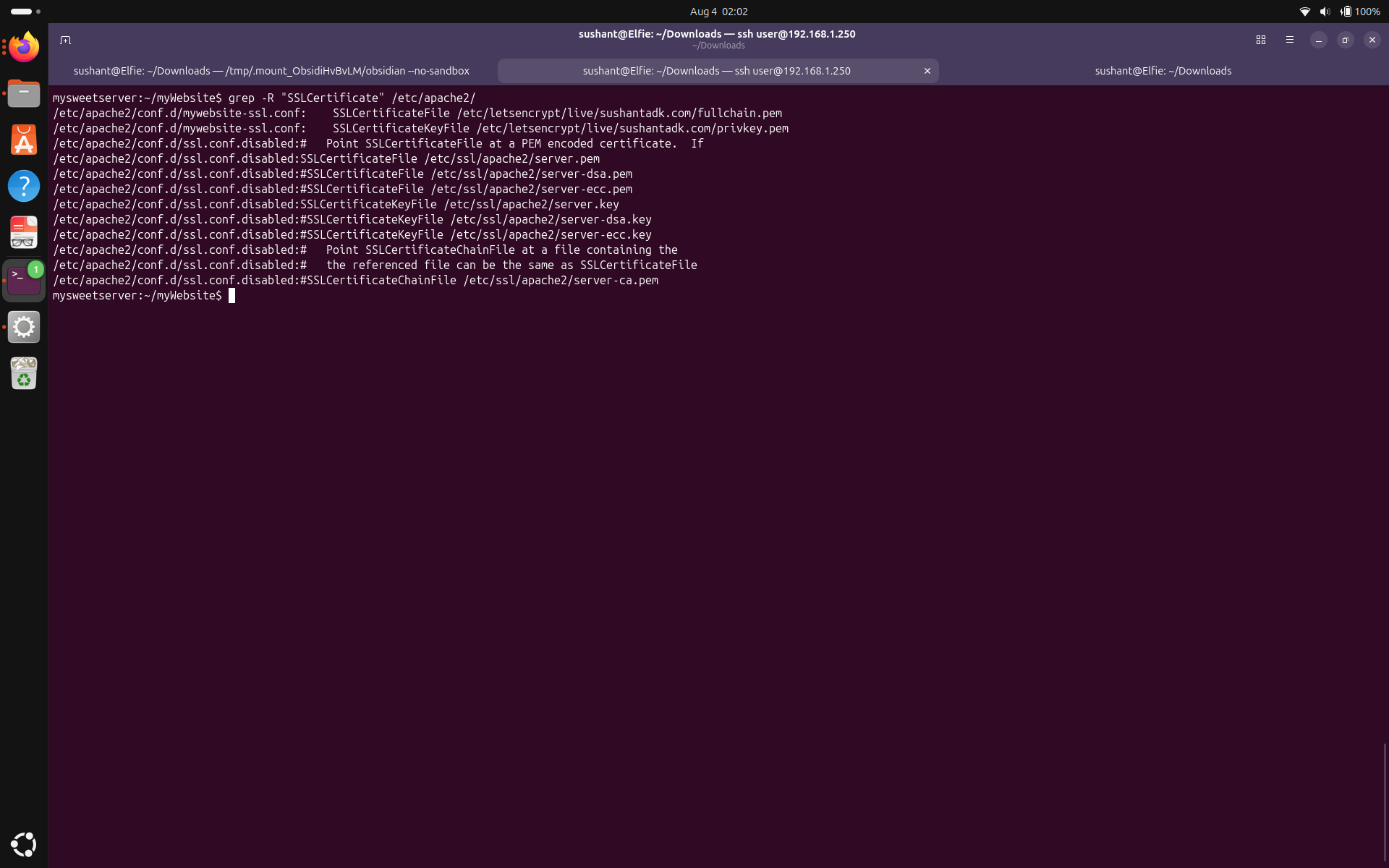 We see that the certificate was issued by Let's Encrypt. Let's go to
 /etc/letsencrypt/live/sushantadk.com/ and run cat README. It has some helpful information and reveals that certbot is handling the certificate on the server.
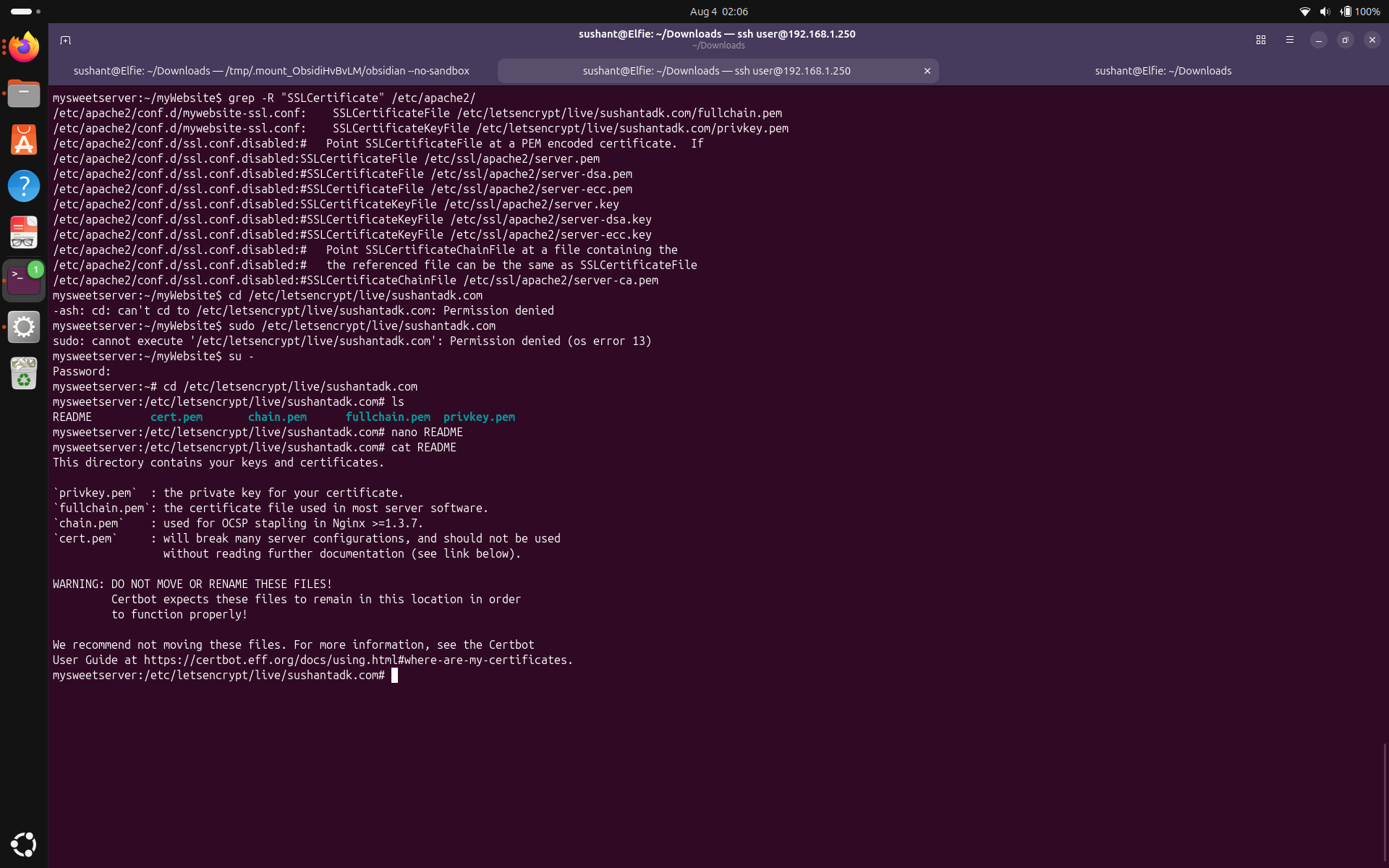 From the same directory, let's run
 openssl x509 -in fullchain.pem -noout -dates to see when the certificate expires.
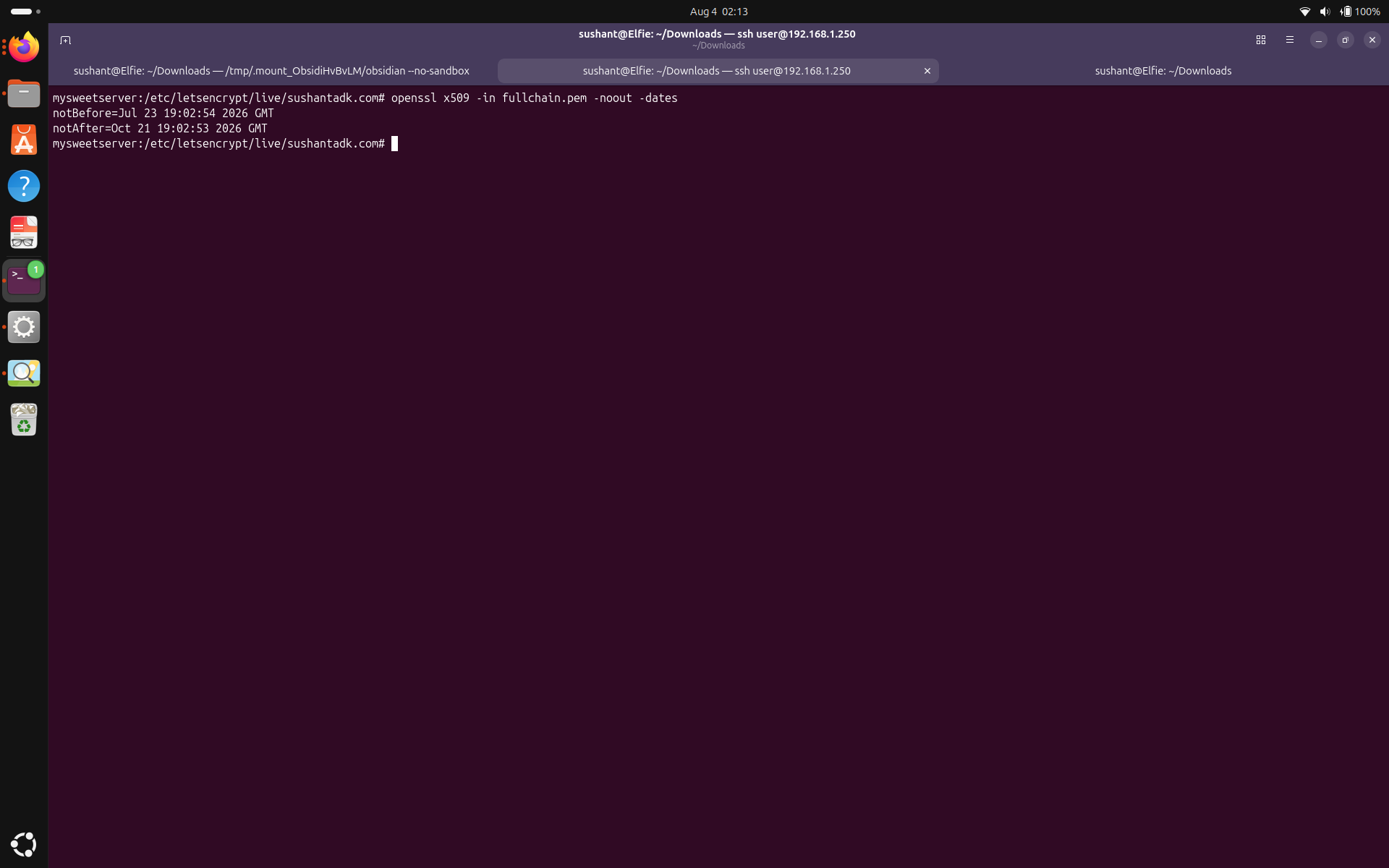 It looks like the certificate expires on Oct 21. Since we already know certbot manages this certificate, let's see if the renewal is automated.
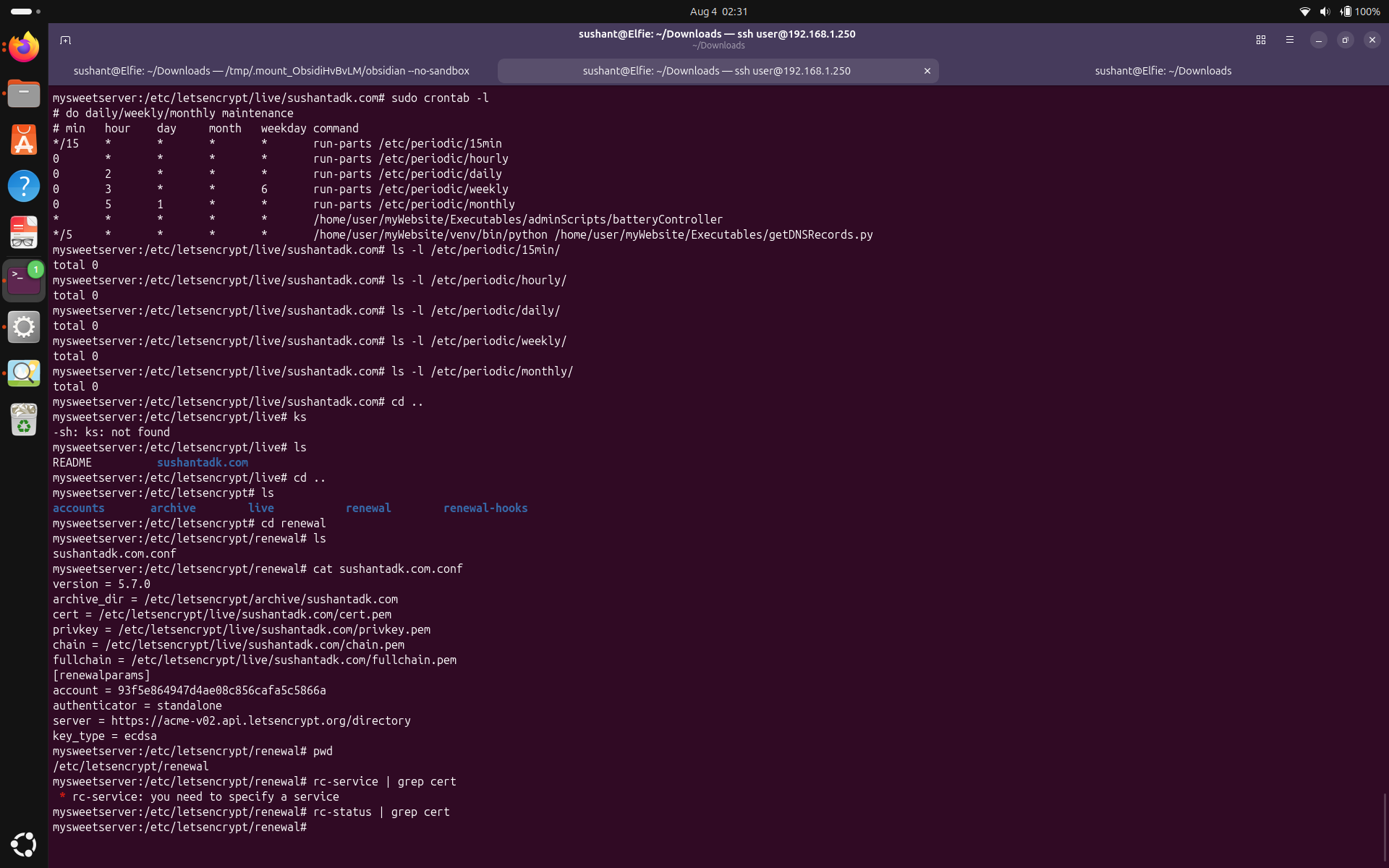 I inspected the crontab but there wasn't a script from certbot. Also there doesn't seem to be an OpenRC service monitoring this. I took a look at the
 /etc/letsencrypt/renewal/sushantadk.conf file and saw that certbot was using standalone authenticator. Meaning, certbot runs it's own server, performs its checks and then grants the certificate. Let's check if it can do that. Run certbot renew --dry-run to simulate a certificate renewal.
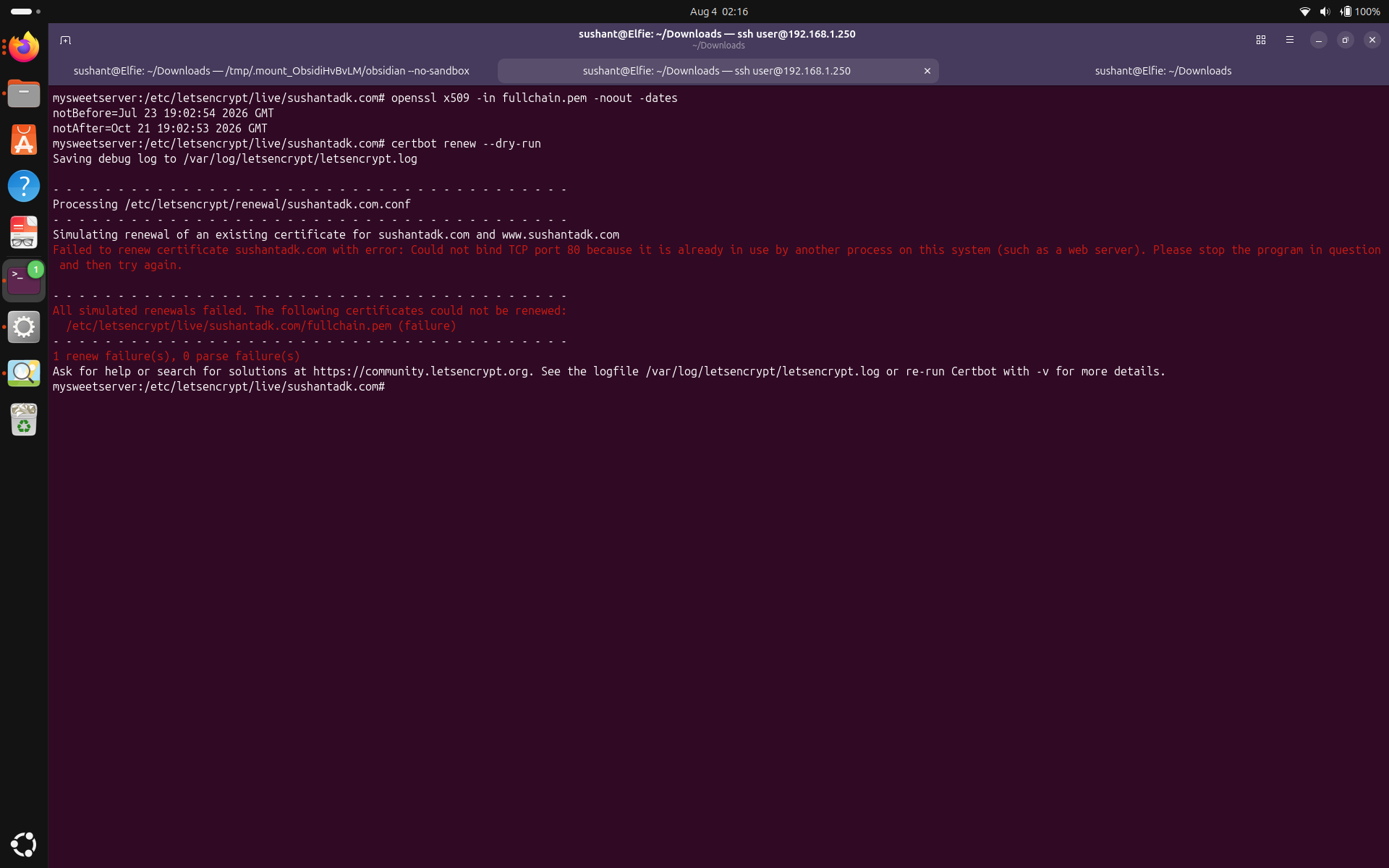 It appears that certbot uses port 80 to renew the certificate but because another service (apache) is already using the port, it could not bind to port 80 and renewal failed. Now we can be certain that on Oct 21, the renewal would've failed for 2 reasons. First, renewal isn't automated, and second, the renewal clashes with the running apache server. Whoever is managing this sever is doing a very poor job.
Finally, let's see if the server is using TLS.
It appears that certbot uses port 80 to renew the certificate but because another service (apache) is already using the port, it could not bind to port 80 and renewal failed. Now we can be certain that on Oct 21, the renewal would've failed for 2 reasons. First, renewal isn't automated, and second, the renewal clashes with the running apache server. Whoever is managing this sever is doing a very poor job.
Finally, let's see if the server is using TLS.
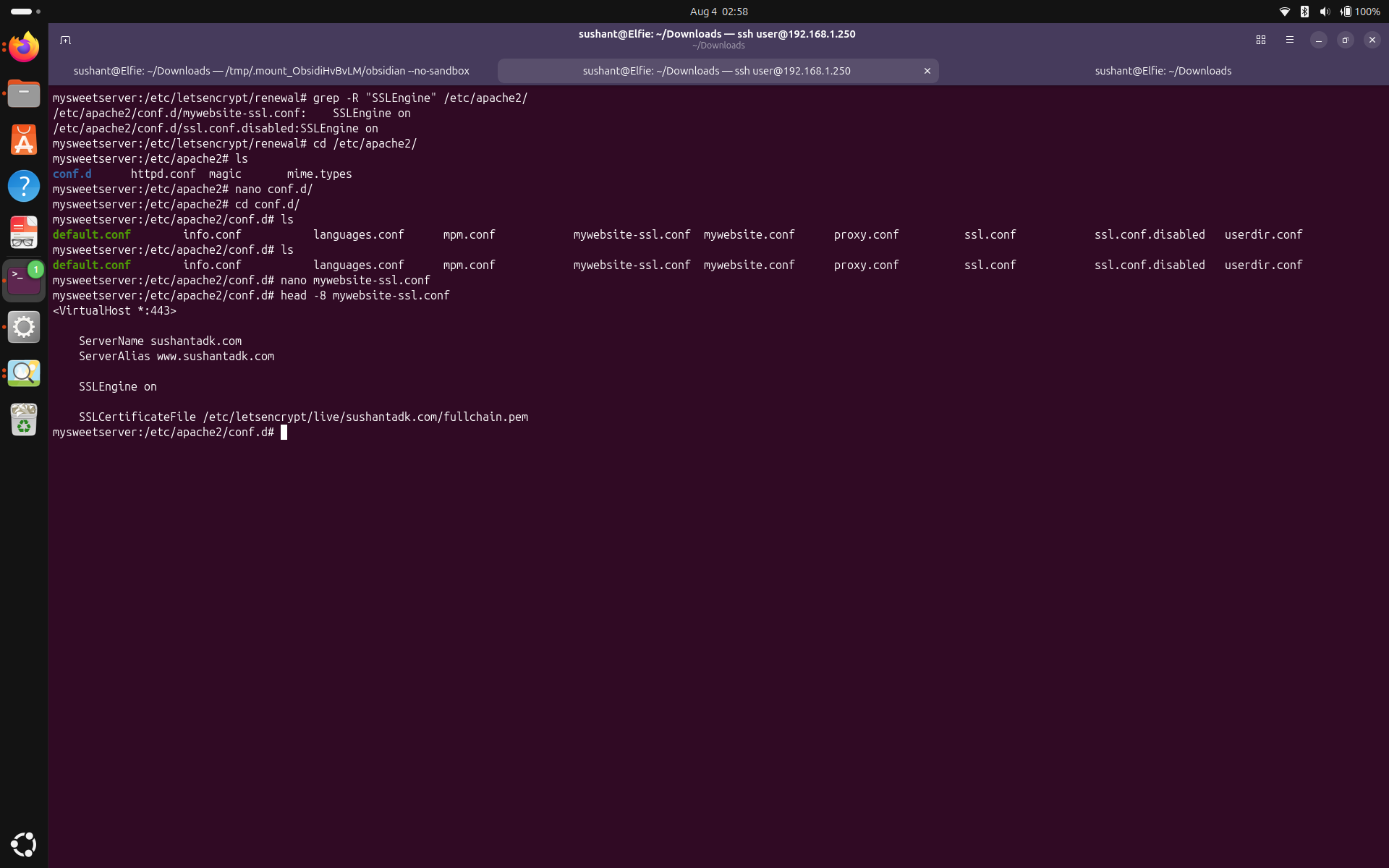 SSLEngine: on suggests that the server does use TLS on port 443 when running inside the VirtualHost. This suggests that the server also runs from the VirtualHost. If it doesn't, then it is a big problem.
Finally, let's make sure that apache starts automatically after boot. Run
SSLEngine: on suggests that the server does use TLS on port 443 when running inside the VirtualHost. This suggests that the server also runs from the VirtualHost. If it doesn't, then it is a big problem.
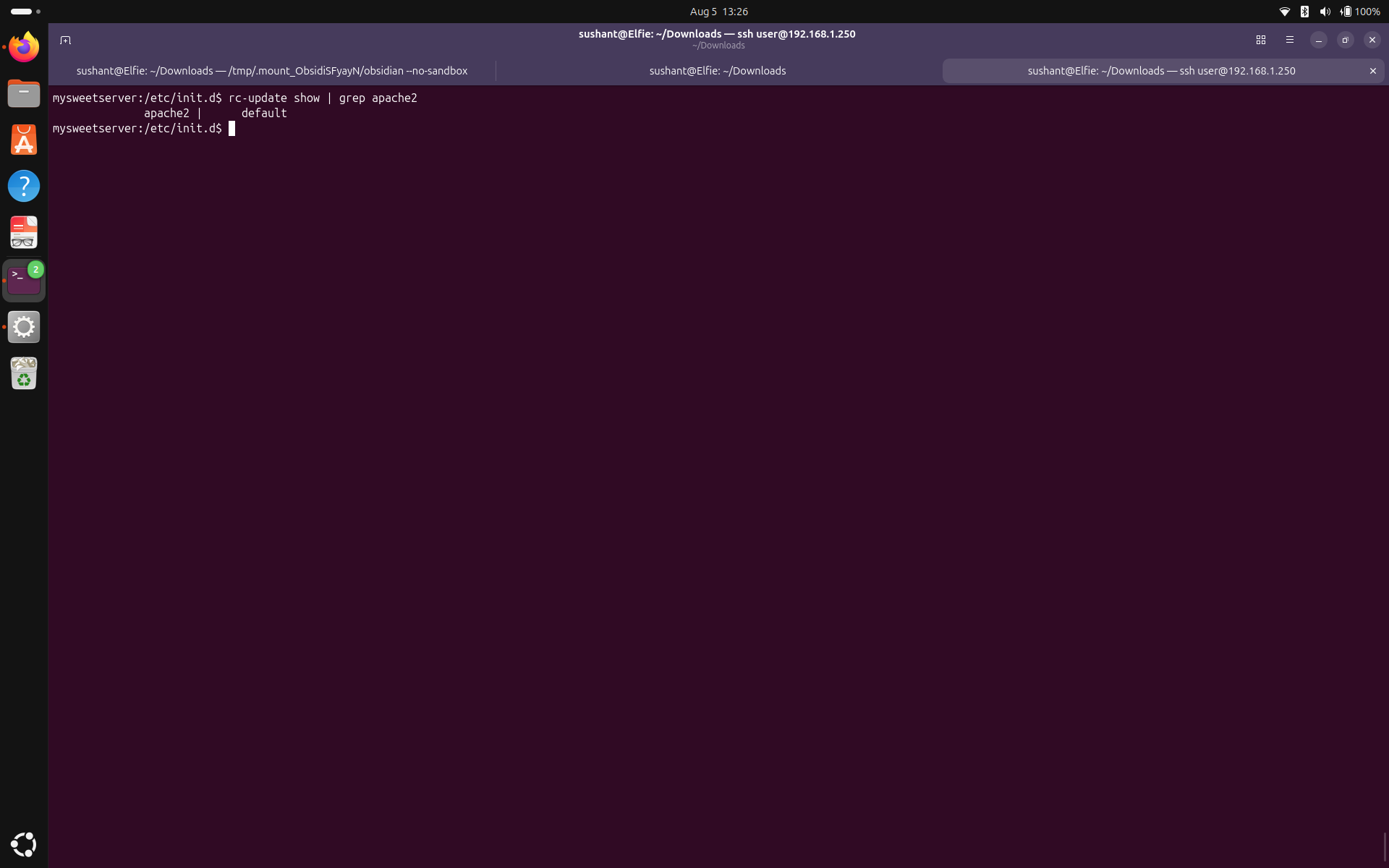
Finally, let's make sure that apache starts automatically after boot. Run rc-update show | grep apache2.
gunicorn --version and rc-update show | grep gunicorn.
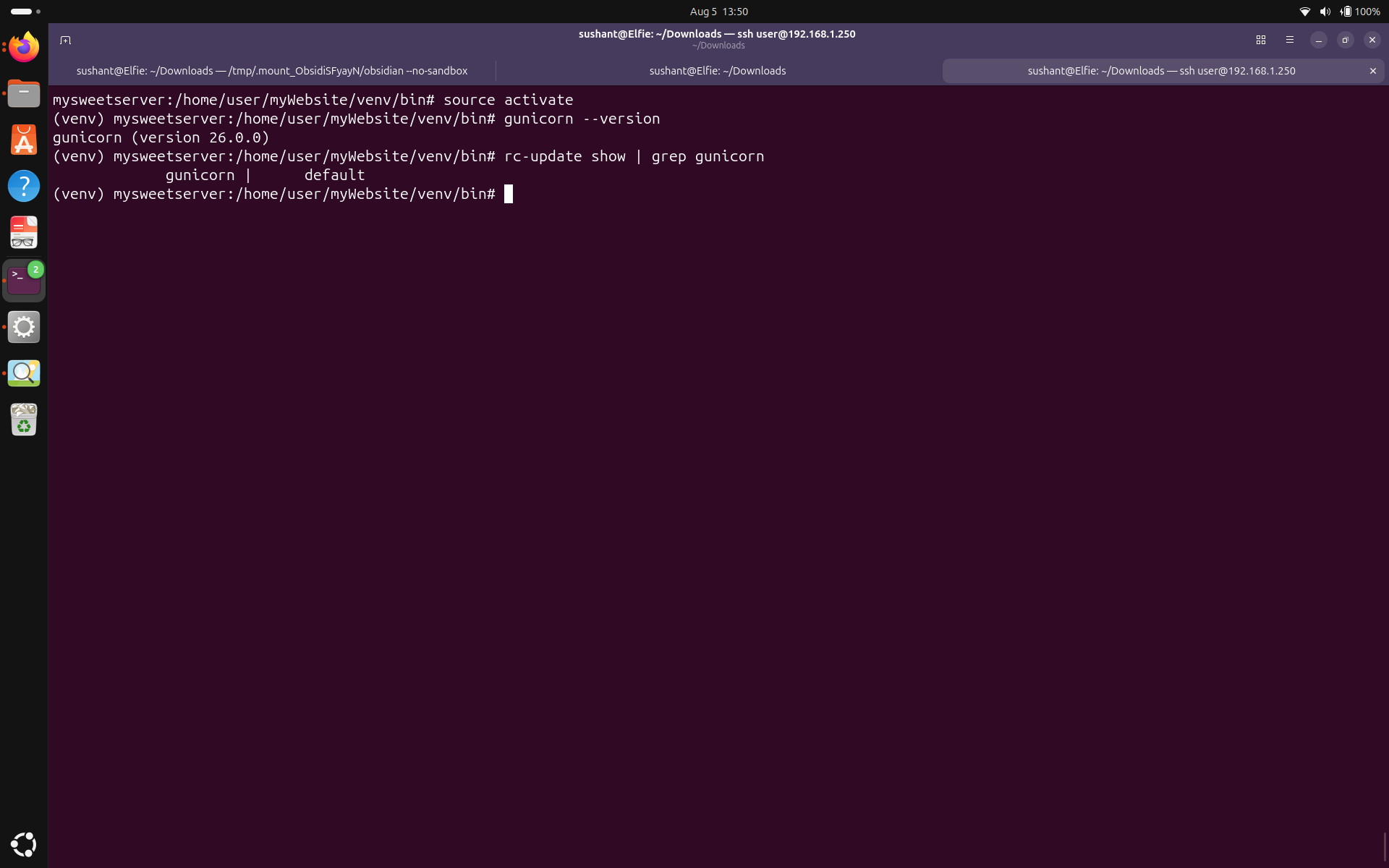 We see the running version of Gunicorn is gunicorn (version 26.0.0) and it does start at boot.
Listening sockets
Let's see where Gunicorn is listening. Run
We see the running version of Gunicorn is gunicorn (version 26.0.0) and it does start at boot.
Listening sockets
Let's see where Gunicorn is listening. Run ss -tulnp | grep gunicorn .
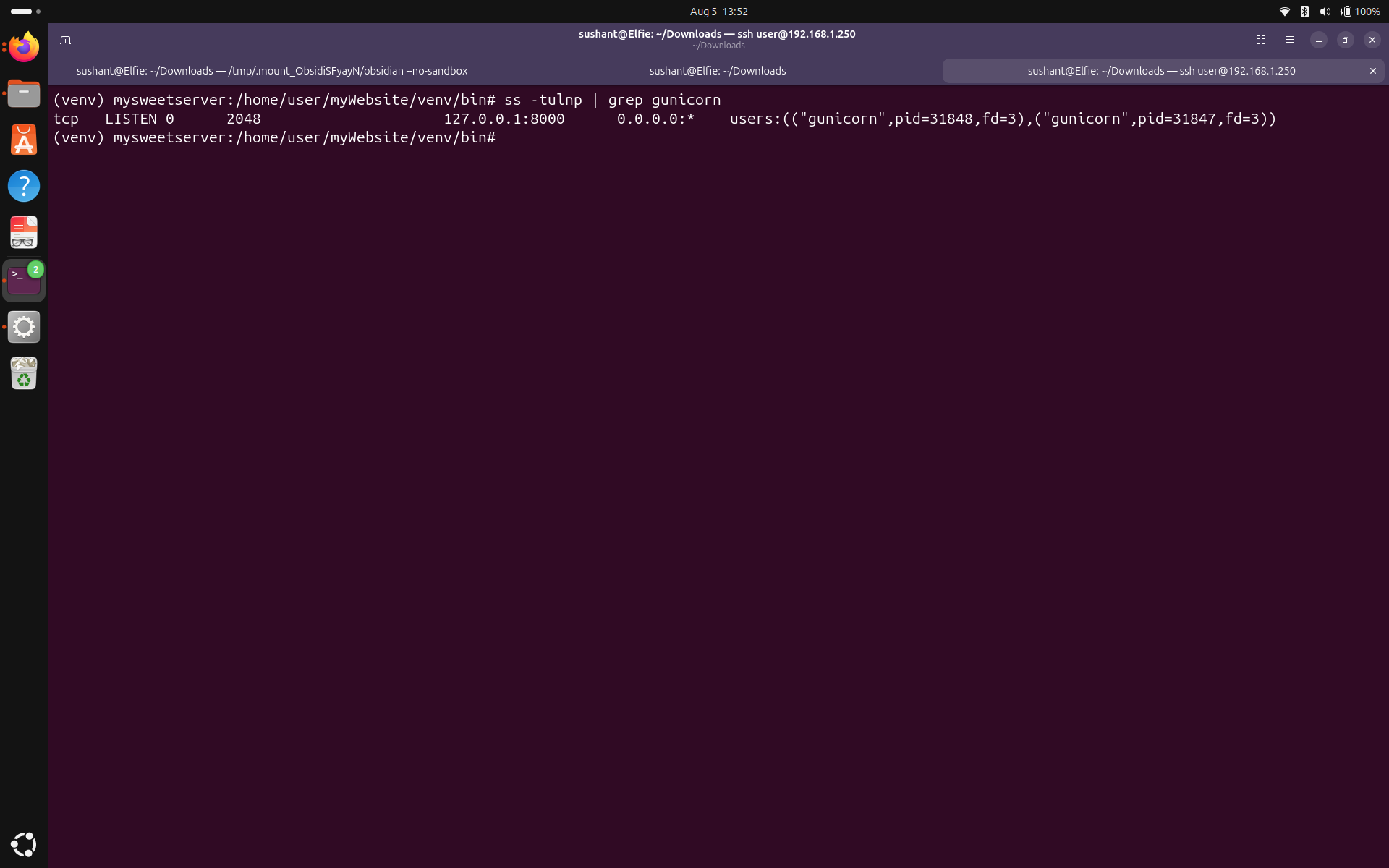 We see it is listening on the loopback address on port 8000. Meaning, it is listening on localhost port 8000. This is more secure because since Apache is already facing the internet, there is no need for Gunicorn to do the same.
User
I was unable to see what user was Gunicorn running as from
We see it is listening on the loopback address on port 8000. Meaning, it is listening on localhost port 8000. This is more secure because since Apache is already facing the internet, there is no need for Gunicorn to do the same.
User
I was unable to see what user was Gunicorn running as from cat /etc/passwd | grep gunicorn. So let's inspect the Gunicorn process currently running. Run ps | grep gunicorn.
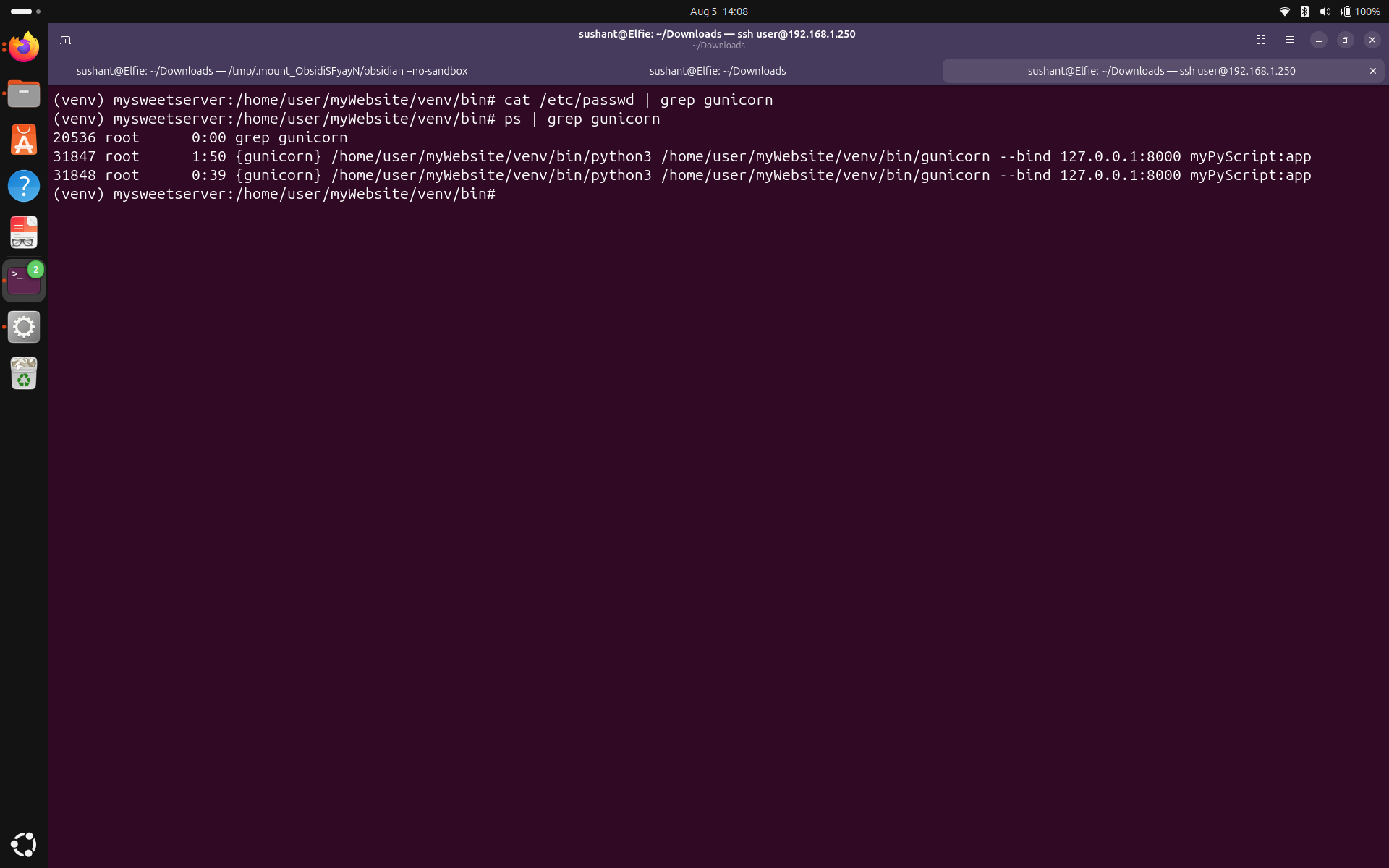 Okay here we see that gunicorn is running entirely as root. It is being started by root and running as root. Gunicorn only serves flask on an unprivileged local port, and root privileges are unnecessary for it. In case someone discovers a remote code execution vulnerability on flask, gunicorn can execute that code as root which can hand the attackers complete control of the system.
Further inspection
Gunicorn running as root raised a few alarms in my head so let'd do some further digging to see why that is. Run
Okay here we see that gunicorn is running entirely as root. It is being started by root and running as root. Gunicorn only serves flask on an unprivileged local port, and root privileges are unnecessary for it. In case someone discovers a remote code execution vulnerability on flask, gunicorn can execute that code as root which can hand the attackers complete control of the system.
Further inspection
Gunicorn running as root raised a few alarms in my head so let'd do some further digging to see why that is. Run cat /etc/init.d/gunicorn to see the initialization script for Gunicorn.
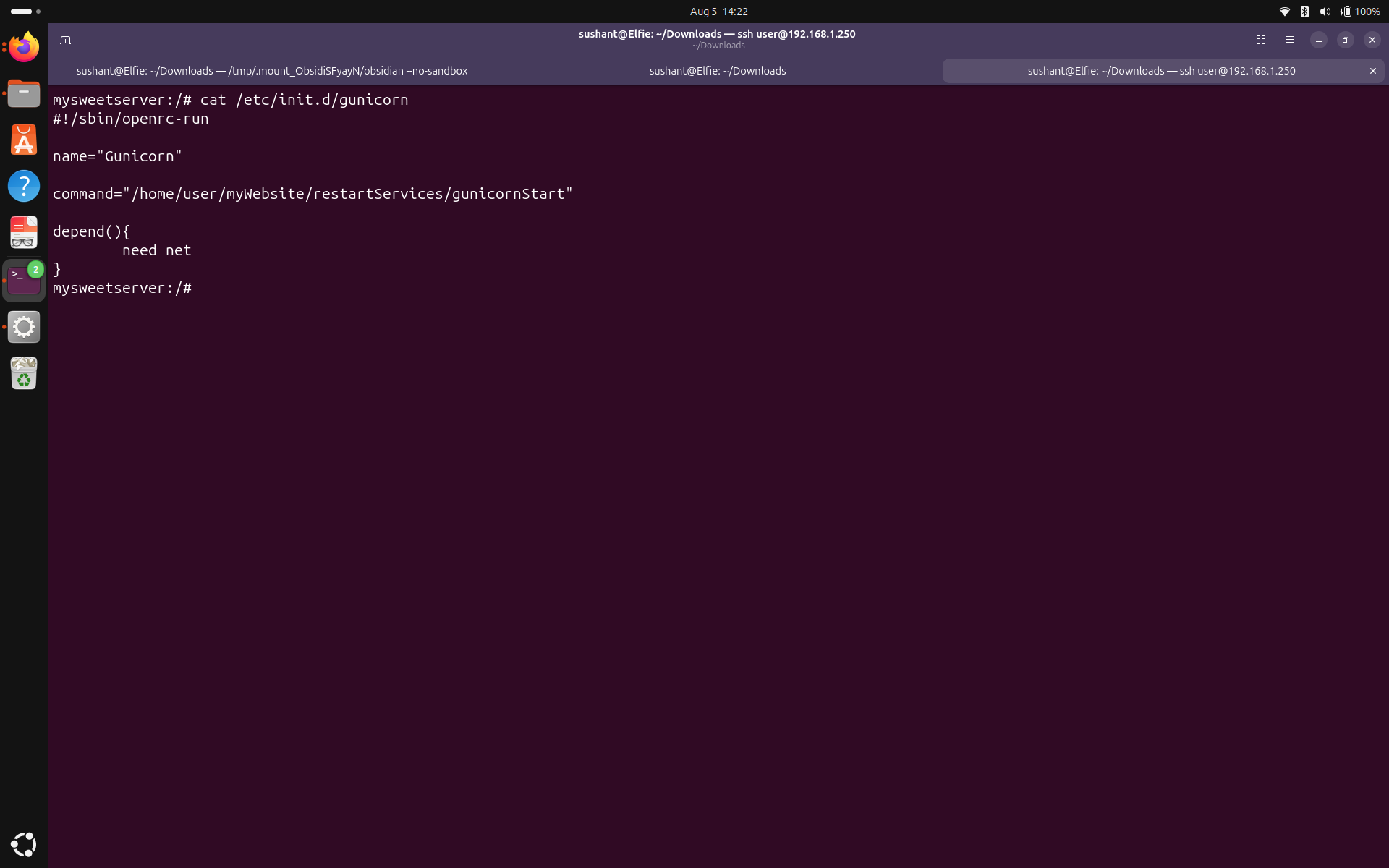 We see that it points to the file named gunicornStart. Let's inspect that file, run
 cat /home/user/myWebsite/restartServices/gunicornStart . We see that every time this script is run, it kills the current process and starts a new one from the virtual environment. It only listens on the localhost and does keep a log, but there is nothing else to it, not even a configuration file. Let's see if we can find the config file. Run find /home/user/myWebsite/venv/ -iname "*gunicorn*"
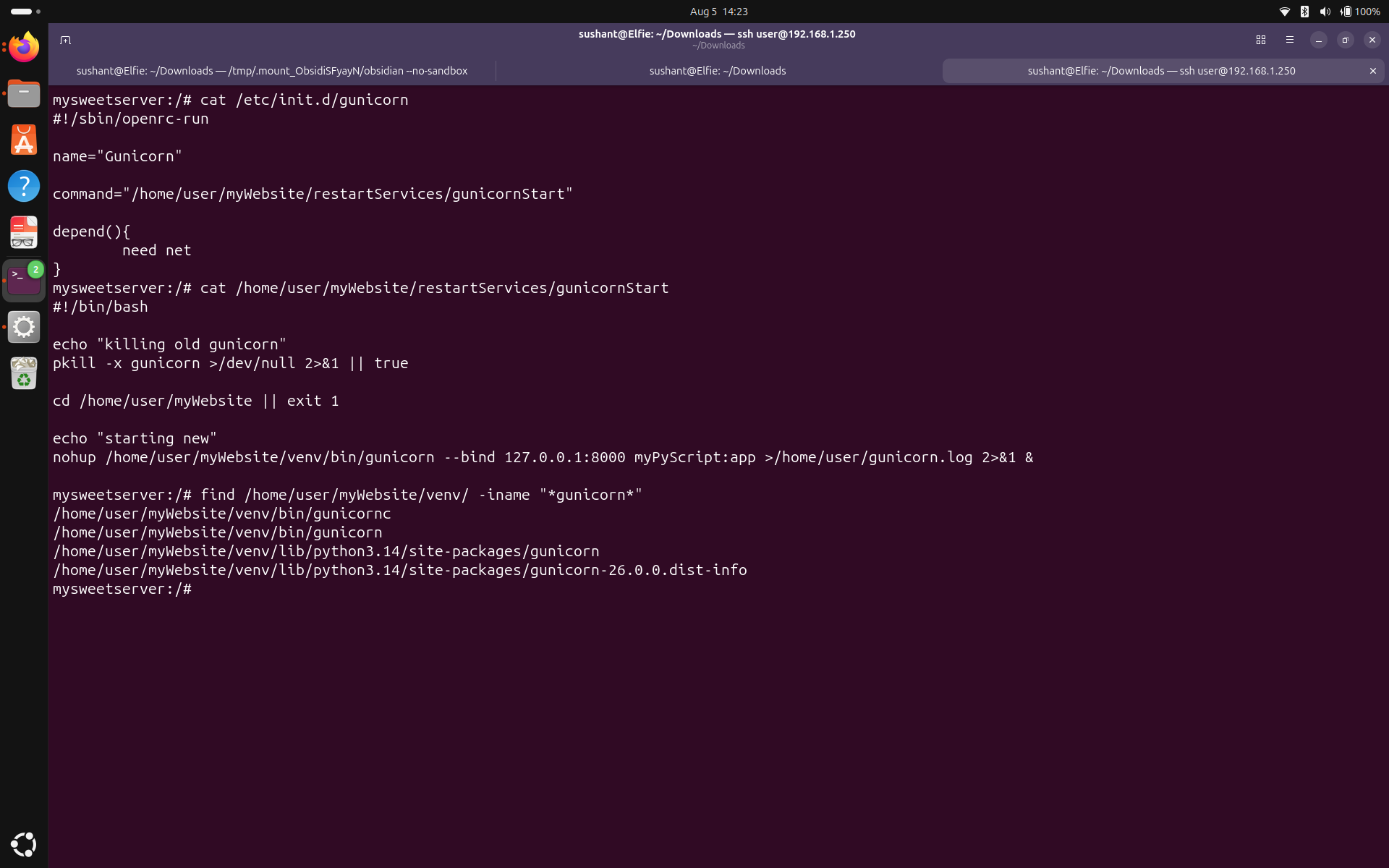 We see that the configuration file doesn't exist. Gunicorn is entirely run from the 6-line code in the gunicornStart script. There is no other management for Gunicorn.
Note: Make sure the Gunicorn version is latest. To better follow the principle of least privilege, run gunicorn from a service account rather than root. Create a configuration file for better management of the server.
We see that the configuration file doesn't exist. Gunicorn is entirely run from the 6-line code in the gunicornStart script. There is no other management for Gunicorn.
Note: Make sure the Gunicorn version is latest. To better follow the principle of least privilege, run gunicorn from a service account rather than root. Create a configuration file for better management of the server.
flask --version to see the version, and ps | grep flask to see what user it is running as.
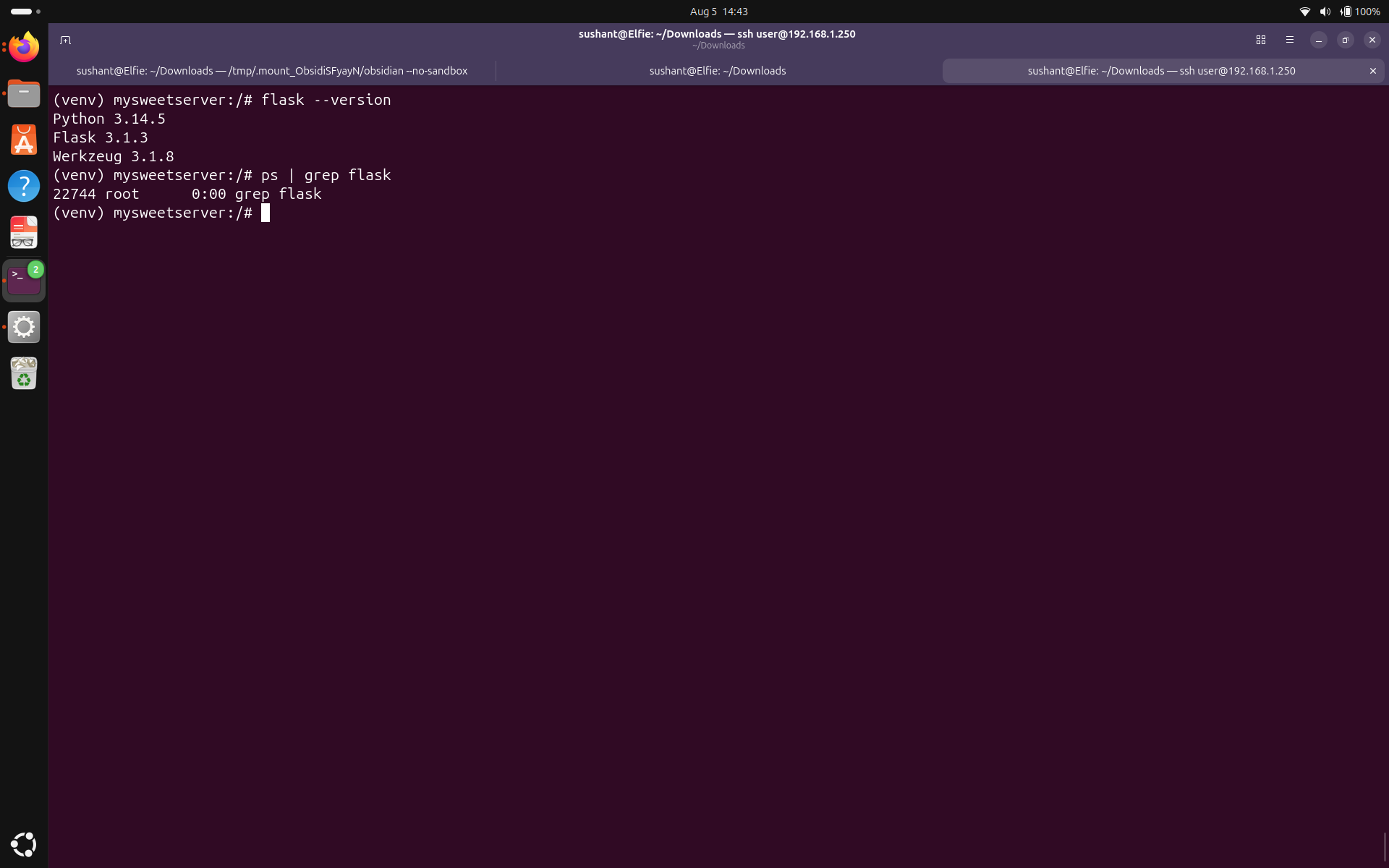 We see the version returned the three components of Flask: Python 3.14.5 , Flask 3.1.3, and Werkzeug 3.1.8. Also, we didn't find a current process named flask because flask is running from Gunicorn, not by itself. And since Gunicorn is running as root, flask is also running as root.
Debug Mode
Flask has something called debug mode, which gives you an interactive debugger which can be very valuable to attackers. Let's make sure it is turned off. There is only one python code which uses flask on my server, so let's inspect that.
We see the version returned the three components of Flask: Python 3.14.5 , Flask 3.1.3, and Werkzeug 3.1.8. Also, we didn't find a current process named flask because flask is running from Gunicorn, not by itself. And since Gunicorn is running as root, flask is also running as root.
Debug Mode
Flask has something called debug mode, which gives you an interactive debugger which can be very valuable to attackers. Let's make sure it is turned off. There is only one python code which uses flask on my server, so let's inspect that.
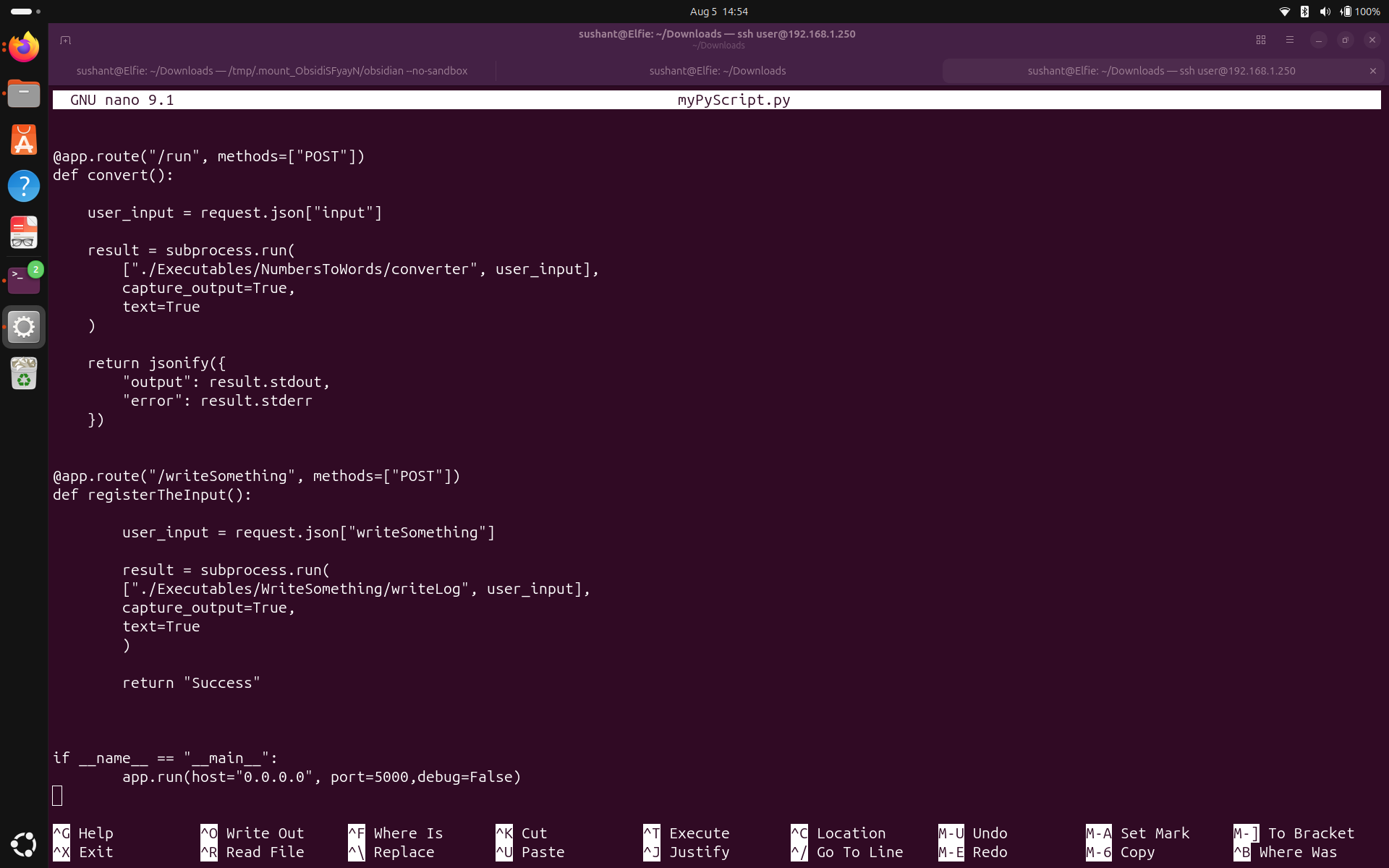 The very last line says 'debug=false'. Which is expected and makes the app more secure.
Routes
While we're at it, let's inspect routes. I see the following:
The very last line says 'debug=false'. Which is expected and makes the app more secure.
Routes
While we're at it, let's inspect routes. I see the following:
"GET /download?file=../../some_other_file", the input isn't parsed at all and it is forwarded as a single string, which will just be rejected by my code.
Admin Page
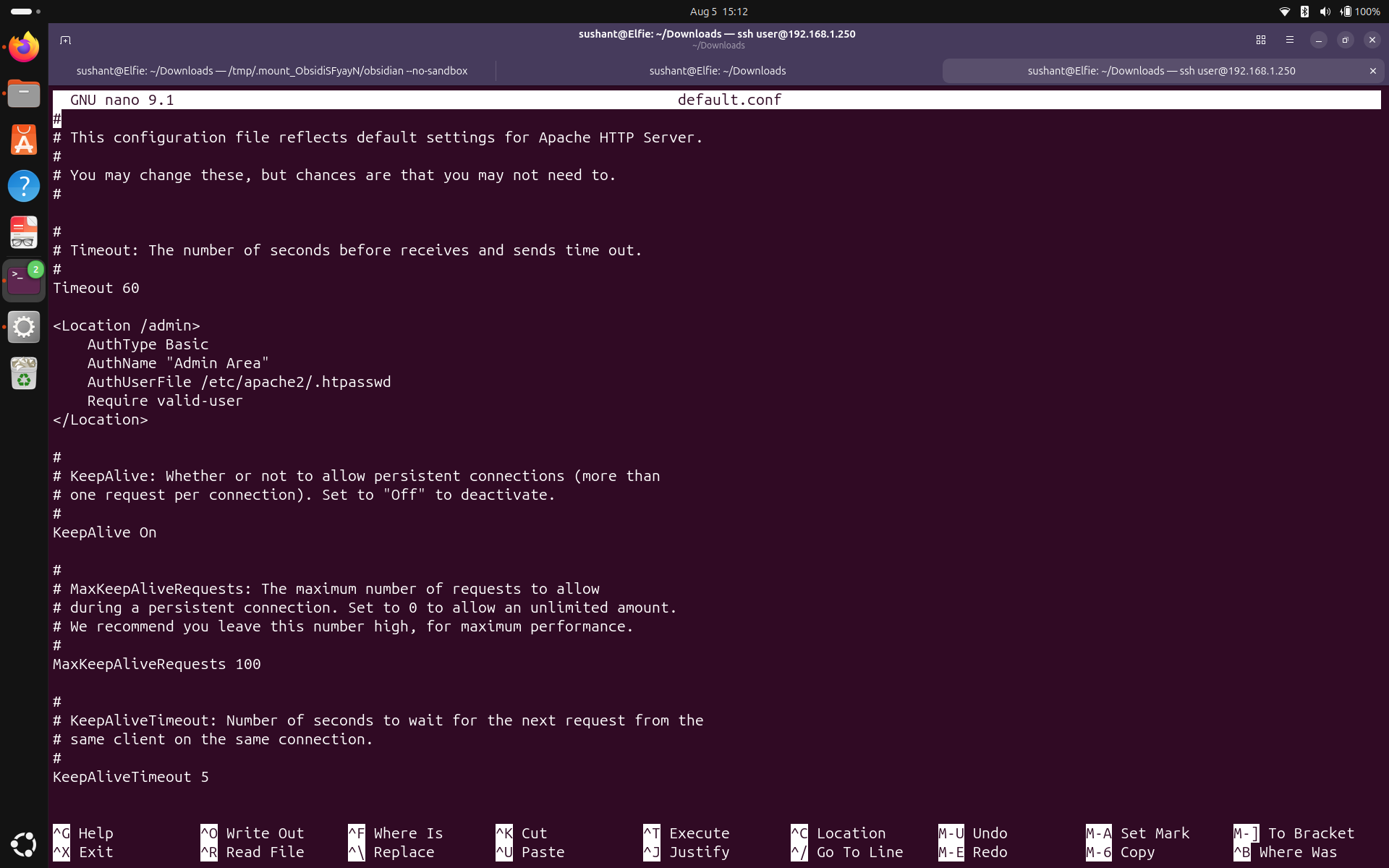
I see there is an admin page which exposes things like the battery status, capacity, and uptime. Let's see if this page is secured. In this setup, I was able to find the password protection using Basic Auth on the Apache config file. I think this is better than handling it from Flask because Apache challenging the login as soon as it is more secure than it blindly forwarding the traffic to Gunicorn, then Flask and challenged here.
 Futher Overview
It seems that flask is currently only doing two things. Providing routes, and forwarding the user input to an executable. The routes are minimal for the operation of the website and user input is handled as a single string.
Note: Make sure the version is latest. Dig a little deeper and make sure user input cannot cause unexpected behavior.
Futher Overview
It seems that flask is currently only doing two things. Providing routes, and forwarding the user input to an executable. The routes are minimal for the operation of the website and user input is handled as a single string.
Note: Make sure the version is latest. Dig a little deeper and make sure user input cannot cause unexpected behavior.
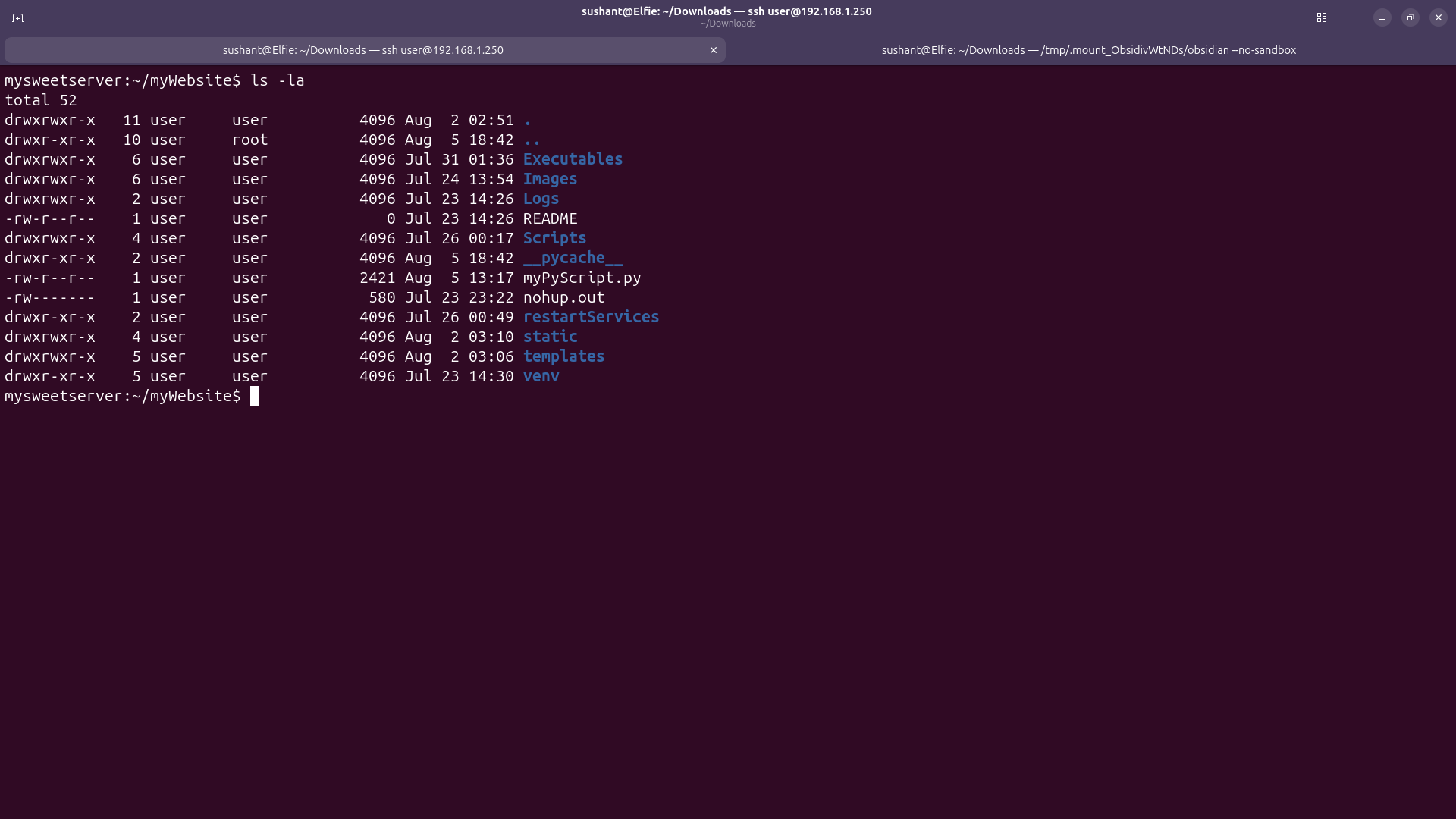 We see that for all the contents of this file (excluding the .. entry, which refers to the parent directory), the owner is 'user' and the group is also 'user'.
First off, let's start by changing the username 'user'. To do this, I have to SSH in as another user. I logged in as BobbyV and ran
We see that for all the contents of this file (excluding the .. entry, which refers to the parent directory), the owner is 'user' and the group is also 'user'.
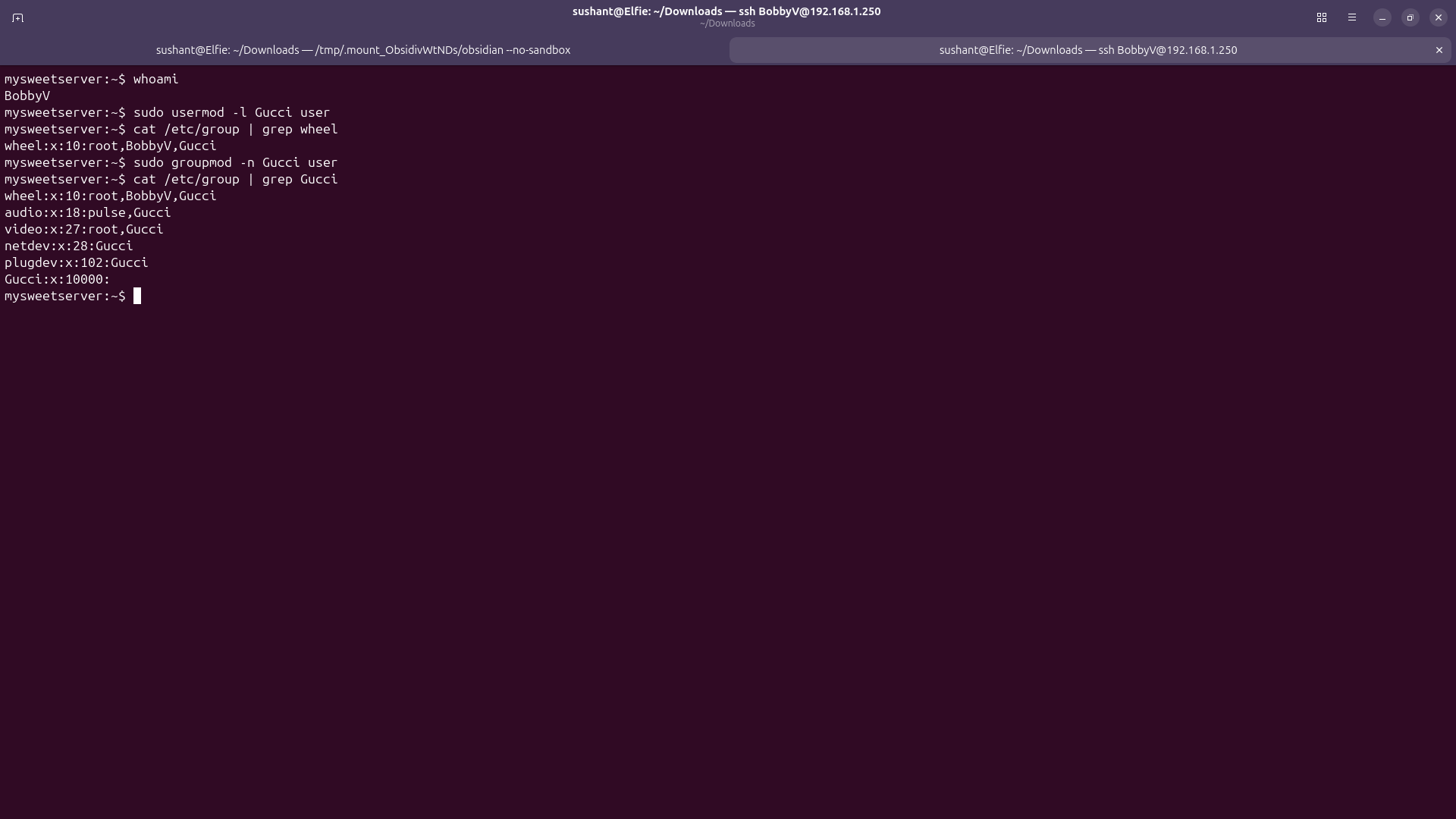
First off, let's start by changing the username 'user'. To do this, I have to SSH in as another user. I logged in as BobbyV and ran sudo usermod -l Gucci user to change the username, and sudo groupmod -n Gucci user to change the group name . Then I ran cat /etc/group | grep Gucci and confirmed that the username has now been converted to Gucci.
 Let's log back in as Gucci and run long listing on the myWebsite directory again.
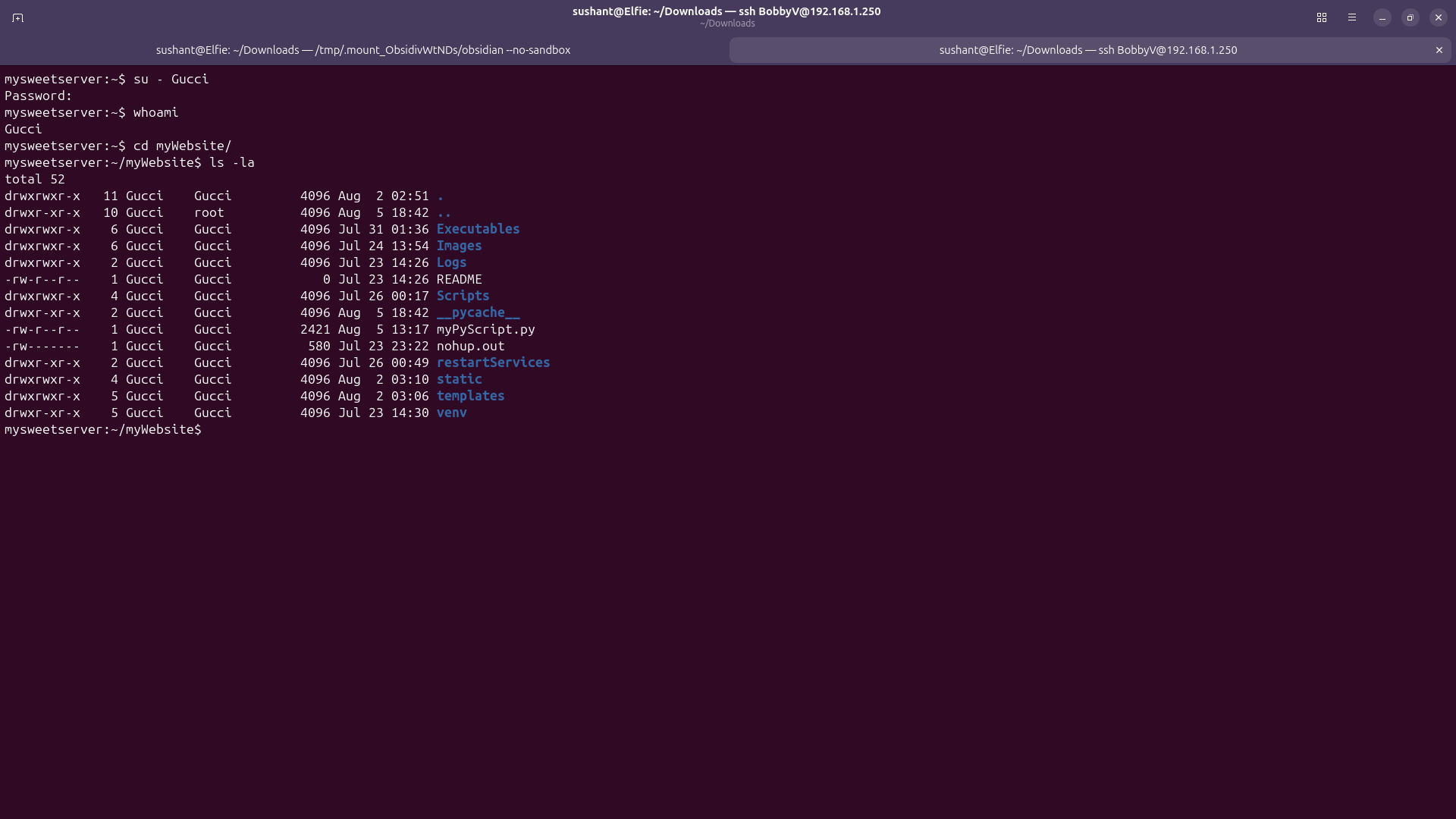 We see that the owner and group have both been changed to Gucci. We could also rename the directory to Gucci, but that would mean going through all my files and replacing every hardcoded home/user path with home/Gucci. I'll save this for later. A better approach would've been to change the username right after the server was created.
Now the way I want to handle files and permissions is that Gucci can be the owner and have all the permissions. Everything that has to access these files will be put in a group named 'webManagers' and all the files' owning group will be changed to 'webManagers', and appropriate permissions will be given according to the principle of least privilege. Everybody else gets absolutely no permissions at all. Mwahahahaha... sorry.
Let's create the group. Run
We see that the owner and group have both been changed to Gucci. We could also rename the directory to Gucci, but that would mean going through all my files and replacing every hardcoded home/user path with home/Gucci. I'll save this for later. A better approach would've been to change the username right after the server was created.
Now the way I want to handle files and permissions is that Gucci can be the owner and have all the permissions. Everything that has to access these files will be put in a group named 'webManagers' and all the files' owning group will be changed to 'webManagers', and appropriate permissions will be given according to the principle of least privilege. Everybody else gets absolutely no permissions at all. Mwahahahaha... sorry.
Let's create the group. Run addgroup webManagers to add the group and cat /etc/group | grep webManagers to check the group have been created. Now let's add Gucci, apache, and gunicorn to the group, change owning group for the files, restart services and see if the website still runs.
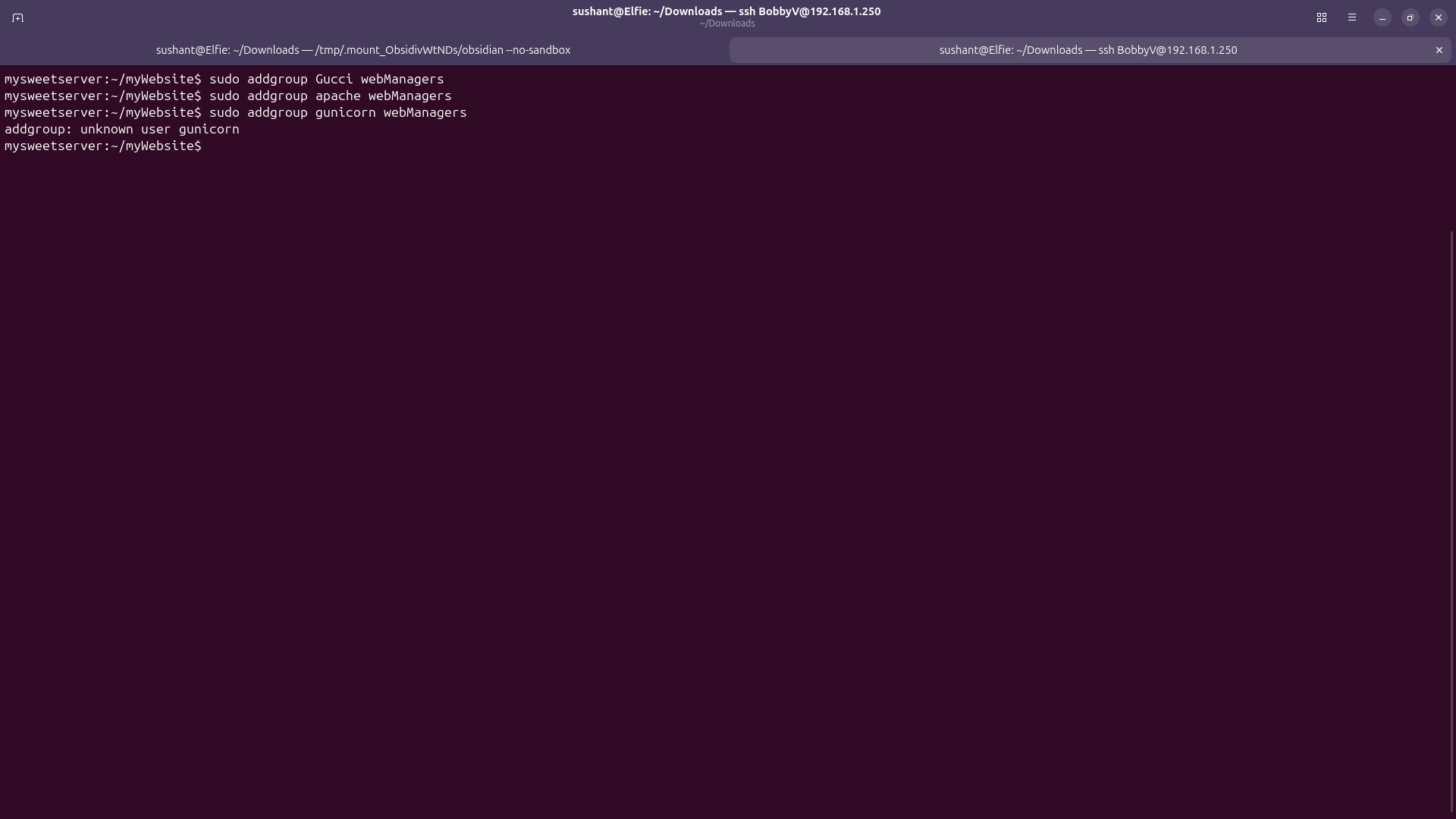 But wait! there is no user called 'gunicorn'. It is running as root! Let's fix that.
First, let's start by making a service account and a group called gunicorn. Run
But wait! there is no user called 'gunicorn'. It is running as root! Let's fix that.
First, let's start by making a service account and a group called gunicorn. Run adduser -S -D -H -G gunicorn gunicorn. This creates a system user named gunicorn, without a password, without a home directory, and in a group named gunicorn.
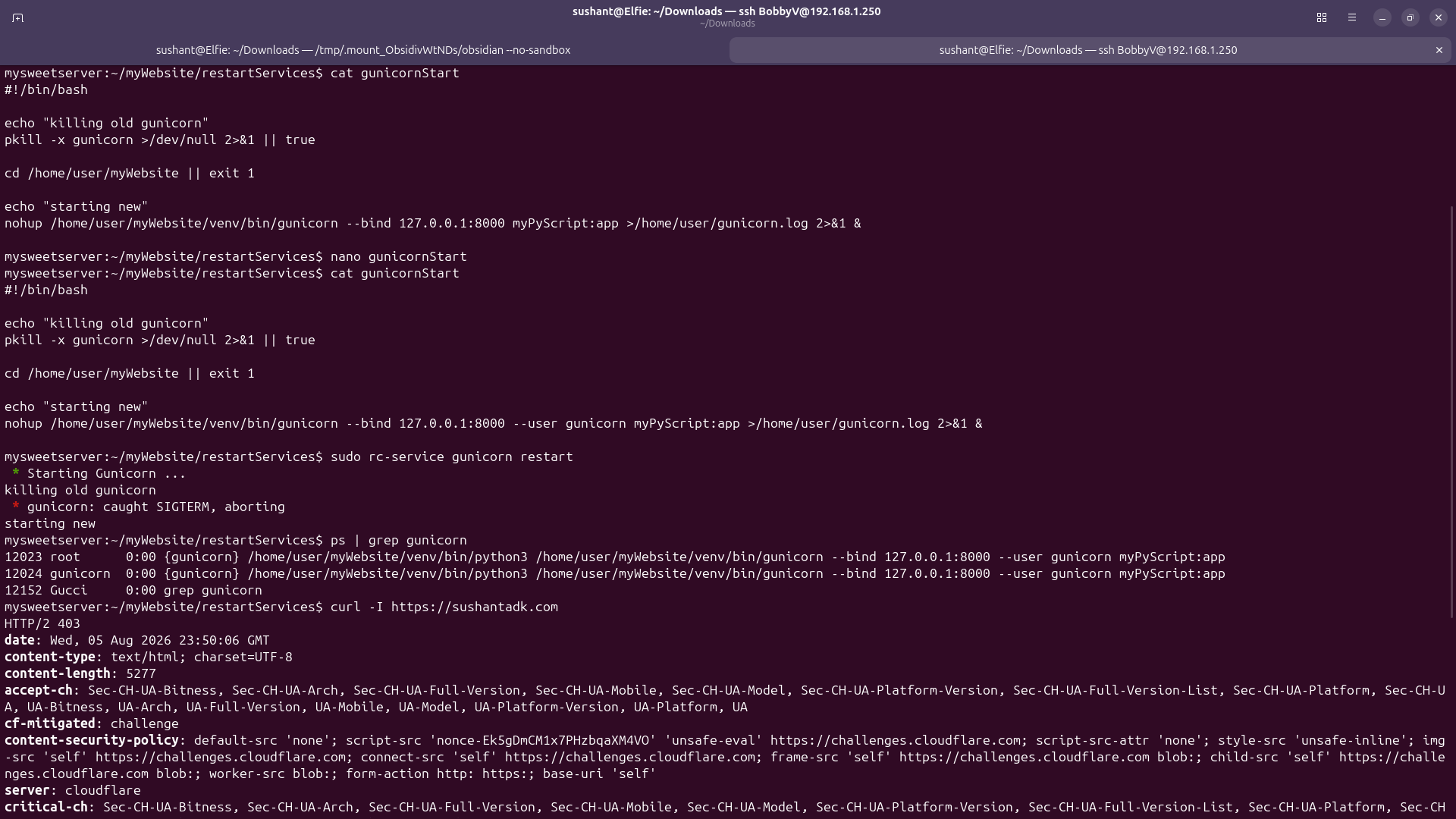
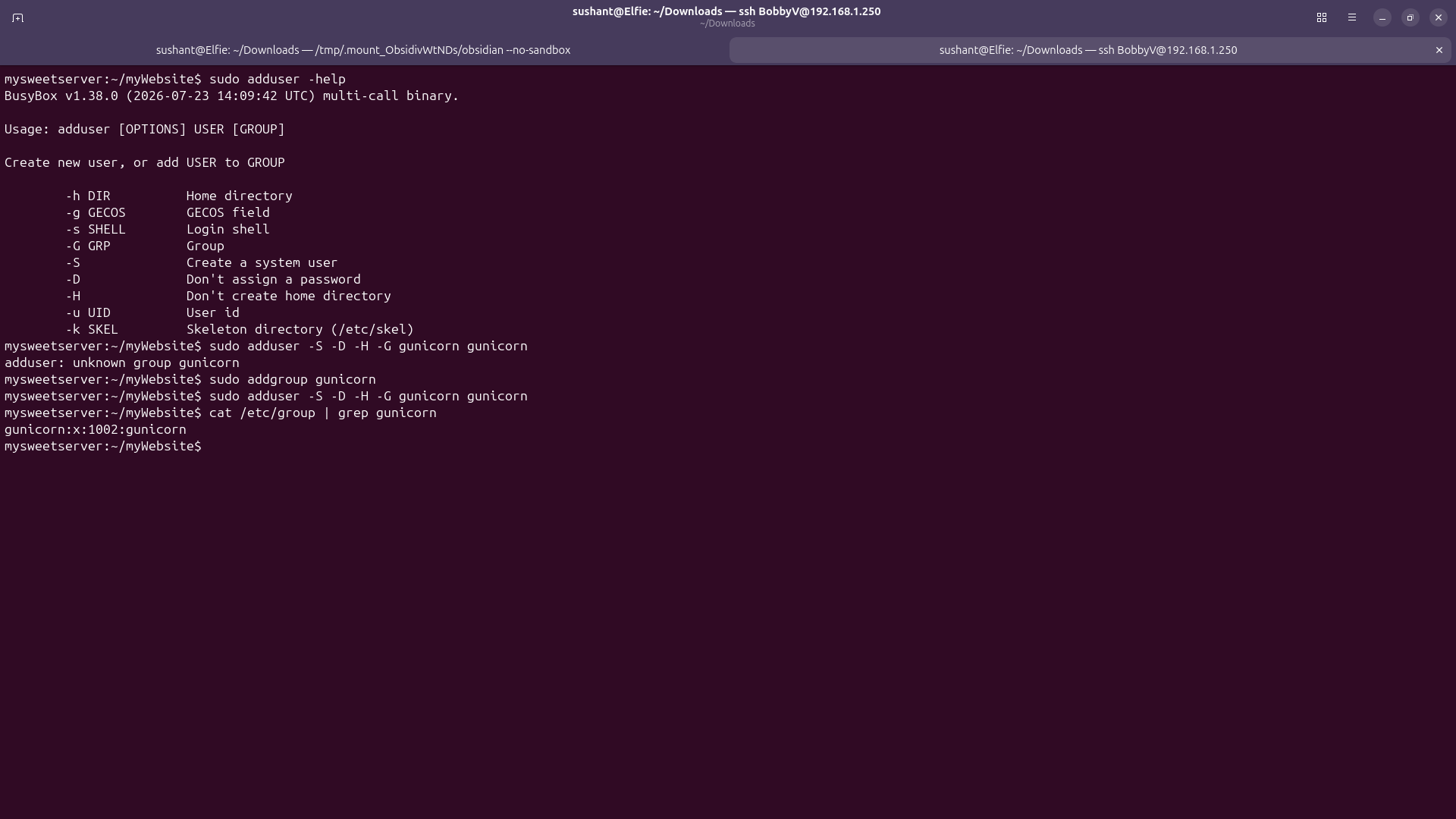 Next, let's make our gunicorn service run as the user we just created. In the gunicorn script, I specified
 --user gunicorn after the listening socket part(see image below). Then I saved the file, restarted gunicorn and ran ps | grep gunicorn. I can see that Gunicorn is now running as the user 'gunicorn'. I also opened my website on a browser and confirmed it was still working because curl is unreliable for me because of my proxy.
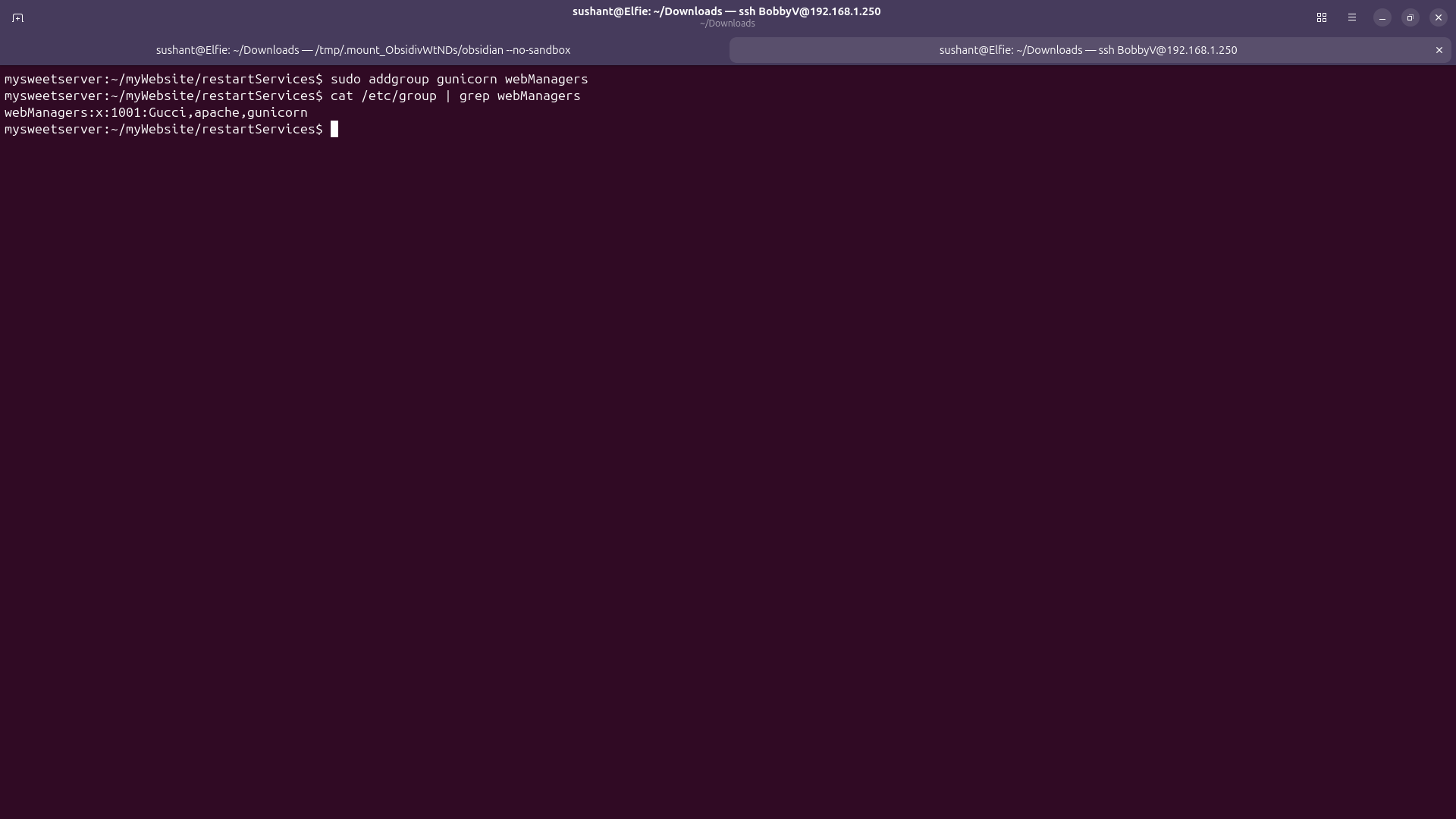
 Next, let's add 'gunicorn' to the group 'webManagers'.
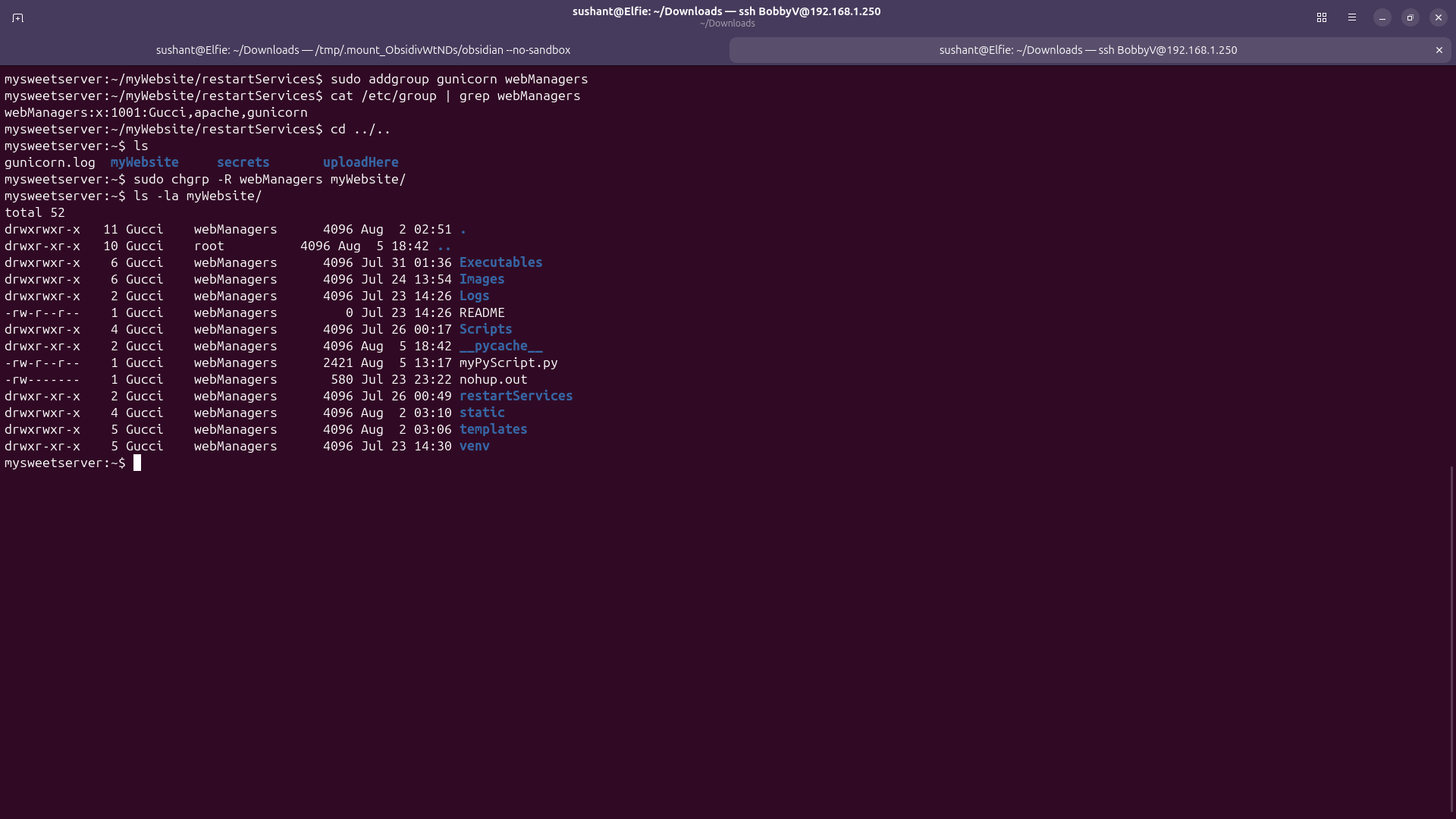
 This should be enough to run the website. Now, let's go back and change the owning group of the myWebsite directory to 'webManagers'. Run
 chgrp -R webManagers myWebsite/ to recursively change the owner of everything in the directory.
 Let's restart gunicorn and apache to see the website still works.
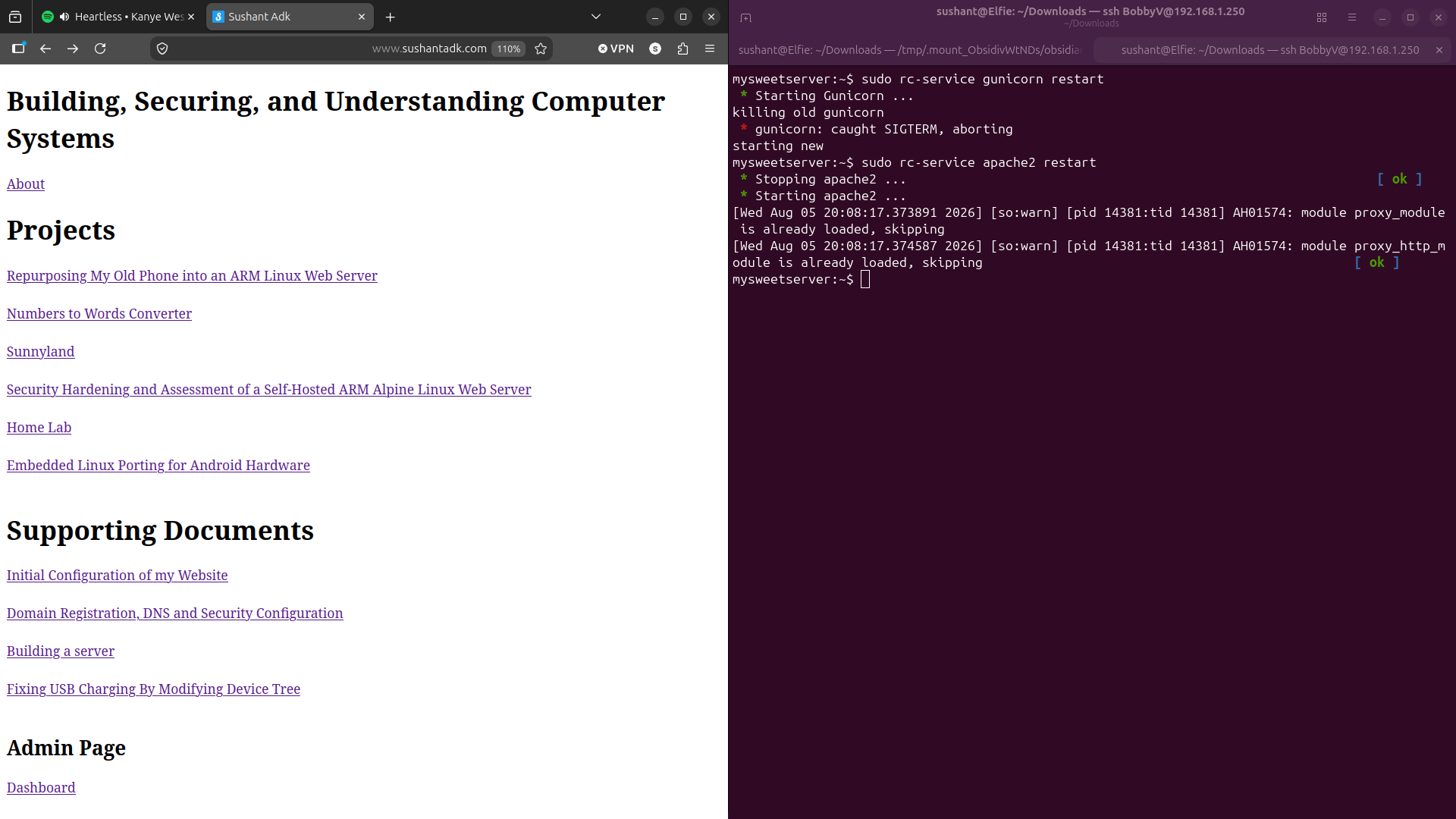 Okay it still works.
Next, let's remove all permissions for others and see if still works.
Okay it still works.
Next, let's remove all permissions for others and see if still works.
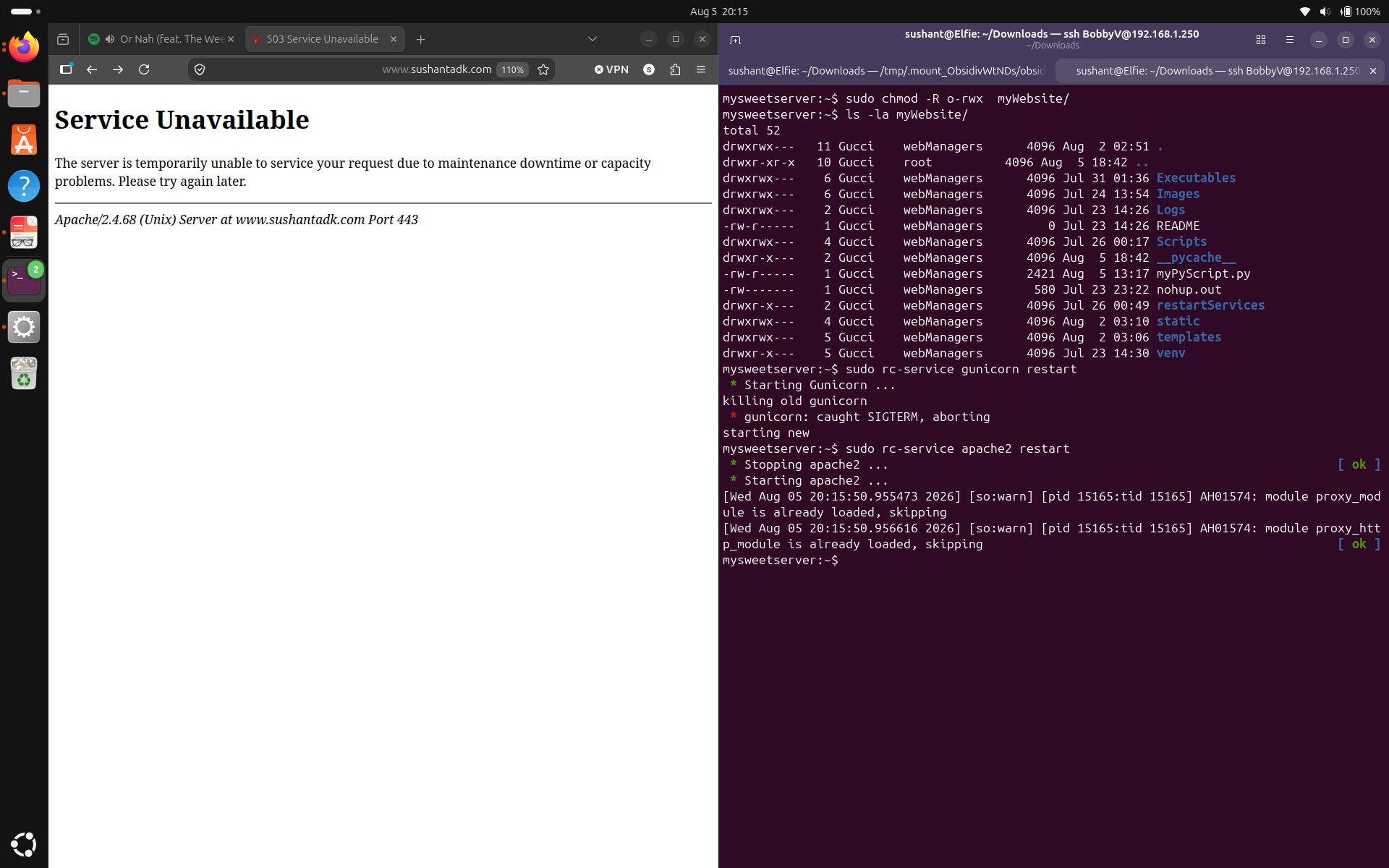 Hmm.. we finally broke it. Took it long enough. It means that there is a service which needs to access the files here but it is not in the 'webManagers' group. This response came from Apache, so Apache is working. Maybe gunicorn is experiencing problems. Let's take a look at Gunicorn log.
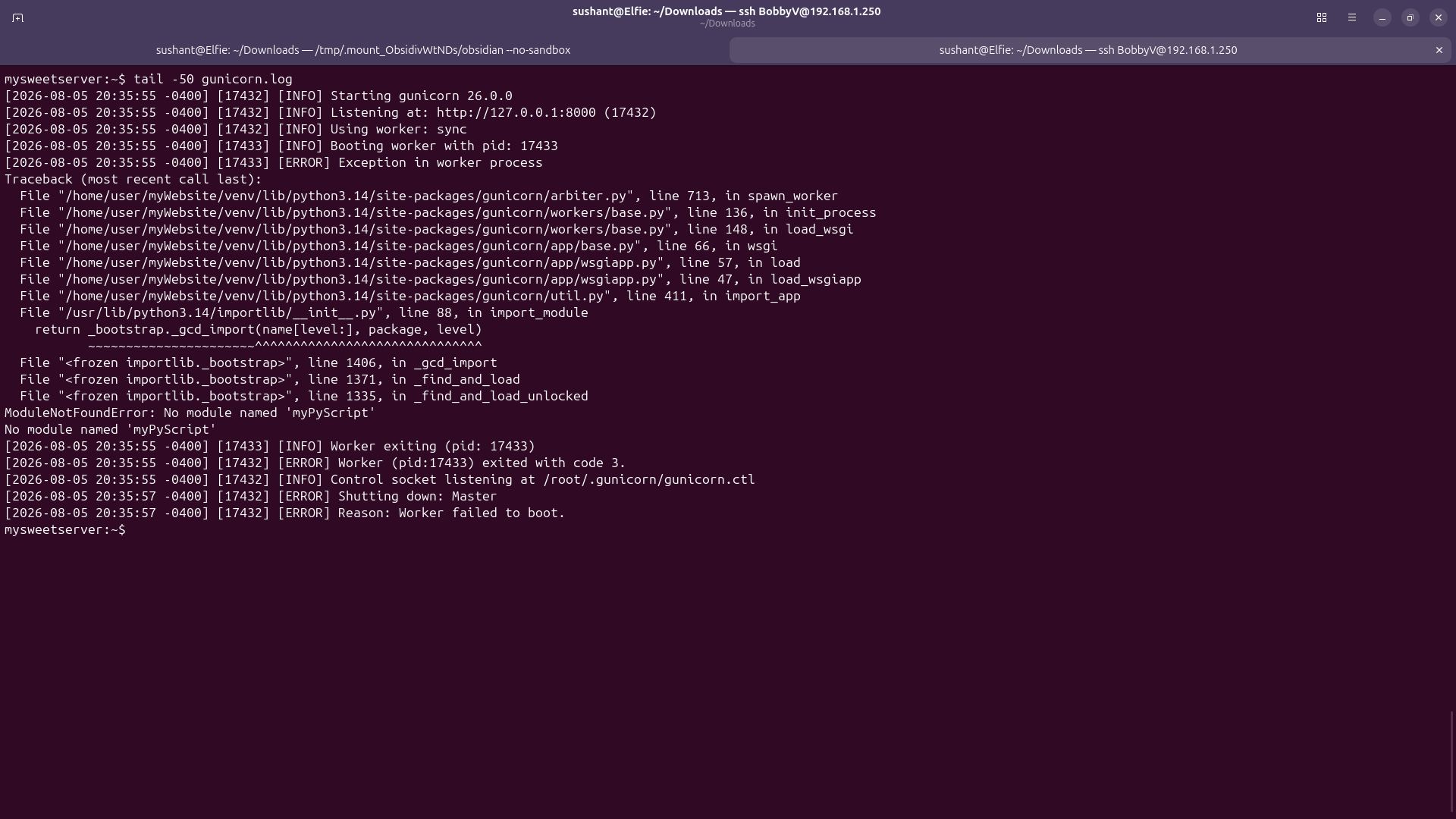 It says module named 'myPyScript' not found error. This is unusual.. I didn't change any file locations! Maybe something wants execute permissions to enter a directory. I was messing with the permissions and found that the website loads when I add read and execute permissions to others on myWebsite directory.
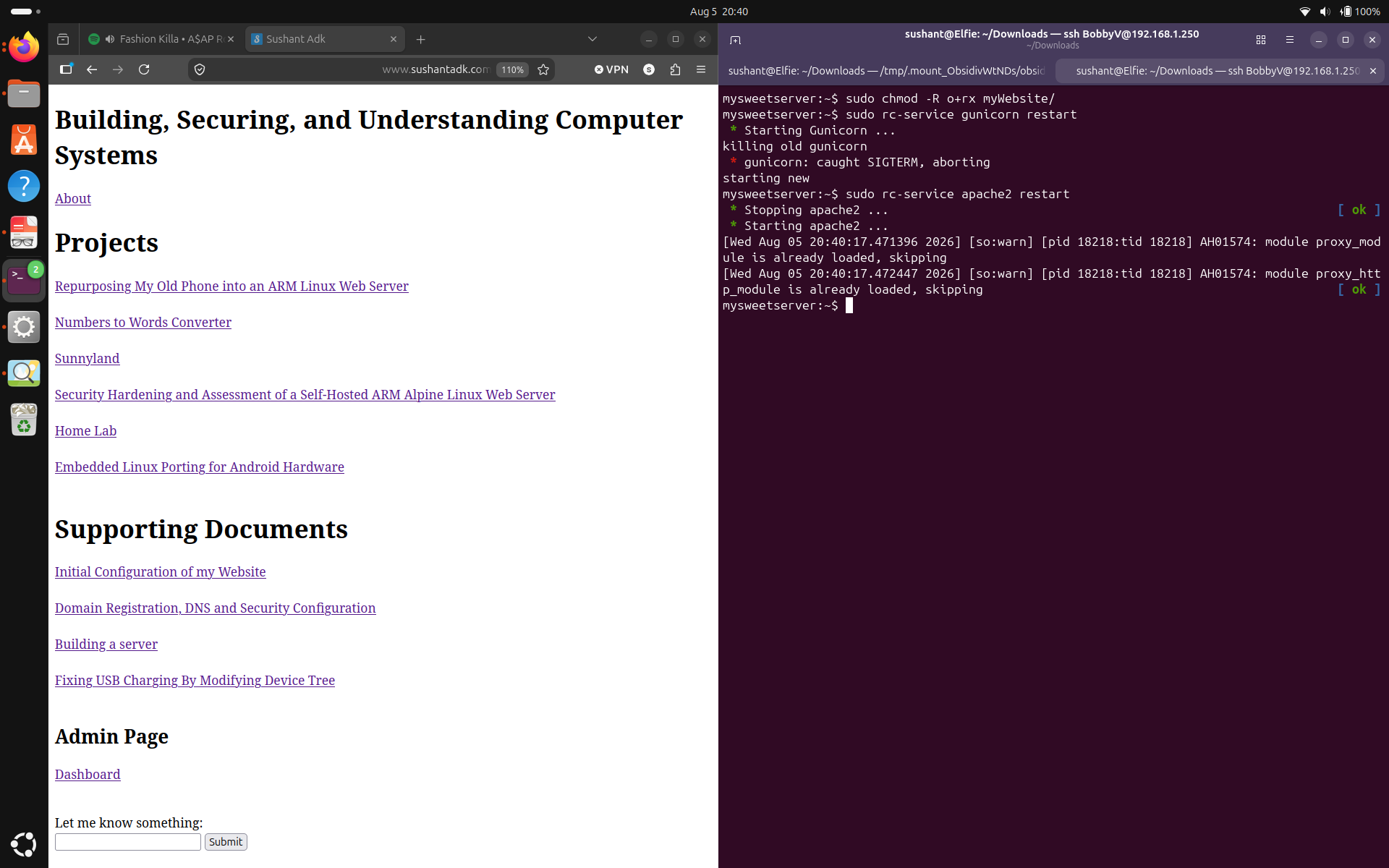 Ok let's run the command inside the restart script directly on the CLI to see if it gives the same error.
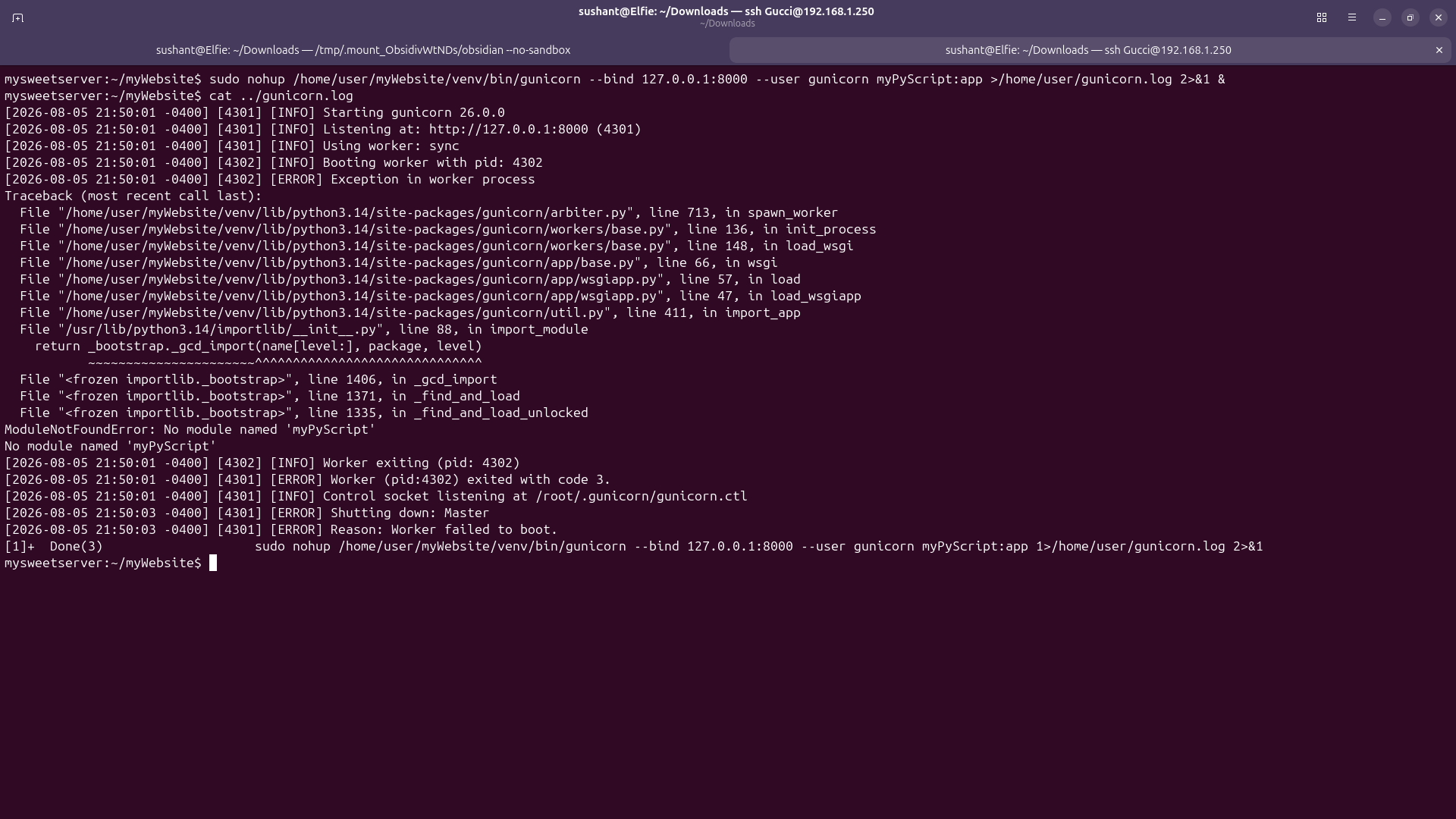 Yep! this tells me when I run the command in the script, Gunicorn can't find the python script even though the file hasn't moved anywhere. This is also not a permissions issue because I am getting NotFoundError rather than permissions error. The command I ran starts Gunicorn as root, then drops privileges to user 'gunicorn'. Let's start Gunicorn straight by the user 'gunicorn'. I ran
 sudo -u gunicorn /home/user/myWebsite/venv/bin/gunicorn --bind 127.0.0.1:8000 myPyScript:app.
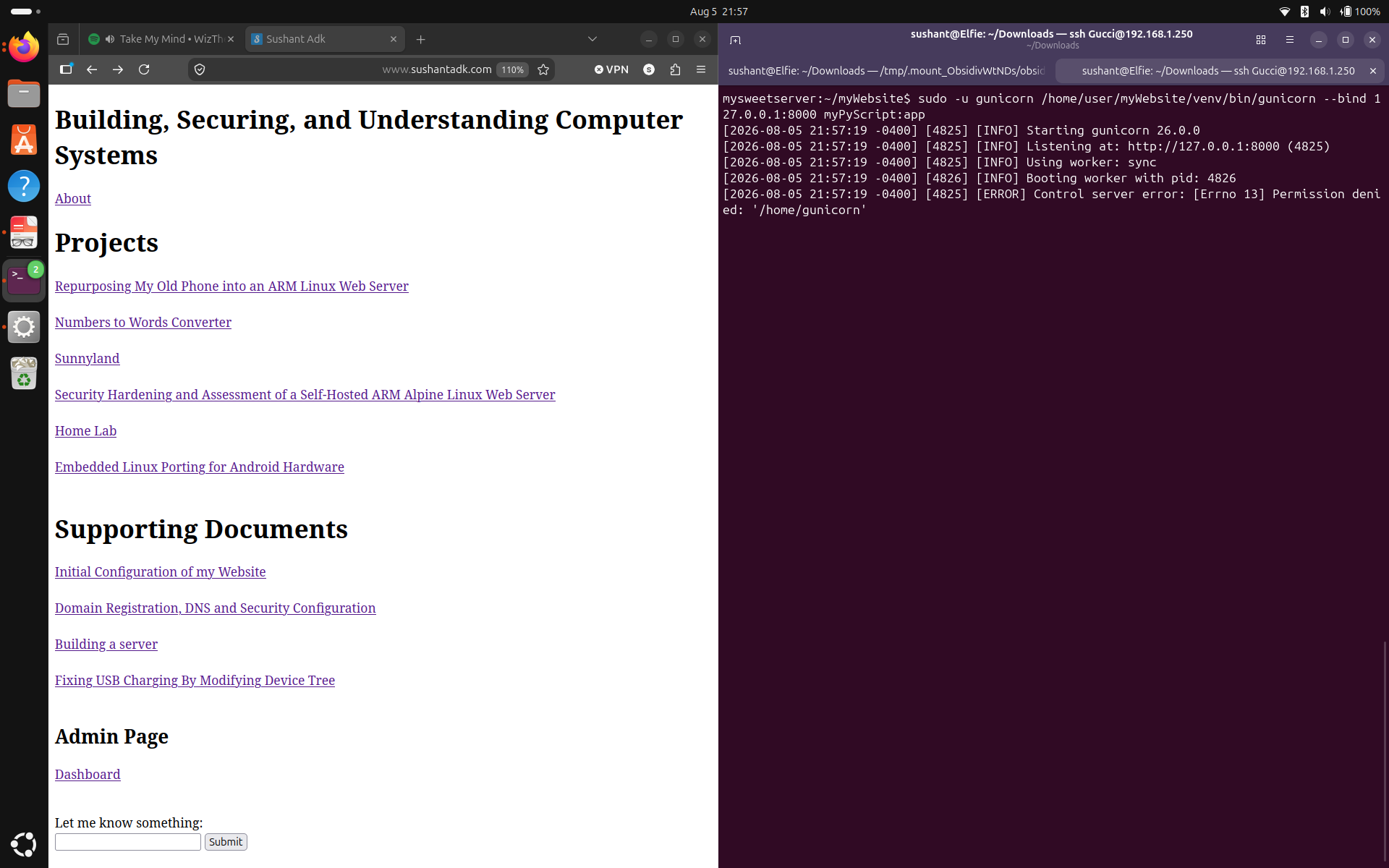 Okay the website is back up. This confirms that the problem occurred when the process started as root and dropped privileges. What problem exactly? I don't know but hey, it works now. Let's modify the restart script now and restart Gunicorn to see if it holds up.
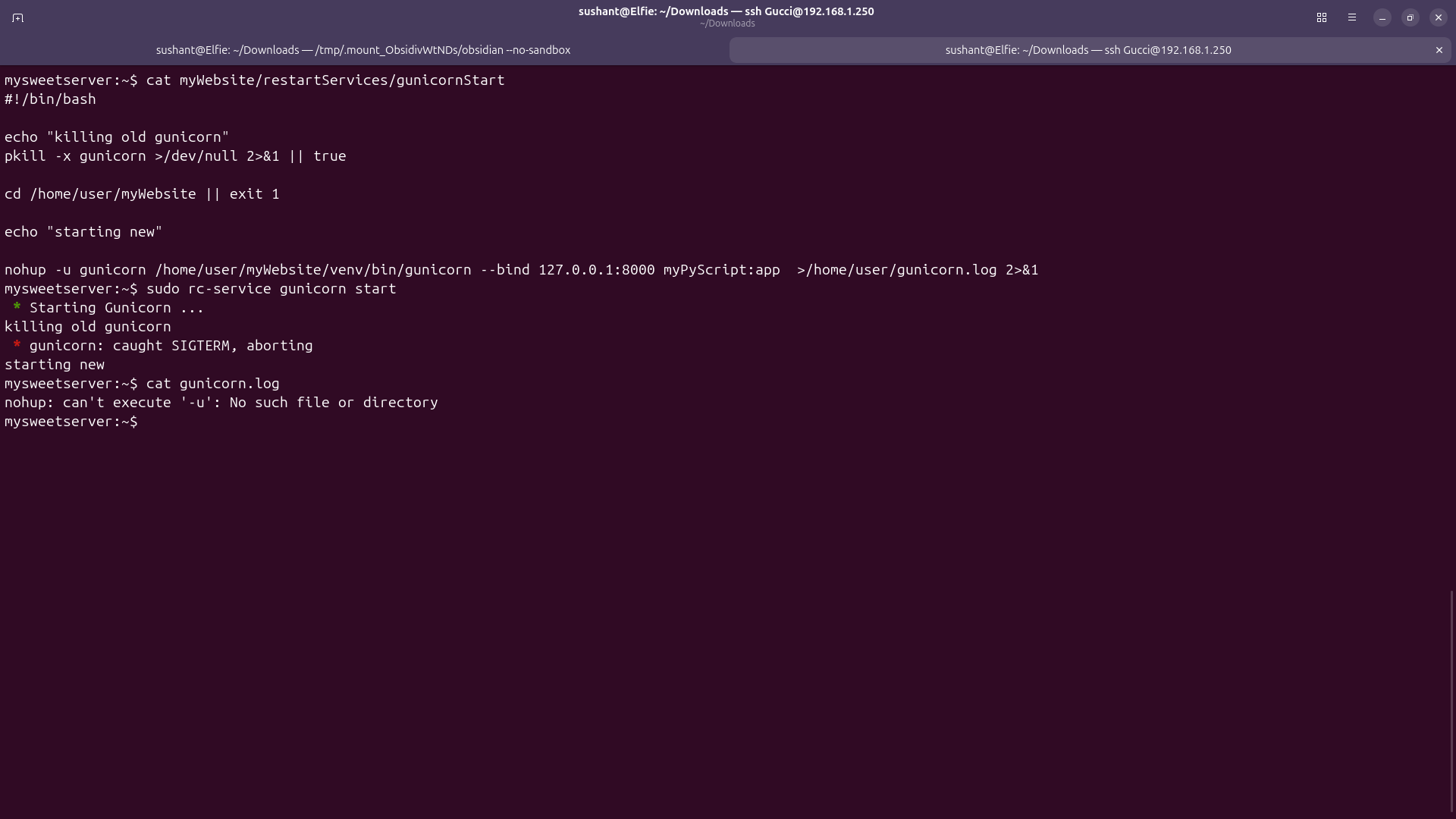 Seems that I can't specify user inside the script. Let's remove -u gunicorn and specify the user to OpenRC so the script is automatically ran as gunicorn.
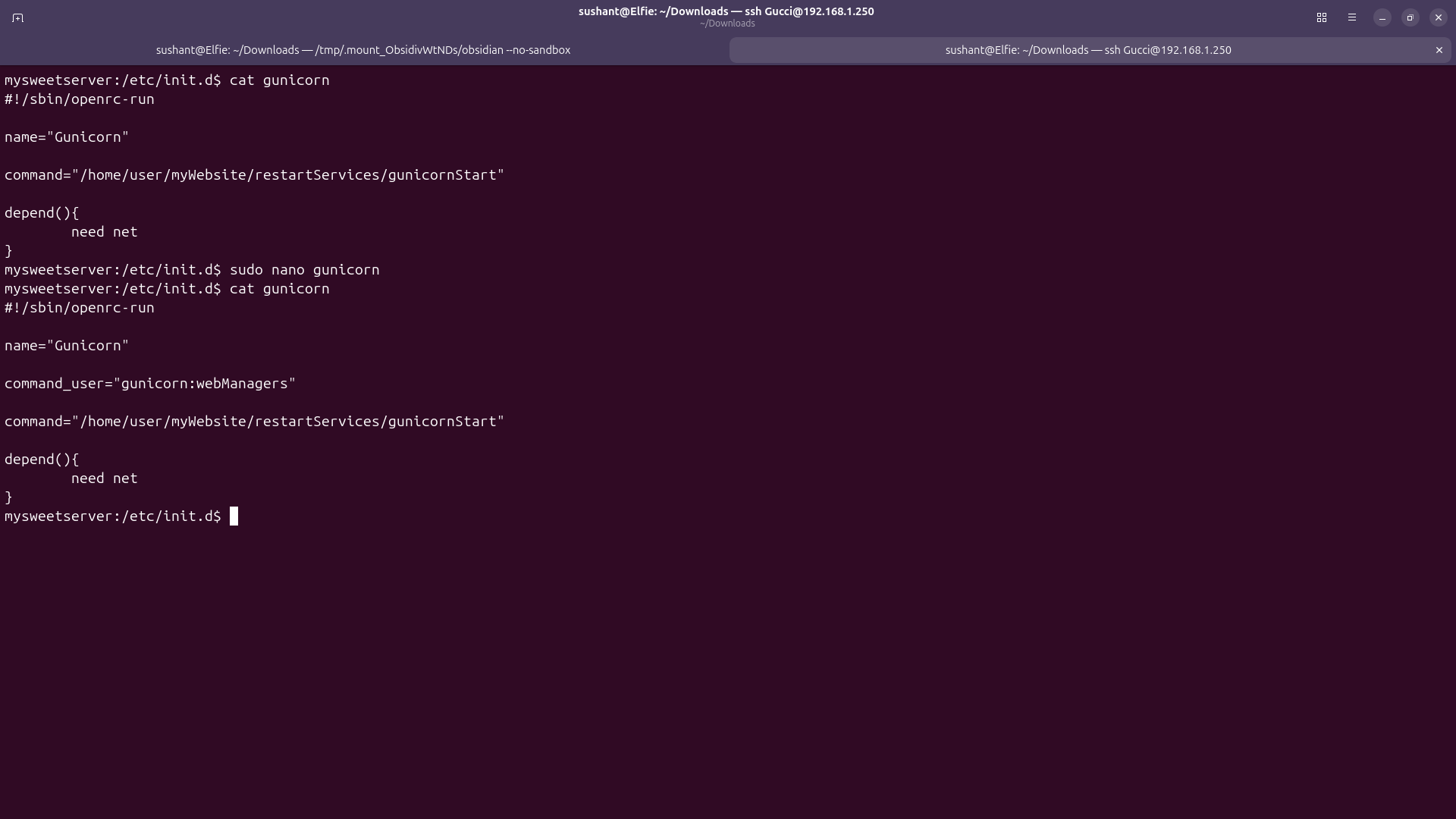 After specifying the user to OpenRC and making a few tweaks on the restart script, it finally ran!
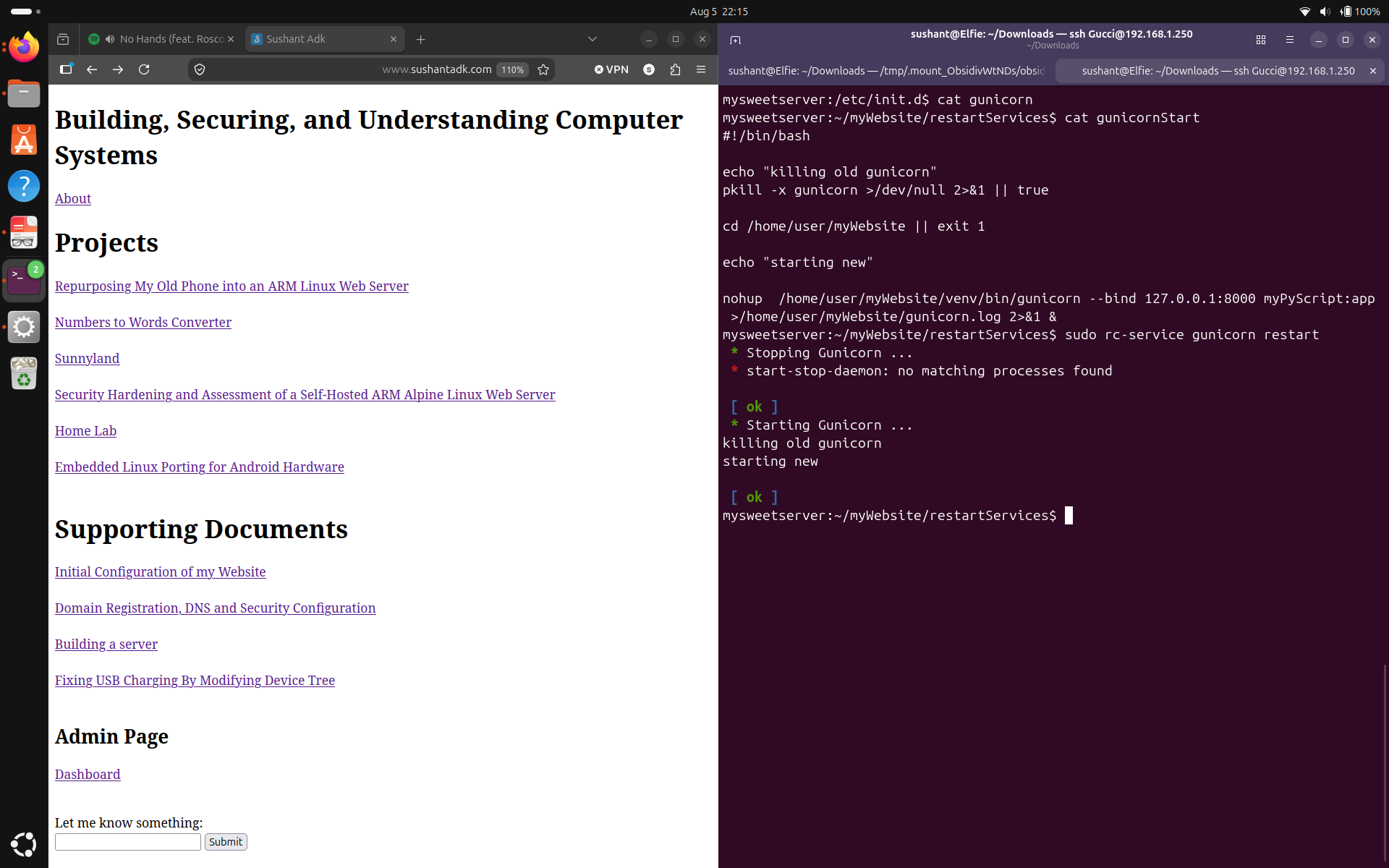 Haha talk about least privilege, now, the only users that can access my files are the user account Gucci, and service accounts Apache and Gunicorn.
Now I will proceed to make access even tighter by recursively removing write permissions for all the directories from the group.
Haha talk about least privilege, now, the only users that can access my files are the user account Gucci, and service accounts Apache and Gunicorn.
Now I will proceed to make access even tighter by recursively removing write permissions for all the directories from the group.
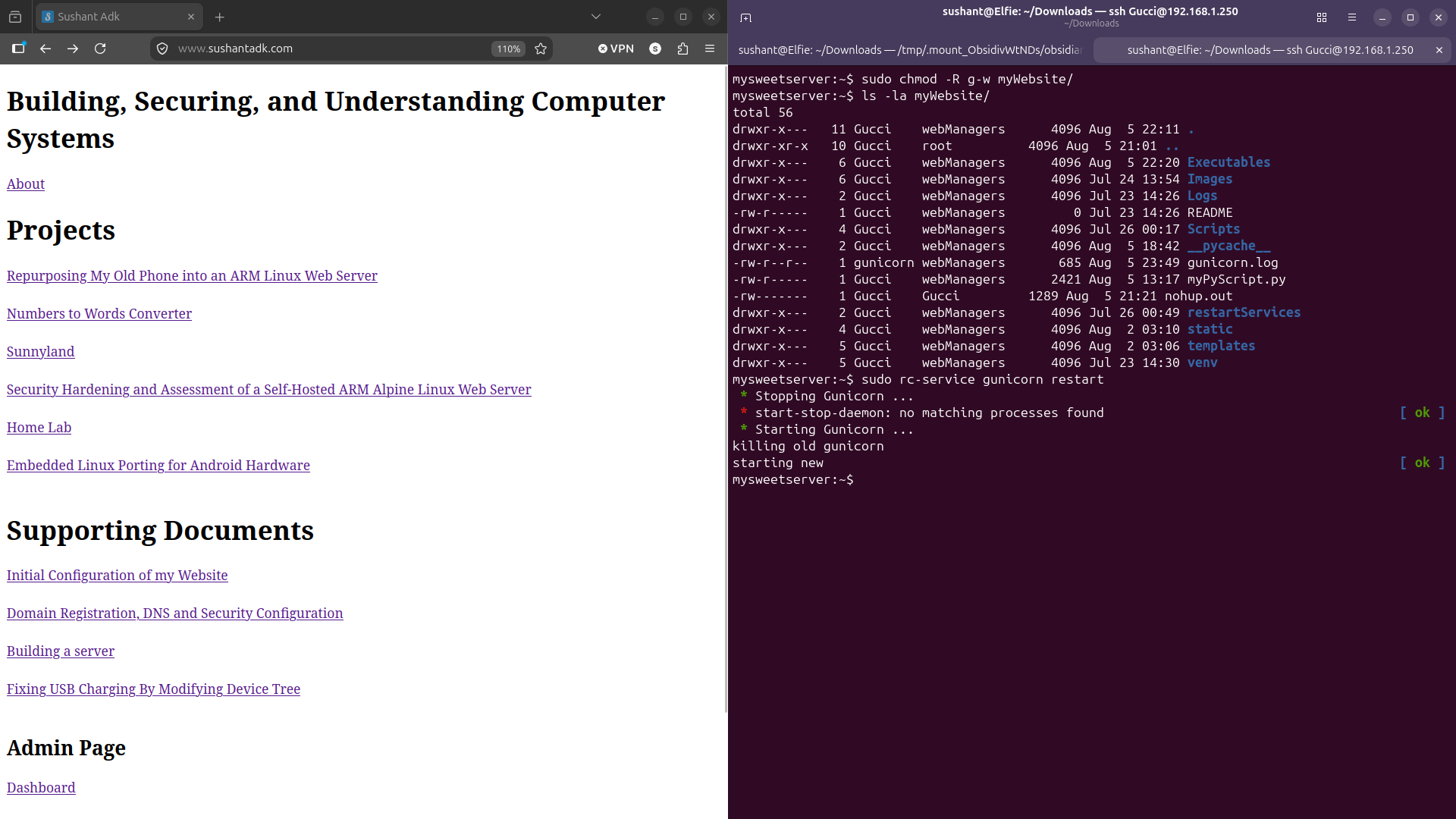 We see that the website still works. Off camera, I added write permissions to the files in the Logs directory.
Next, remove execute permissions from all the files in the templates, static, and Images directory.
We see that the website still works. Off camera, I added write permissions to the files in the Logs directory.
Next, remove execute permissions from all the files in the templates, static, and Images directory.
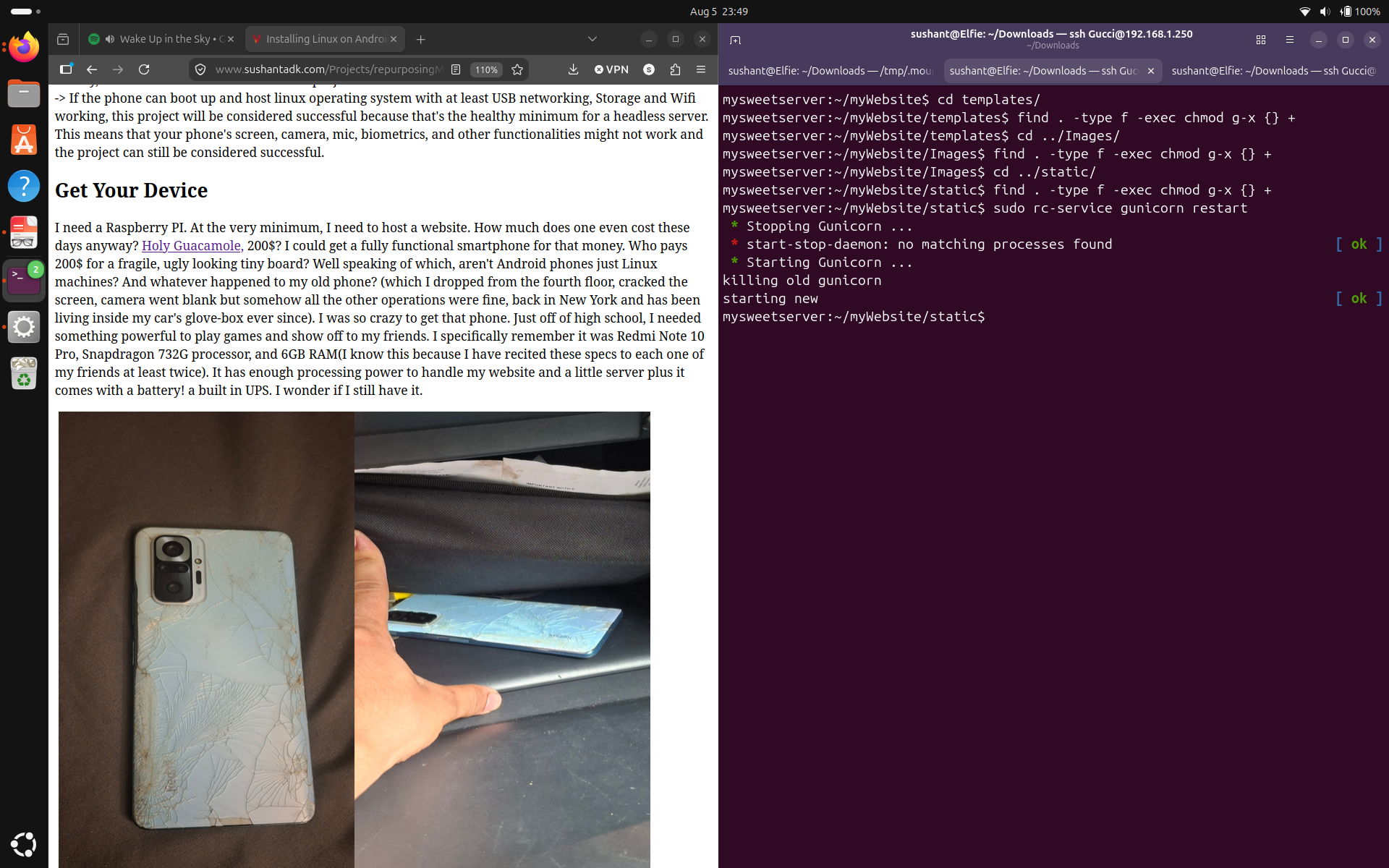 I believe these are the minimum permissions required for my website to function normally.
Files and Services - Conclusion:
I believe these are the minimum permissions required for my website to function normally.
Files and Services - Conclusion:
sudo apk update to update the repository, pip index versions Flask and pip index versions Werkzeug to see the latest versions of Flask and Werkzeug. Now 'pip index' won't work for Python, you have to do apk policy python3 to check for the latest version of python3.
Flask, Python, and Werkzeug appear to be the latest version available. I did notice pip complaining that it had a new release available, so I installed it using python3 -m pip install --upgrade pip.
Next, I added input validation to my two input boxes so that numbers to words converter rejects anything over 20 characters, and the user input logger rejects anything over 100 characters.
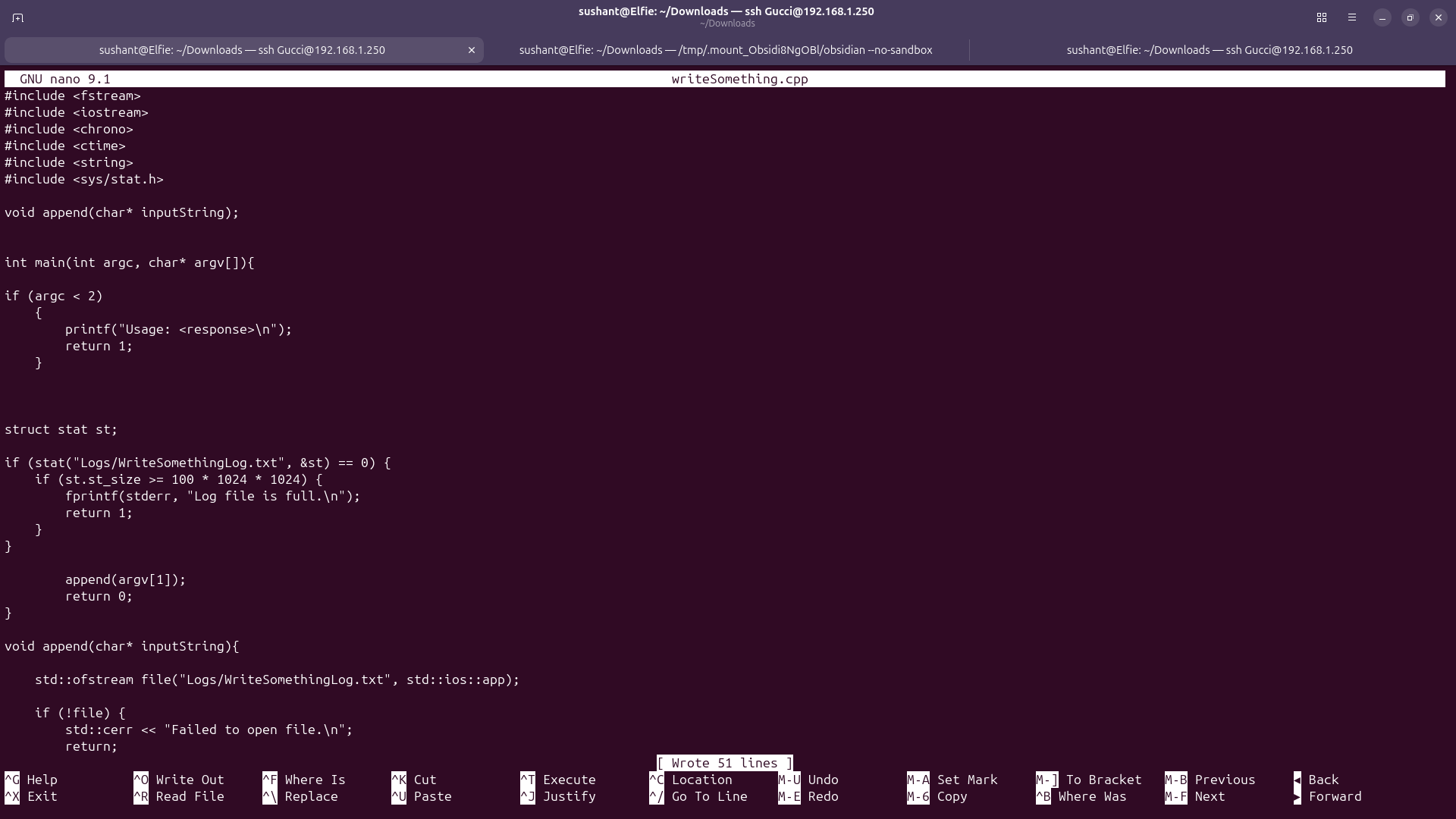
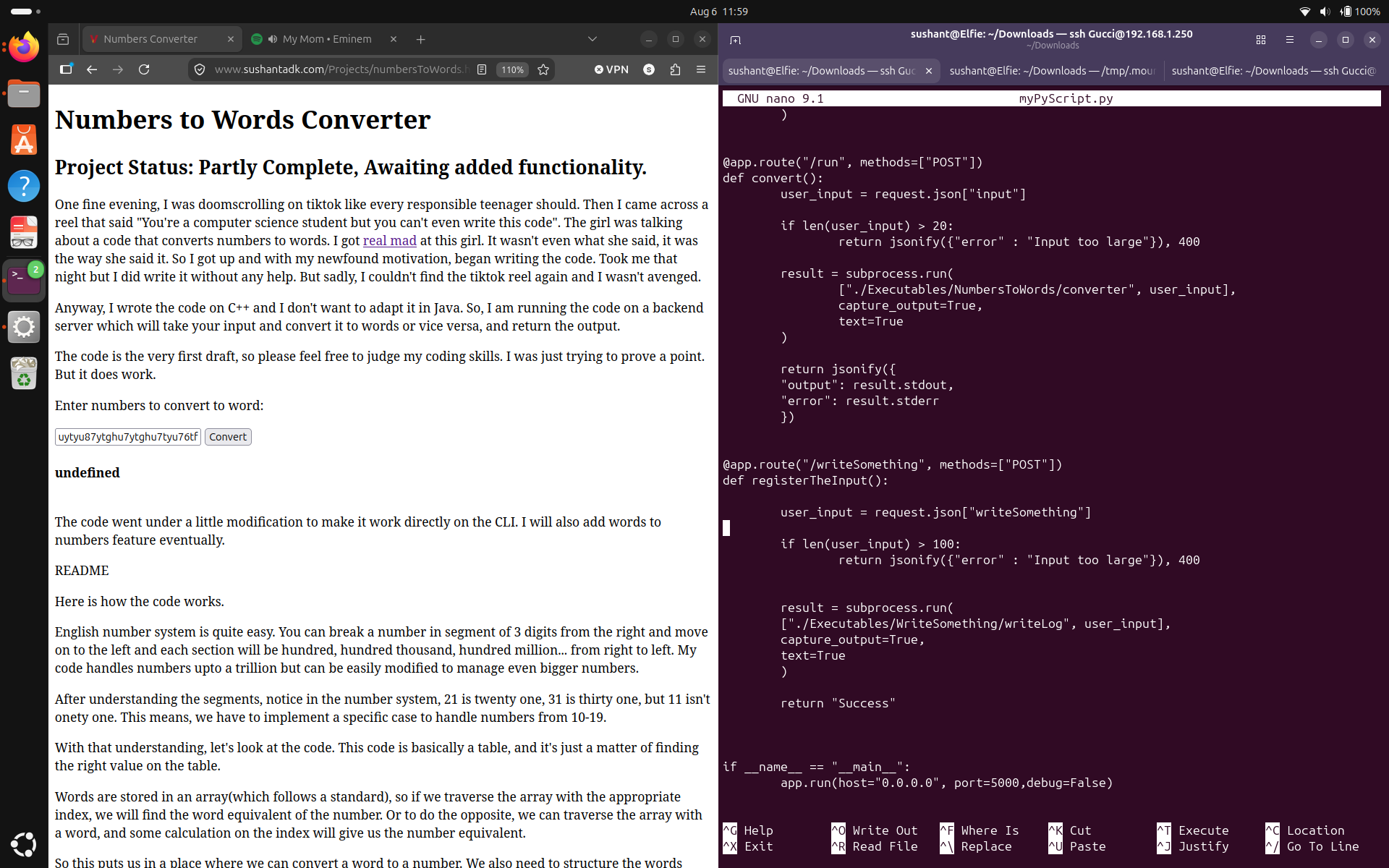 But I noticed that someone could just write a billion things and cause unexpected behavior such as crash my server, so I modified my C code to exit every time without writing if the log size exceeds 100MB.
 Flask-Conclusion
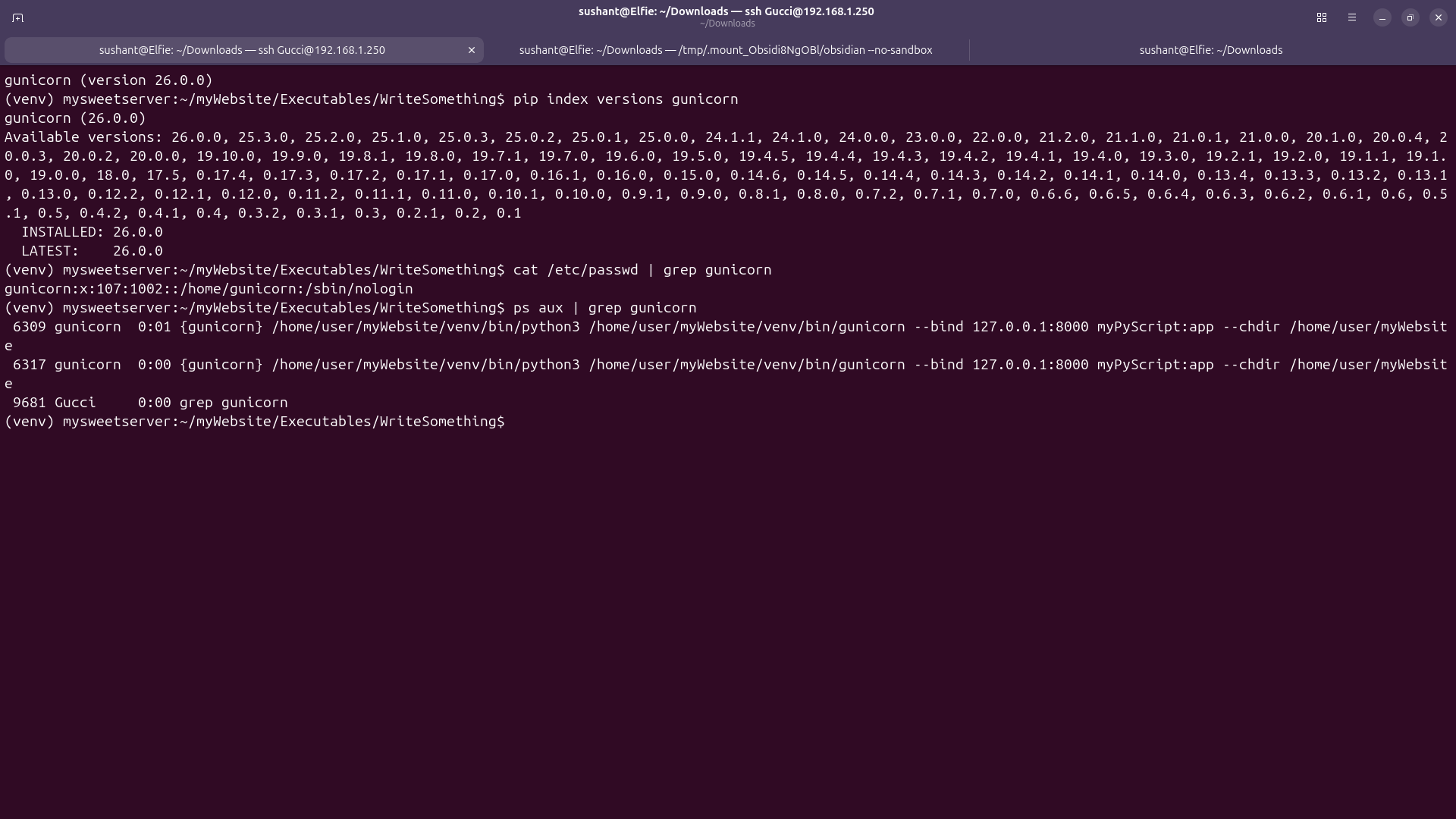 It is the latest version and now it is running from gunicorn service account. The recommendation to create a config file for gunicorn from the Assessment section was deemed non-essential right now.
Gunicorn - Conclusion
It is the latest version and now it is running from gunicorn service account. The recommendation to create a config file for gunicorn from the Assessment section was deemed non-essential right now.
Gunicorn - Conclusion
I cannot see where the prompt stops and my command starts. The book I read called 'Linux Basics for Hackers' did have a chapter on environment variables, so I revisited it but I realized it didn't have the instructions to change colors. So like every other rational human being, I went to the internet and found this command PS1='\e[1;36m\u@\h\e[0m:\e[1;33m\w\e[0m\$ '. It said this would turn the prompts into green, I ran it and turns out it did. Hope this won't ruin my server now. I will put this prompt in my .profile file so the prompt is green from the boot.
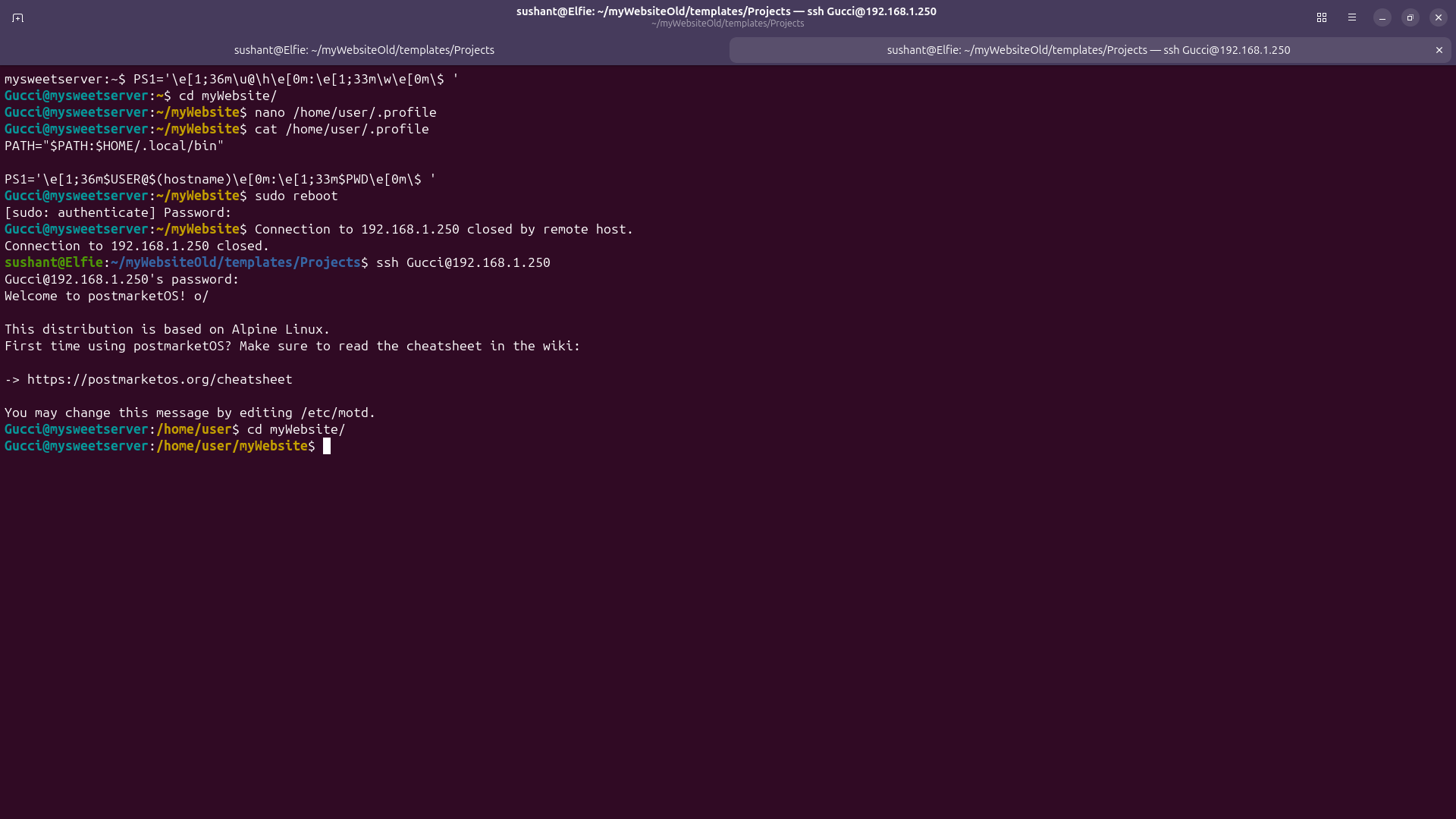 I rebooted the server and looks like the color did hold up. This will make mine and your life much easier moving forward.
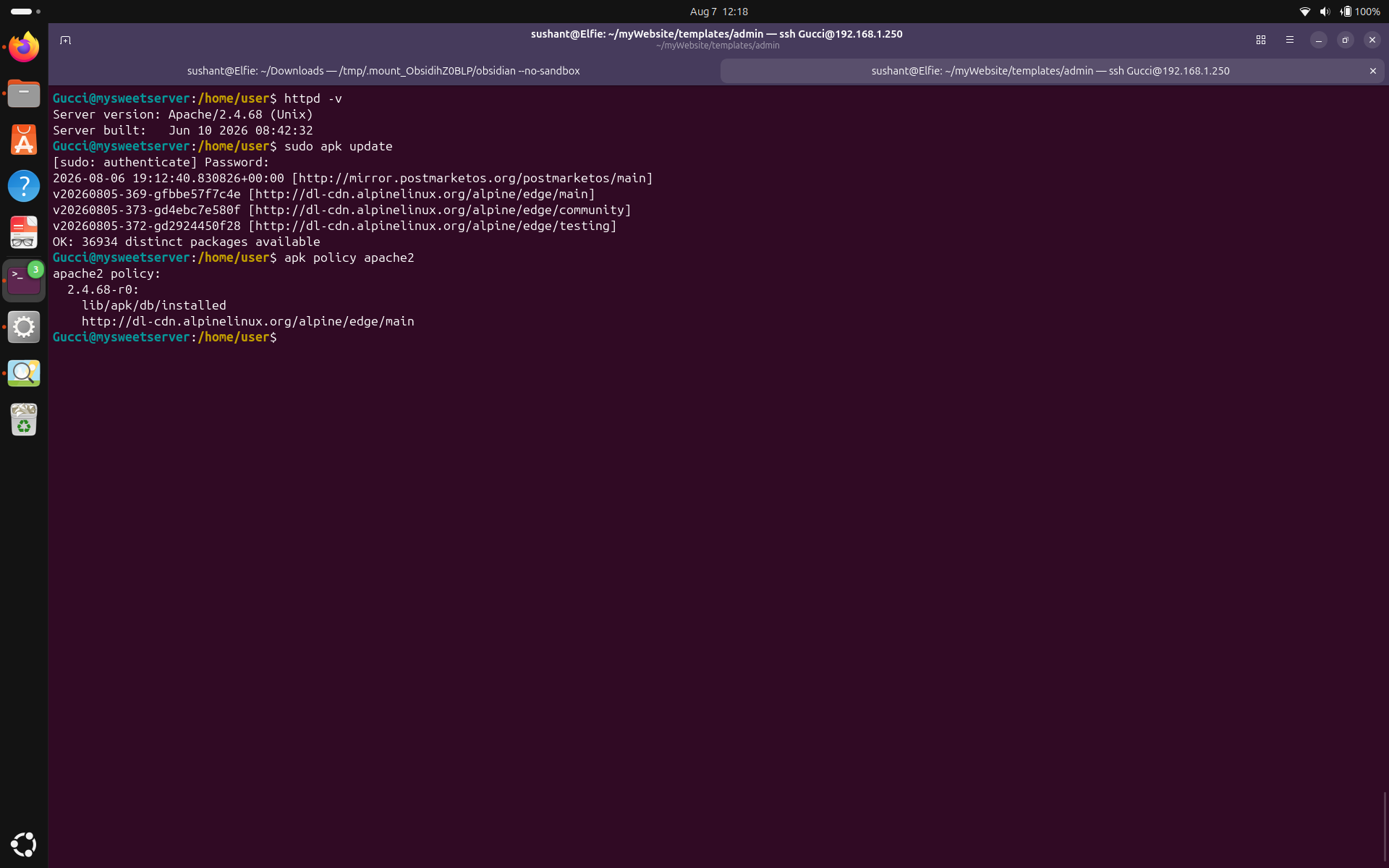
sudo apk update to update your repository and apk policy apache2 to check for the latest version. Comparing it against the currently installed version, it looks like the currently installed version is the latest one.
using module these? and the computer could tell me yes or no. But I was far from reality. First, there isn't a simple or automatic way to determine with certainty whether every loaded module is actually needed and second, the methods I employed were very unreliable. Mainly I used grep on the config files to see if the module is just loaded or also used . Turns out, some modules even tho not explicitly used, are dependencies for other modules. Still, I figured if I spend like 10 mins for every module, I could be reasonably confident but I only live once and I'm not doing that for all the 47 loaded modules (I counted). Rather, I'm taking an approach where I check if the modules were loaded from the right place, if the Apache package passes Alpine's package integrity verification, and and whether any Apache package files or configuration files have been modified since installation.
I guess it's about time I learned about balancing resource with security. Time is a resource I have, and I can't waste it trying to strip down Apache to only the necessary modules when there are other obvious threats to be dealt with. I will only verify that the modules are legit and move on.
First, let's check if the downloaded Apache package has been corrupted or modified. To get the package name, run apk fetch apache2 and run apk verify returnedName to compare it's cryptographic key to the one in the Alpine Package Keeper.
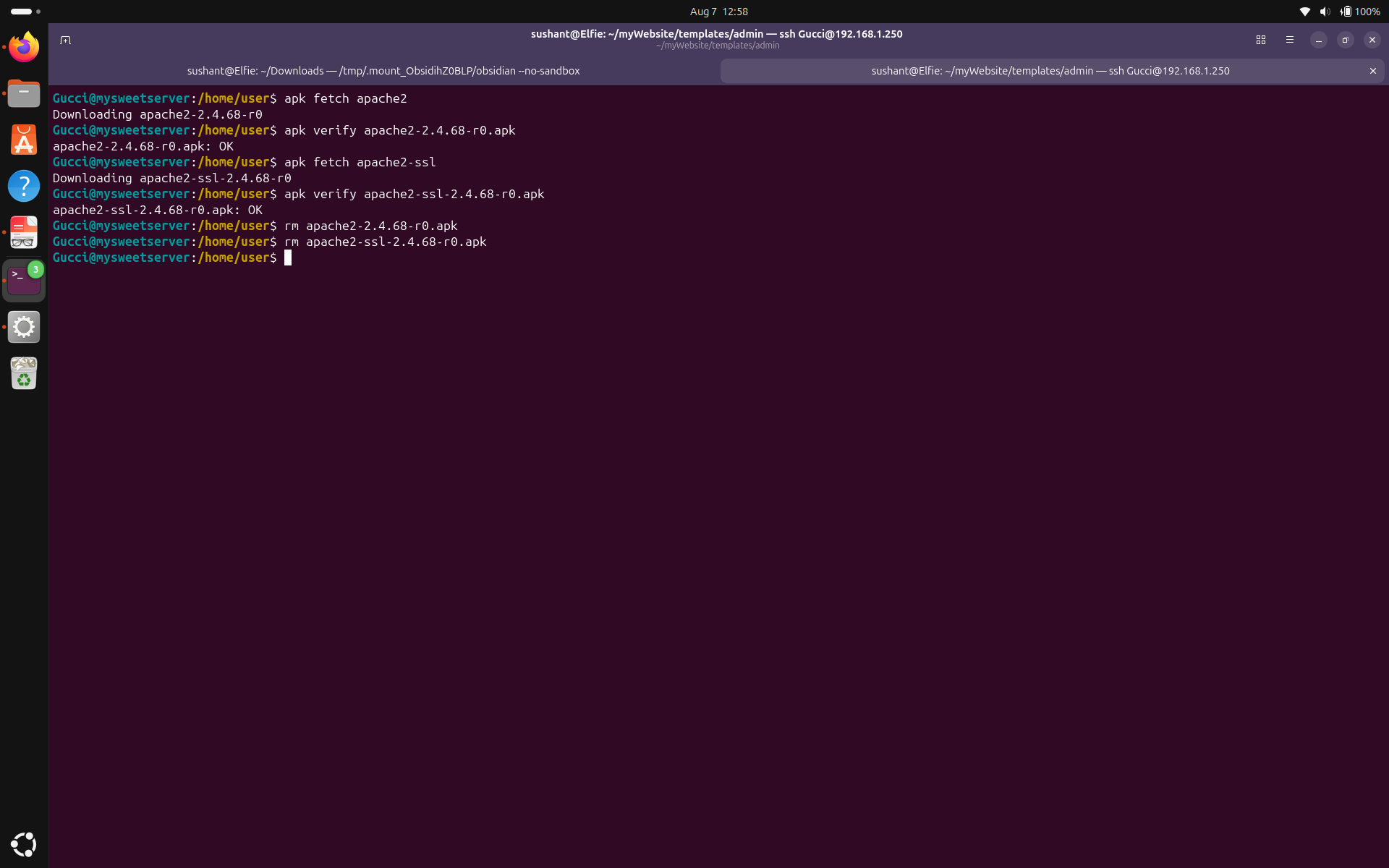 We can see that my Apache, and the additional SSL package both maintained integrity since they were installed. Fetch command downloads the packages to your cd so make sure you remove them.
From
We can see that my Apache, and the additional SSL package both maintained integrity since they were installed. Fetch command downloads the packages to your cd so make sure you remove them.
From apk --help, I retrieved this command: audit Audit system for changes. Let's do that and grep apache2 to see what files have been changed on the system. Run apk audit | grep apache2.
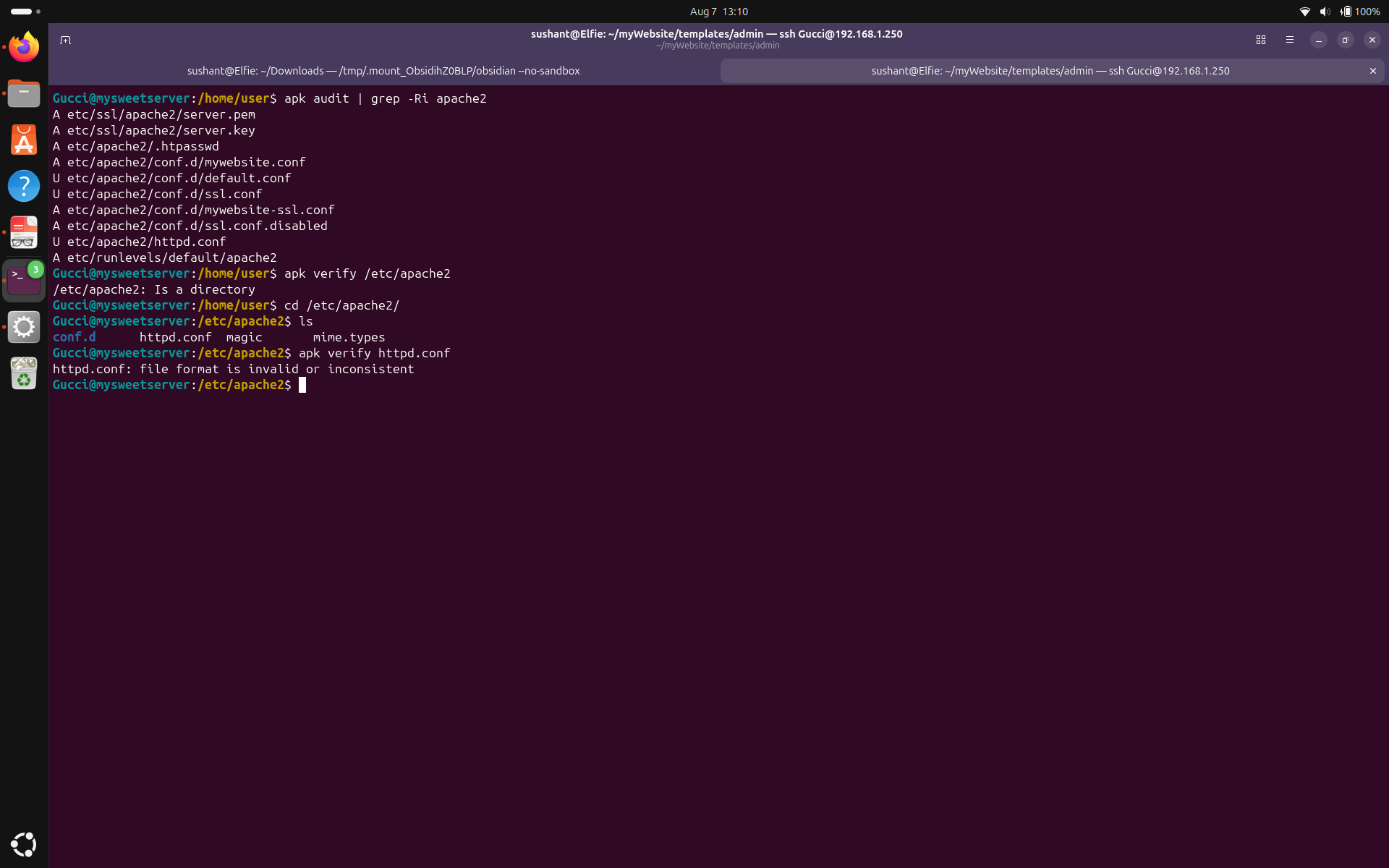 We can see that files that have been added are:
apk --help did give me another command that looked useful: apk verify but it is either broken or I don't know how to use it. But I am going to conclude that for all the modules that are loaded, and the files in apache2 directory, no unexpected modifications were identified. I couldn't strip down apache to only necessary modules but we did confirm that they were not subject to any tampering or added from unknown source so we'll just have to live with extra Apache modules for now.
HTTP to HTTPS redirection
Currently, there are two files that manage HTTP and HTTPS in my server: mywebsite.conf, and mywebsite-ssl.conf. mywebsite-ssl.conf manages HTTPS traffic so we can let that be, and let's focus on the file that manages HTTP traffic: mywebsite.conf.
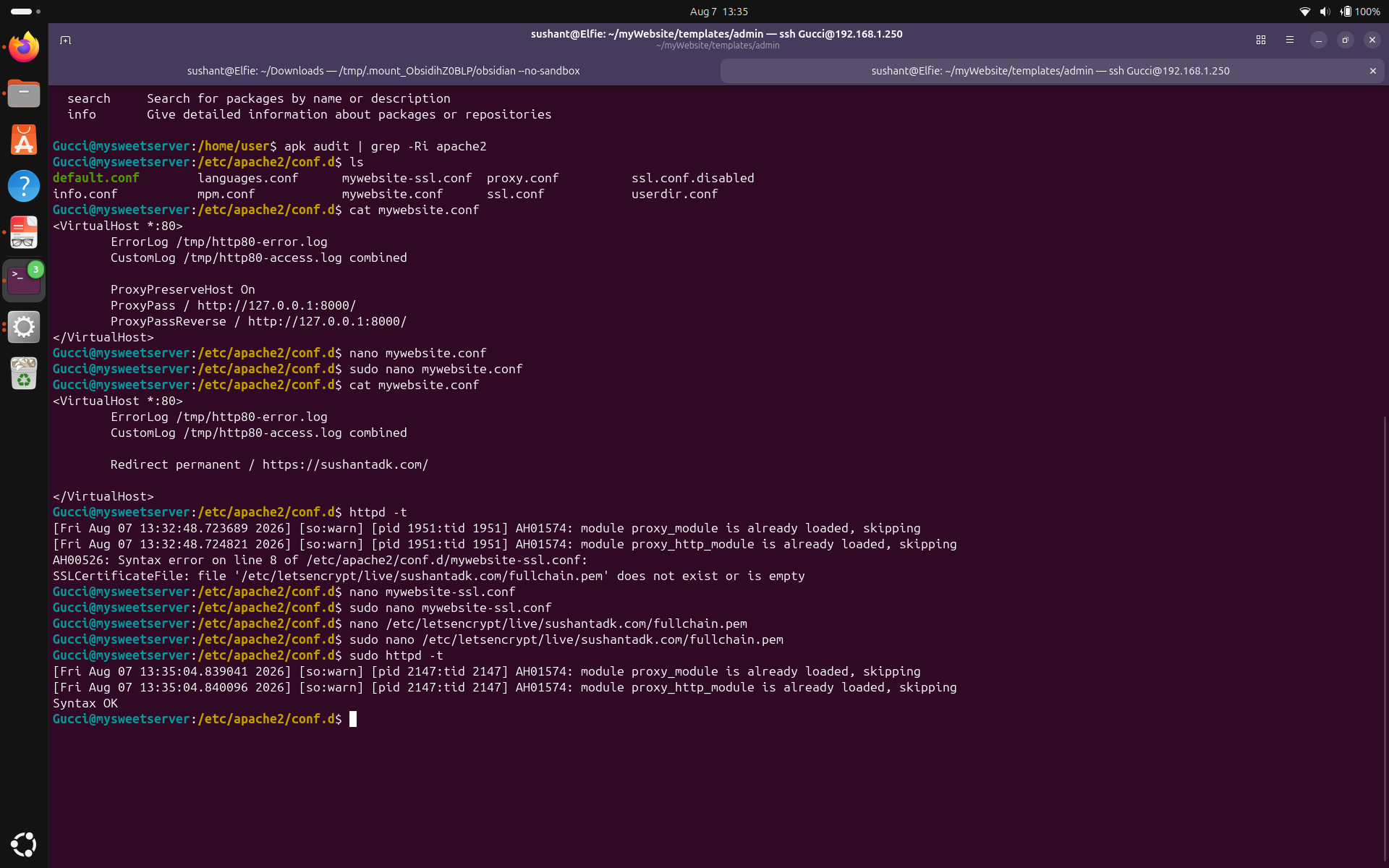 You can see in the image above, I removed proxy commands from the file, and simply added permanent redirection. I tested with
 httpd -t, and I thought there was a problem but it was only because I wasn't running the command as sudo. The syntax returned OK.
Let's check it by restarting Apache and doing curl on our public IP address because curl on the domain name is intercepted by Cloudflare.
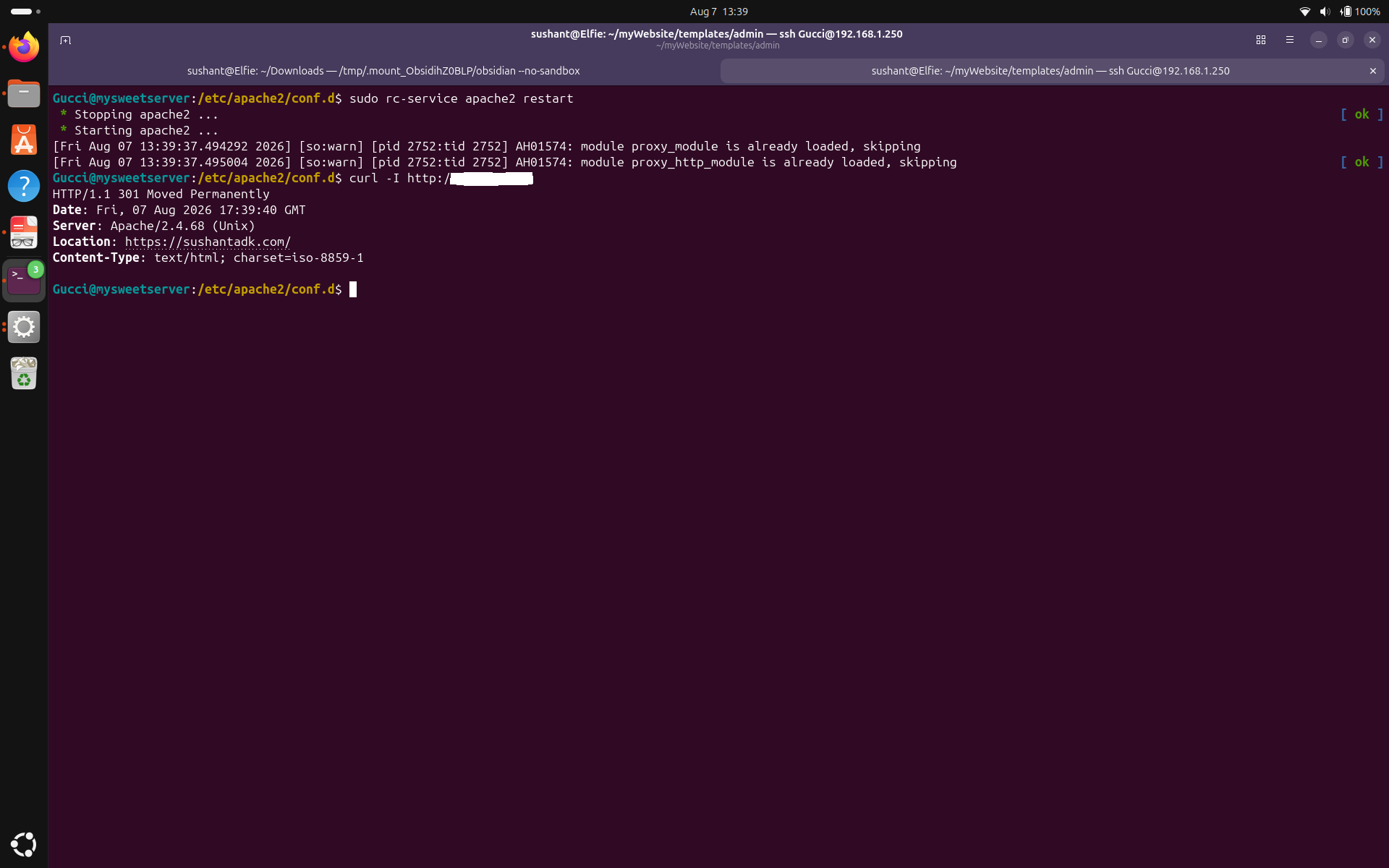 Now we can see that HTTP connections made directly to my server are rejected, and the response shows a 301 Moved Permanently redirect to my HTTPS address.
Certificate Renewal
We saw in the assessment section that certbot renewal fails because it tries to bind to port 80 but Apache is already using port 80. Let's stop apache for a second and see if the renewal simulation succeeds.
Now we can see that HTTP connections made directly to my server are rejected, and the response shows a 301 Moved Permanently redirect to my HTTPS address.
Certificate Renewal
We saw in the assessment section that certbot renewal fails because it tries to bind to port 80 but Apache is already using port 80. Let's stop apache for a second and see if the renewal simulation succeeds.
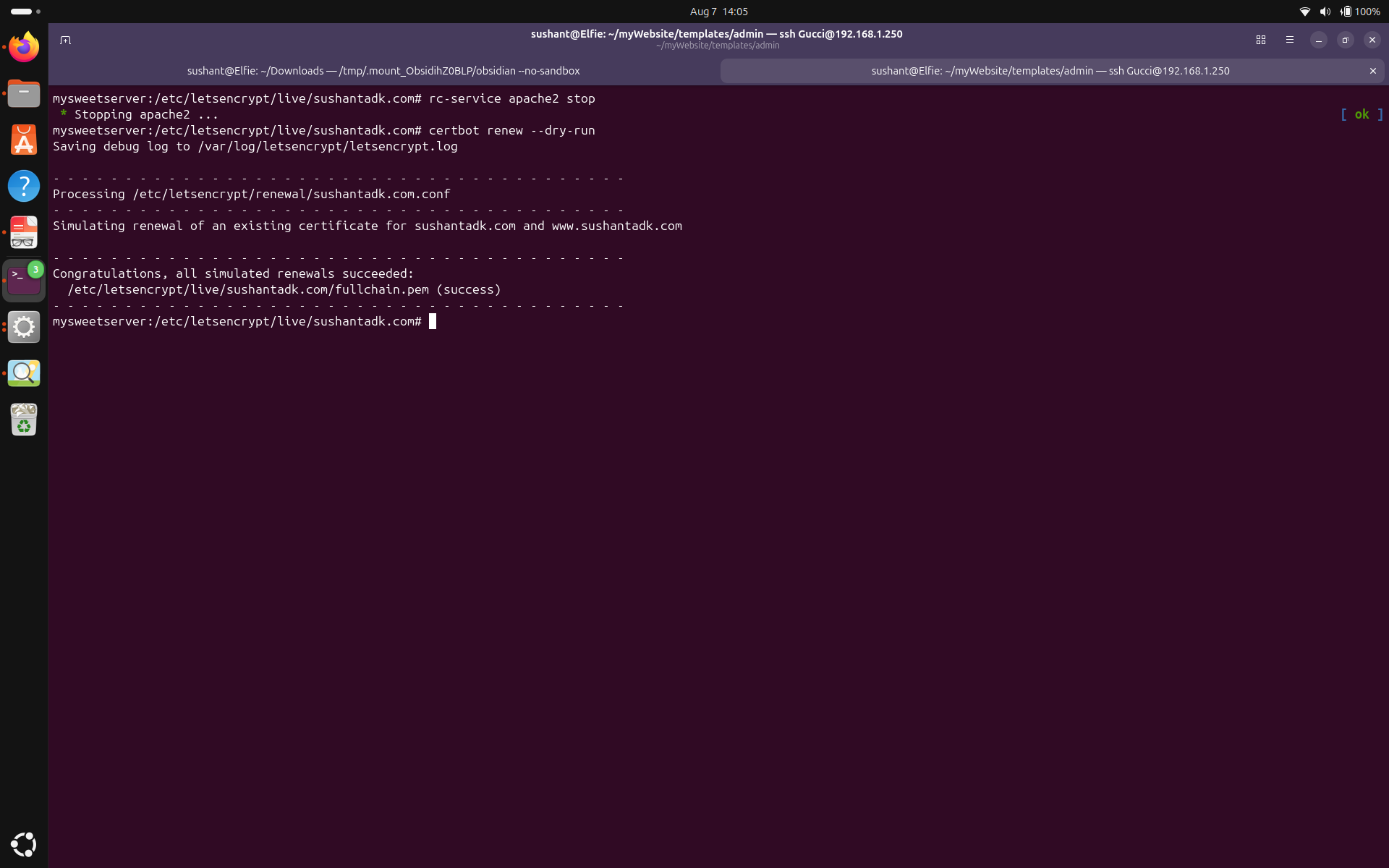 Exactly like I suspected, renewal succeeds if port 80 is free. But this wasn't the only problem. There isn't a renewal script either. So I am going to write a script which, when renewal is necessary, stops apache, gets a new certificate, and starts apache back up.
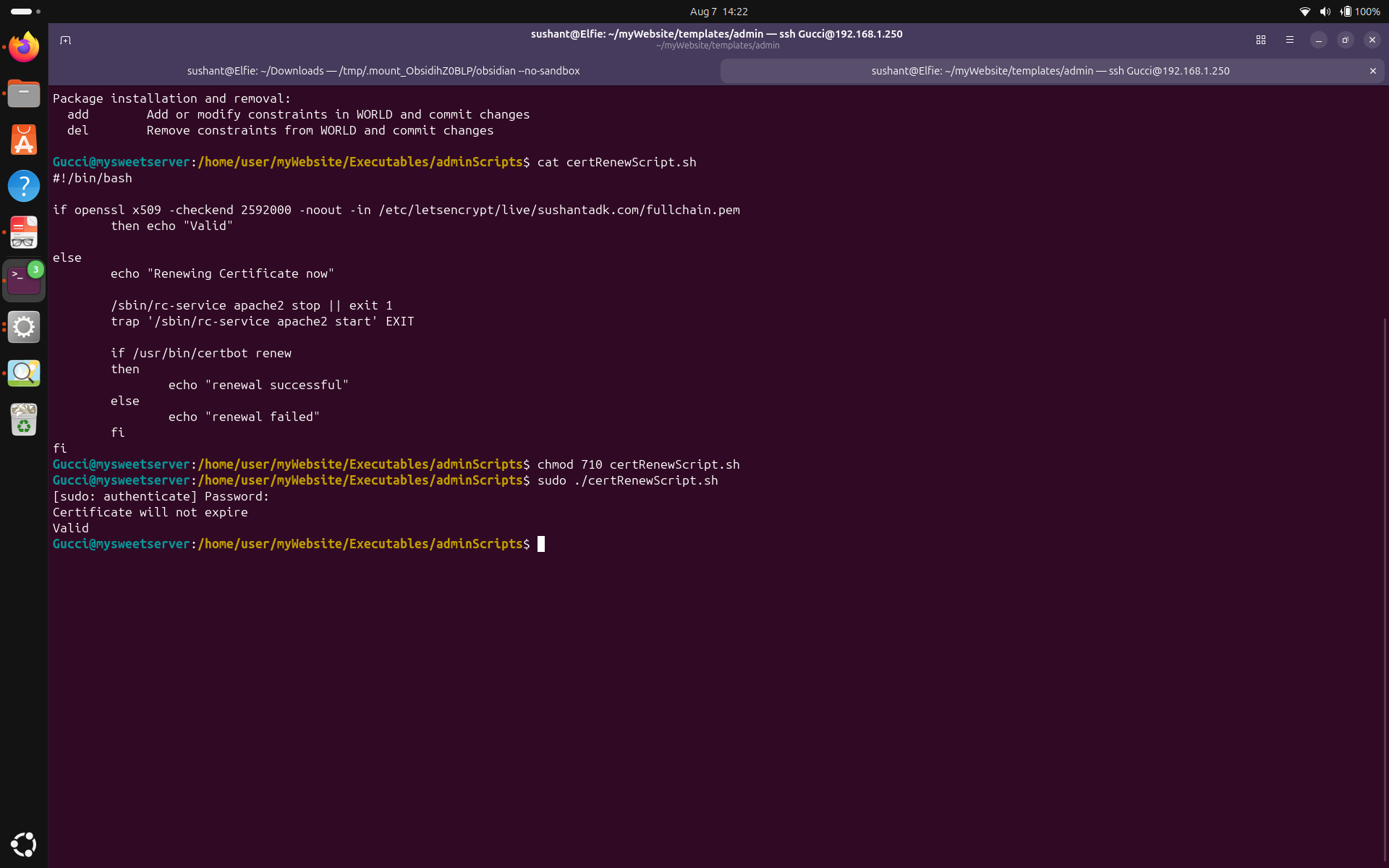 Here it is. The script checks if the certificate is valid for another 2592000 seconds (30 days). If it is, then the script does nothing but when it detects that certificate is not valid for next 30 days, it stops apache, (exits if fails), renews the certificate, and when the script exits, Apache starts automatically.
To test the script, I modified it to renew the certificate if it is expiring in the next 9592000 seconds (111 days) to trigger the renewal logic, and everything went as I had thought.
Here it is. The script checks if the certificate is valid for another 2592000 seconds (30 days). If it is, then the script does nothing but when it detects that certificate is not valid for next 30 days, it stops apache, (exits if fails), renews the certificate, and when the script exits, Apache starts automatically.
To test the script, I modified it to renew the certificate if it is expiring in the next 9592000 seconds (111 days) to trigger the renewal logic, and everything went as I had thought.
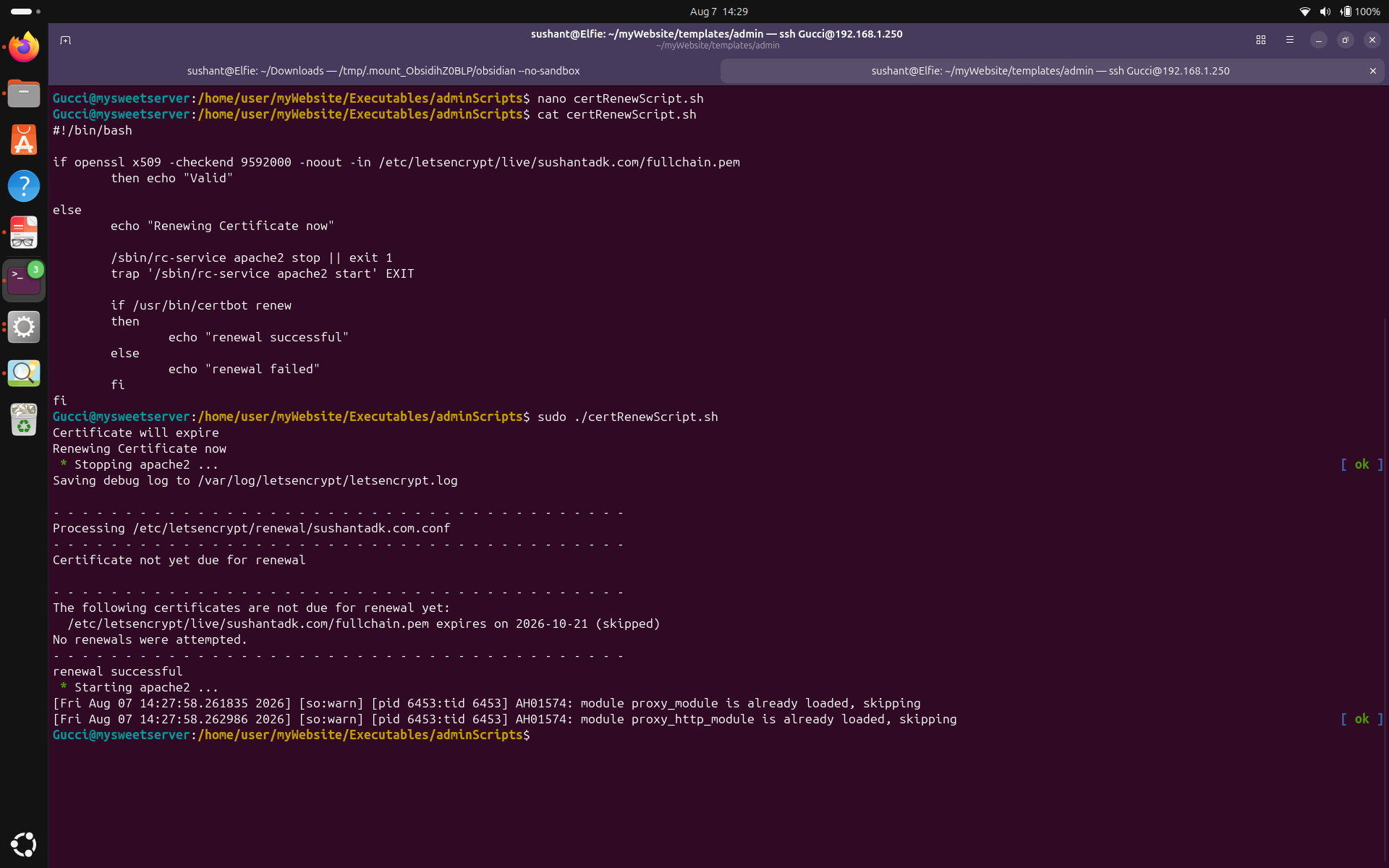 Even though the certificate didn't renew(certbot only lets renewal if the certificate is expiring in 30 days), I can see the workflow. The script successfully stopped Apache, tried to renew the certificate but got a 'Certificate not yet due for renewal' response, and started Apache back up.
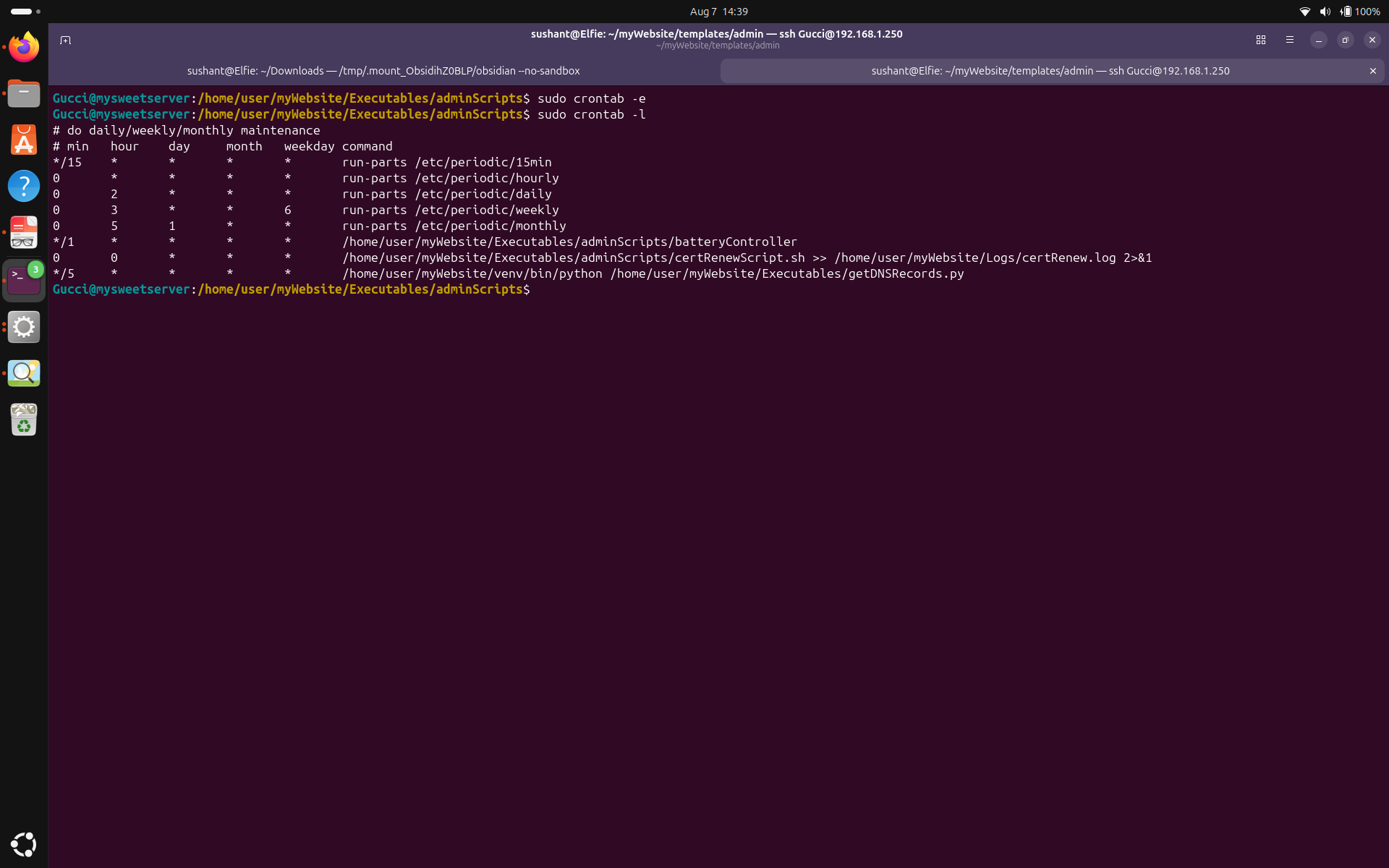 I added it to cron to run at midnight every day. I also added a logger in case renewal ever fails and I need to perform a manual intervention.
Now for the big question in everyone's mind. Since my approach stops Apache, which means my server will be down for about 10-15 seconds, what if someone tries to access my website right on the 60th day of my certificate issuance at 00:00 midnight? Well let me answer your question with another question, What if anything? What if a bomb drops on your head right now? Don't judge me, the president said it. But really tho, I can afford a 10 second downtime every 60 days and there maybe a better way to do it but the moment I saw renewal fail because port 80 was busy, the only thought in my mind was "let's just free port 80 then", so here we are.
Apache-conclusion
I added it to cron to run at midnight every day. I also added a logger in case renewal ever fails and I need to perform a manual intervention.
Now for the big question in everyone's mind. Since my approach stops Apache, which means my server will be down for about 10-15 seconds, what if someone tries to access my website right on the 60th day of my certificate issuance at 00:00 midnight? Well let me answer your question with another question, What if anything? What if a bomb drops on your head right now? Don't judge me, the president said it. But really tho, I can afford a 10 second downtime every 60 days and there maybe a better way to do it but the moment I saw renewal fail because port 80 was busy, the only thought in my mind was "let's just free port 80 then", so here we are.
Apache-conclusion
deluser userName to delete a user.
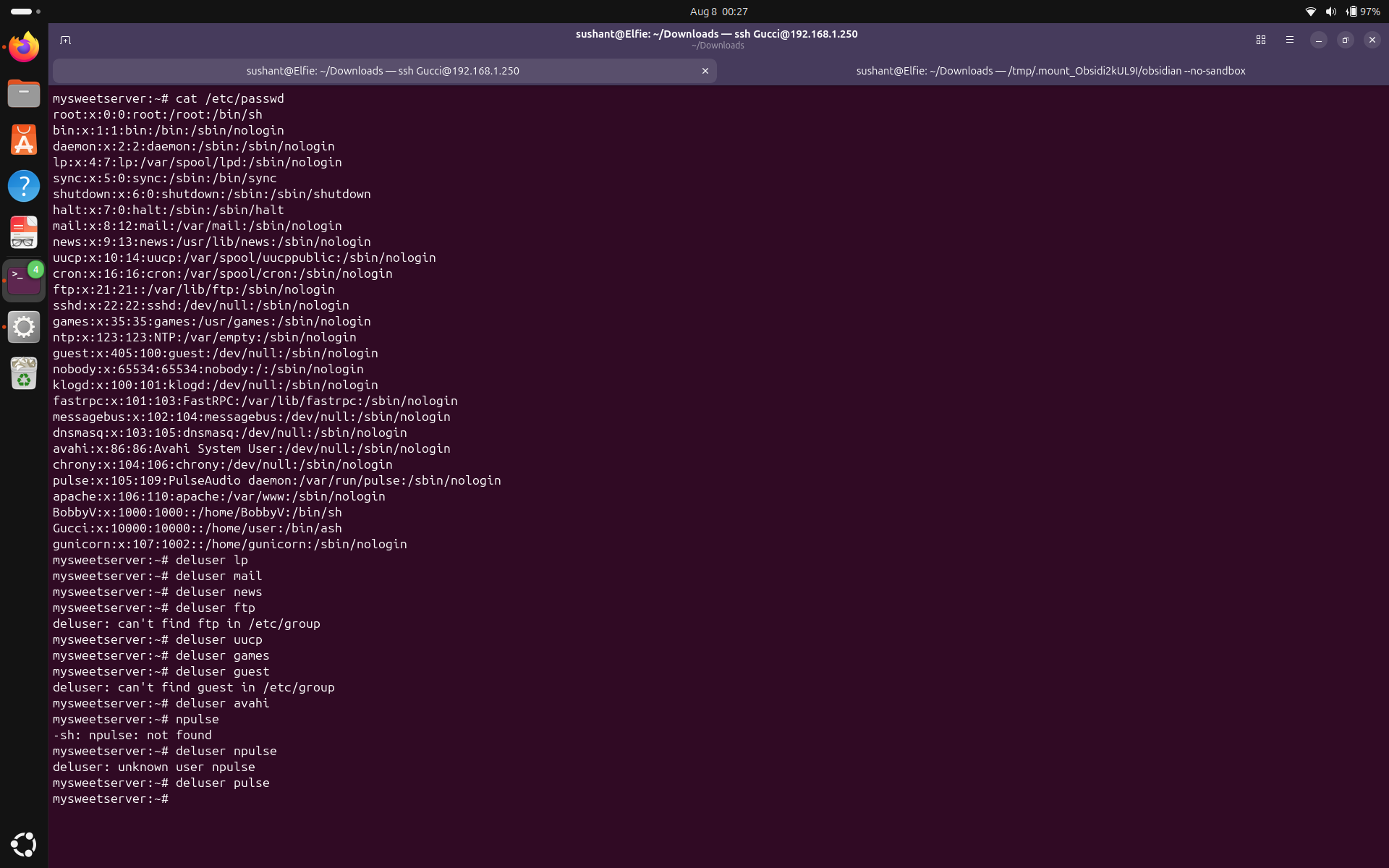 After careful evaluation, I removed these users:
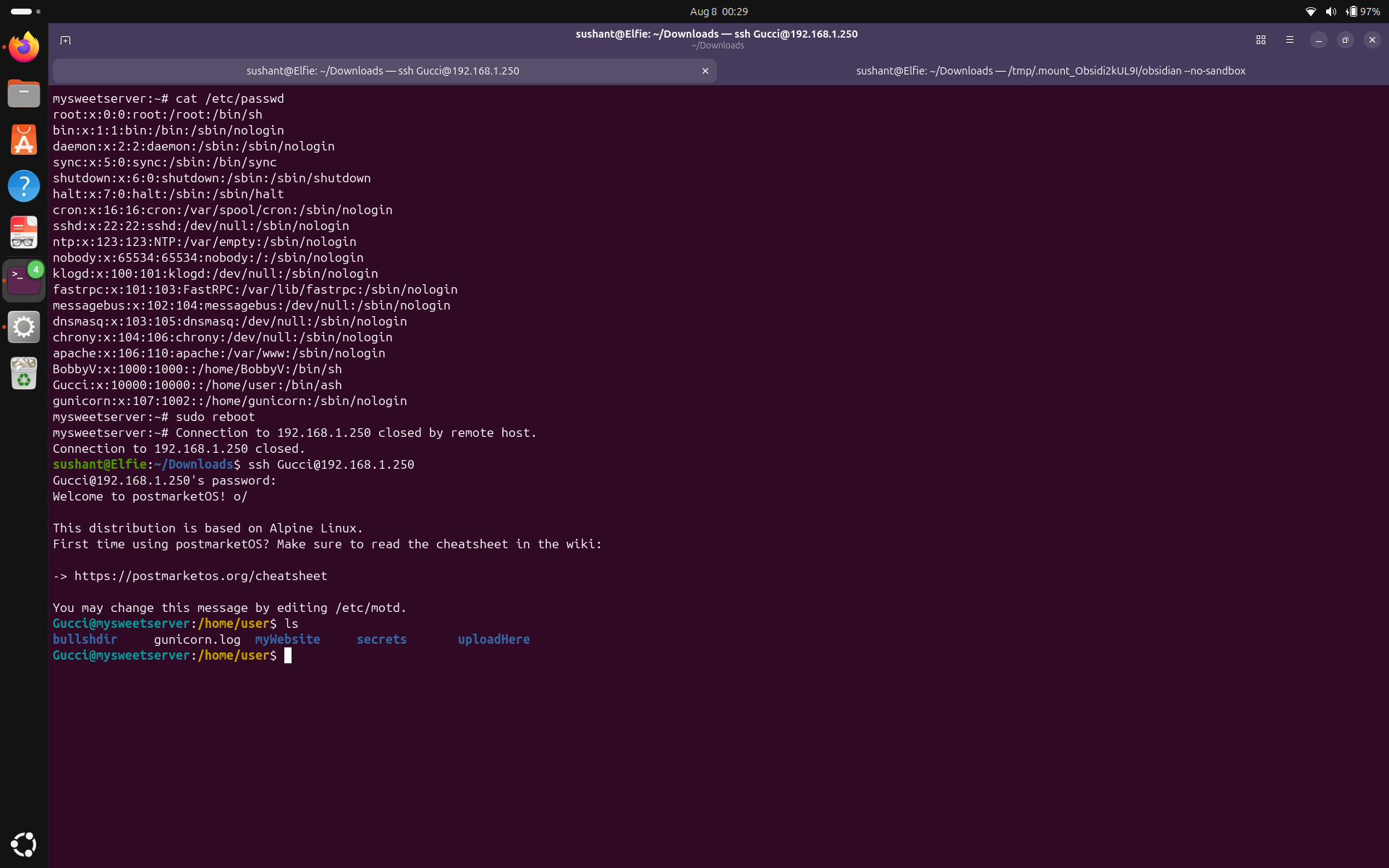 Okay the server is fine and website is also up and running. We can see that the number of user accounts have decreased, and only root, Gucci, and BobbyV can get a shell and other accounts have appropriate configurations.
Groups
Let's move on to groups now. I also noticed a lot of unnecessary groups during the assessment. Run
Okay the server is fine and website is also up and running. We can see that the number of user accounts have decreased, and only root, Gucci, and BobbyV can get a shell and other accounts have appropriate configurations.
Groups
Let's move on to groups now. I also noticed a lot of unnecessary groups during the assessment. Run delgroup groupName to remove a group.
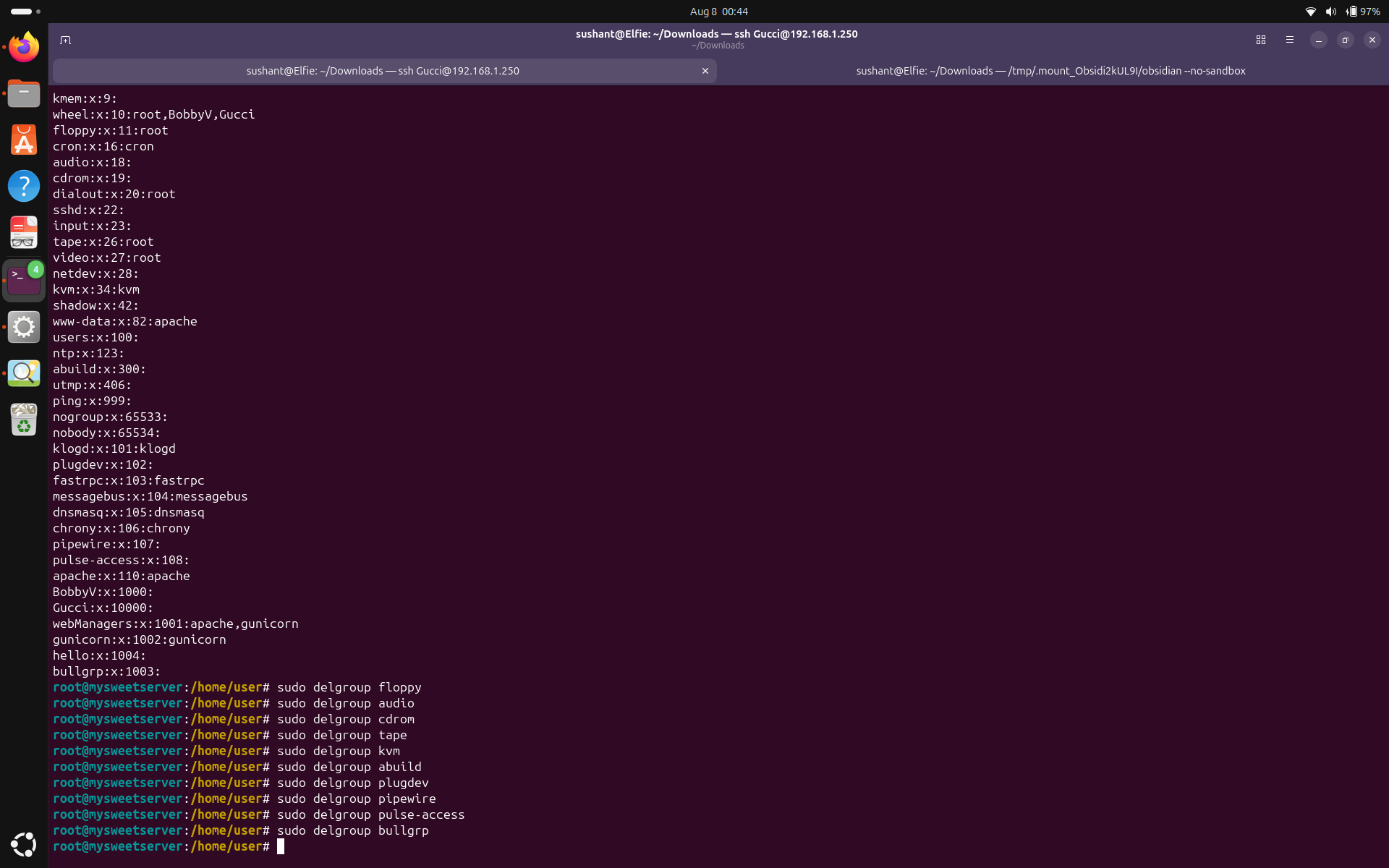 I removed these groups:
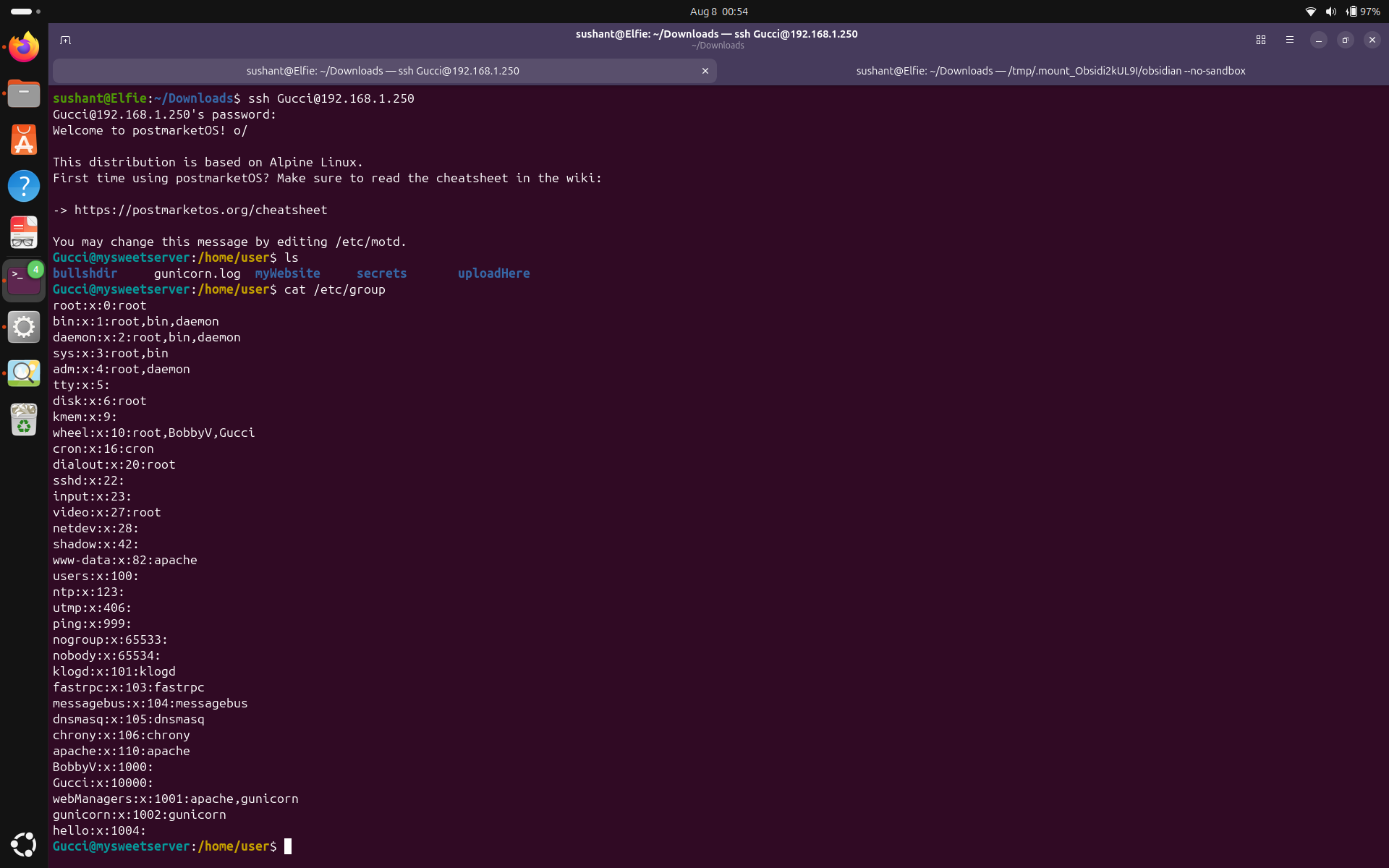 We can see once more time the server and my website are functioning normally.
Login methods
We saw during the assessment that none of the users were using SSH keys for login. Let's add the SSH keys for Gucci and BobbyV.
For Gucci, let's create a key, and manually copy it into the correct directory and again manually add it to the authorized_keys file. Run
We can see once more time the server and my website are functioning normally.
Login methods
We saw during the assessment that none of the users were using SSH keys for login. Let's add the SSH keys for Gucci and BobbyV.
For Gucci, let's create a key, and manually copy it into the correct directory and again manually add it to the authorized_keys file. Run ssh-keygen -t rsa -b 4096 to generate a RSA key pair. Then do scp to copy the public key to the intended user's .ssh file in their home directory.
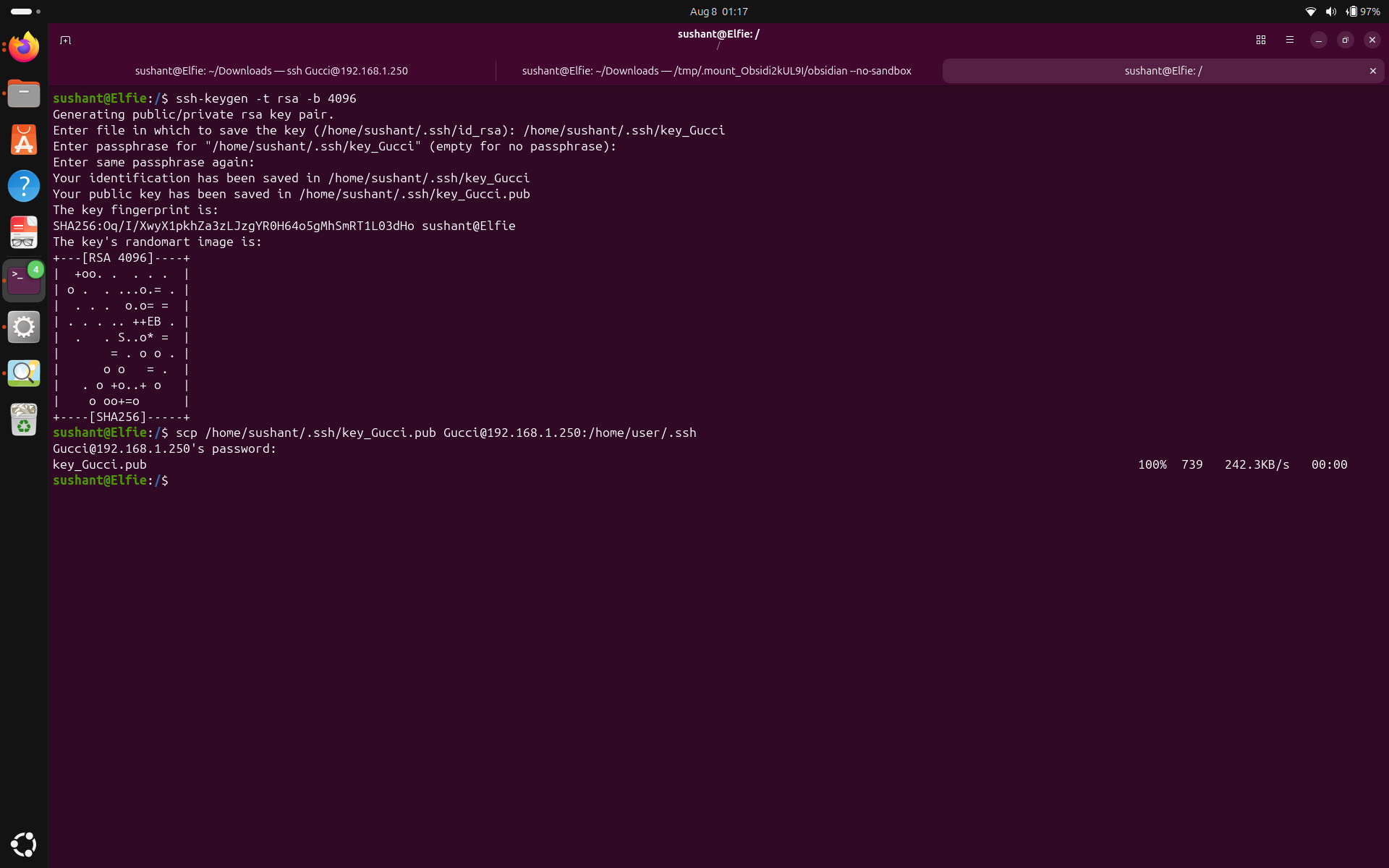 Let's use cat to append the key to the authorized_keys file.
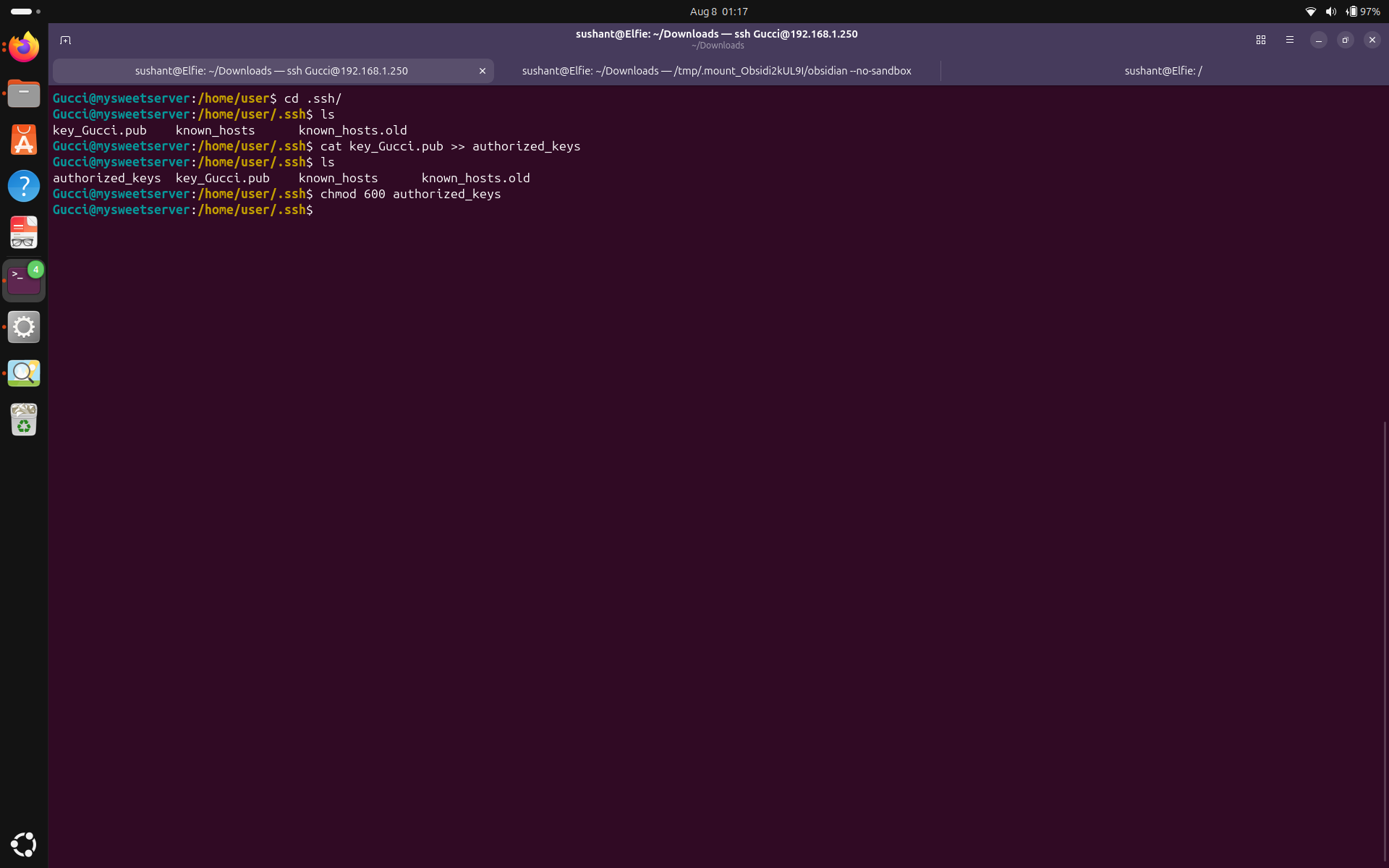 Now let's try to login using the SSH key.
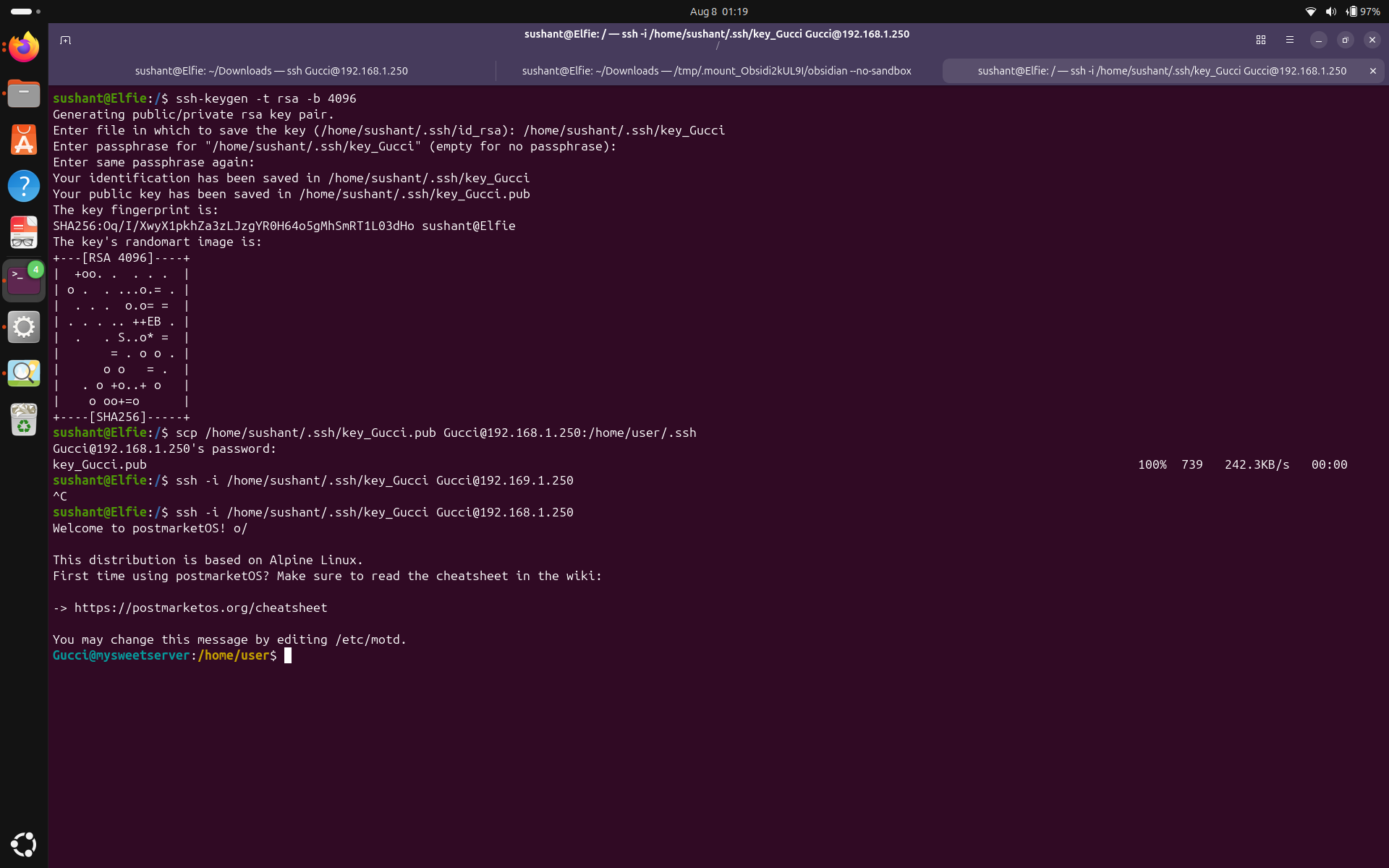 It works! (ignore my first attempt to login where I put in the wrong IP address).
ssh-copy-id -i ~/.ssh/key_Name.pub user@IP_Address. This will automatically copy the key to the right directory, and adds it to the registered_keys file.
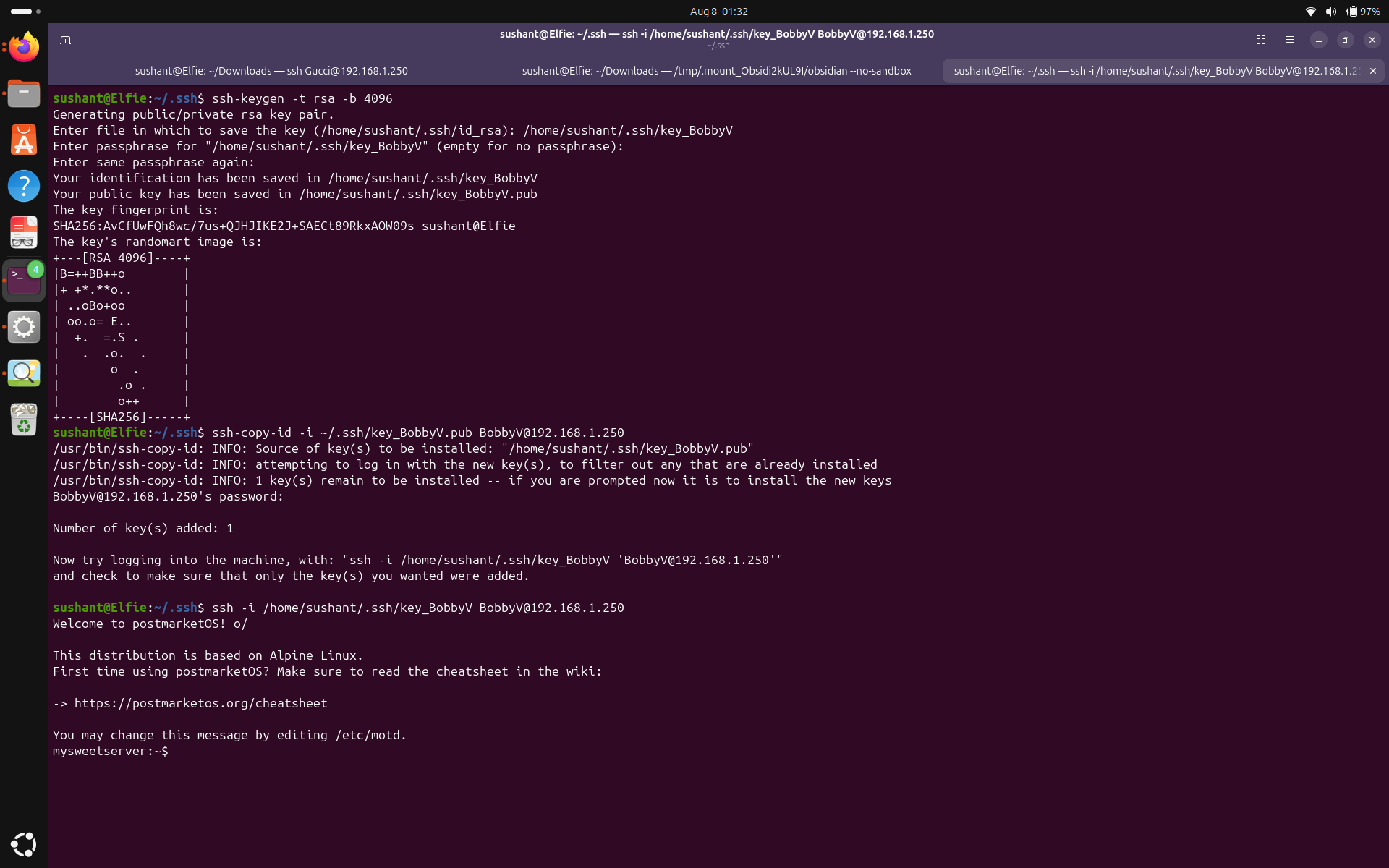 We can also login as BobbyV using the RSA key now.
I am not removing password login for any of the accounts for now. It is a practical desicion because the machine with the private key is not so reliable, so I will make sure to use strong and secure passwords. Next, let's disable root login via SSH. Go to the file /etc/ssh/sshd_config and configure PermitRootLogin to no.
We can also login as BobbyV using the RSA key now.
I am not removing password login for any of the accounts for now. It is a practical desicion because the machine with the private key is not so reliable, so I will make sure to use strong and secure passwords. Next, let's disable root login via SSH. Go to the file /etc/ssh/sshd_config and configure PermitRootLogin to no.
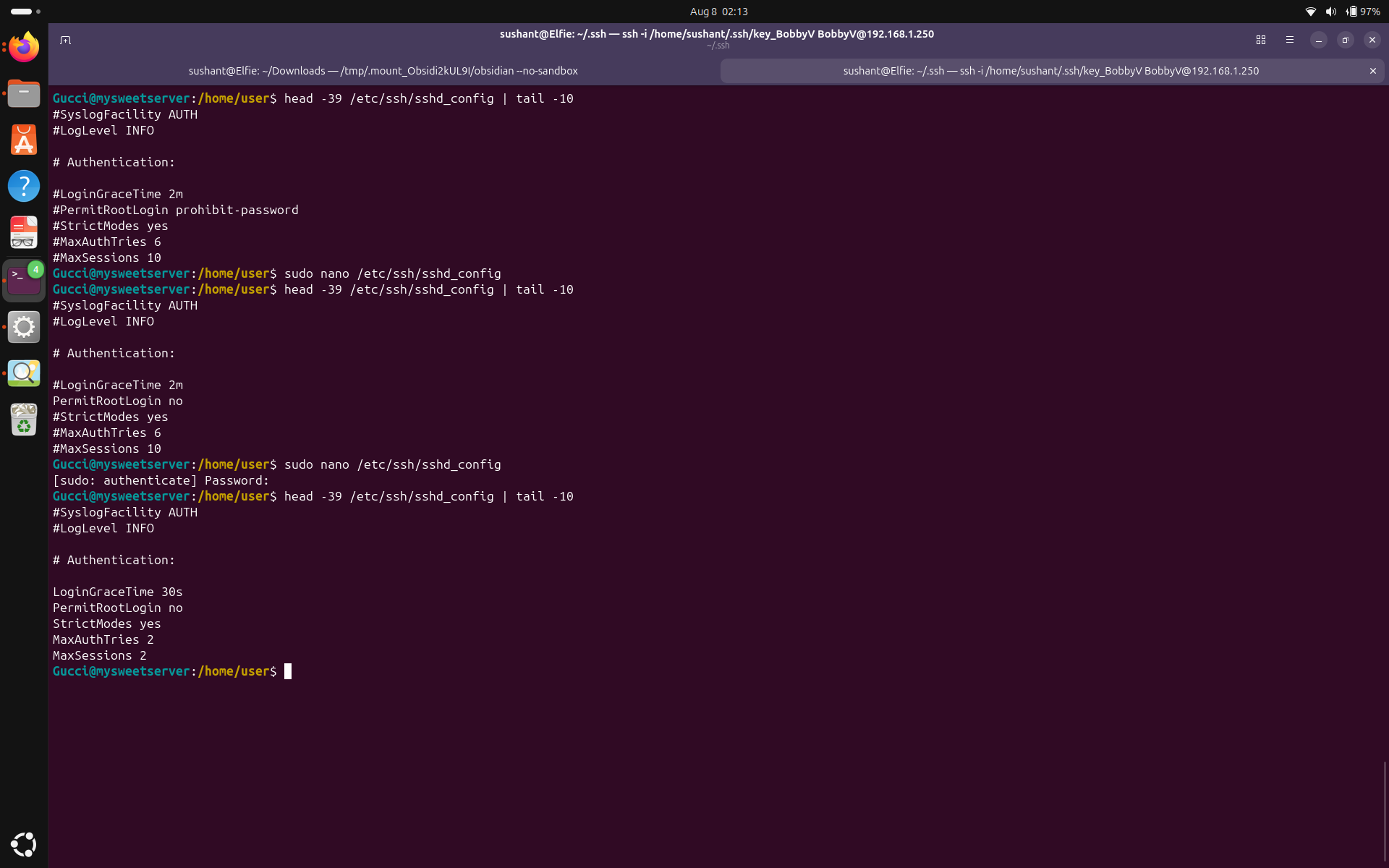 I also enabled StrictMode, shortened LoginGraceTime, and decreased MaxAuthTries and MaxSessions.
Let's try to SSH as root now.
I also enabled StrictMode, shortened LoginGraceTime, and decreased MaxAuthTries and MaxSessions.
Let's try to SSH as root now.
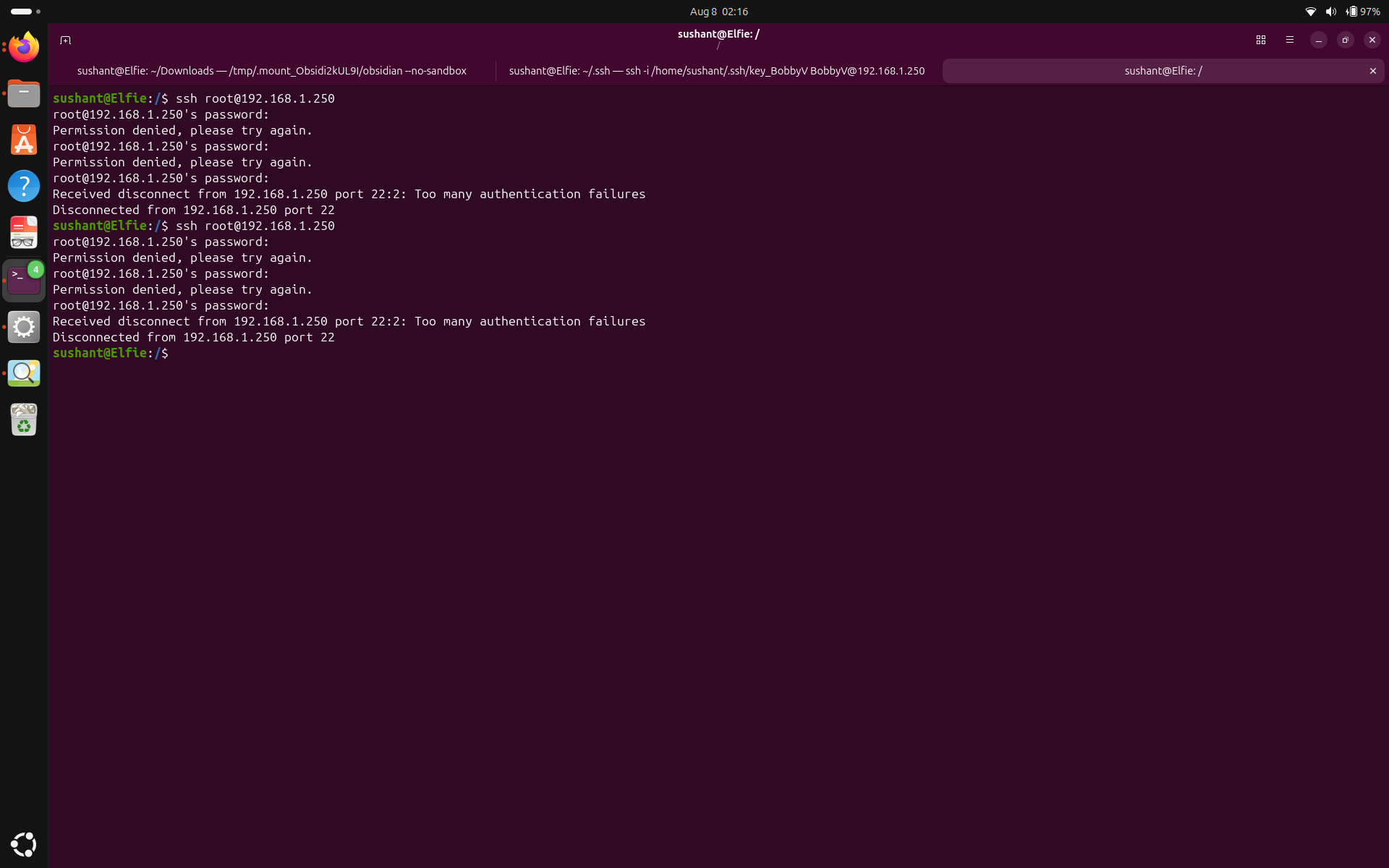 You can see that I cannot login as root, and the connection gets terminated on the third login attempt.
Users, Groups, Login - Conclusion
You can see that I cannot login as root, and the connection gets terminated on the third login attempt.
Users, Groups, Login - Conclusion
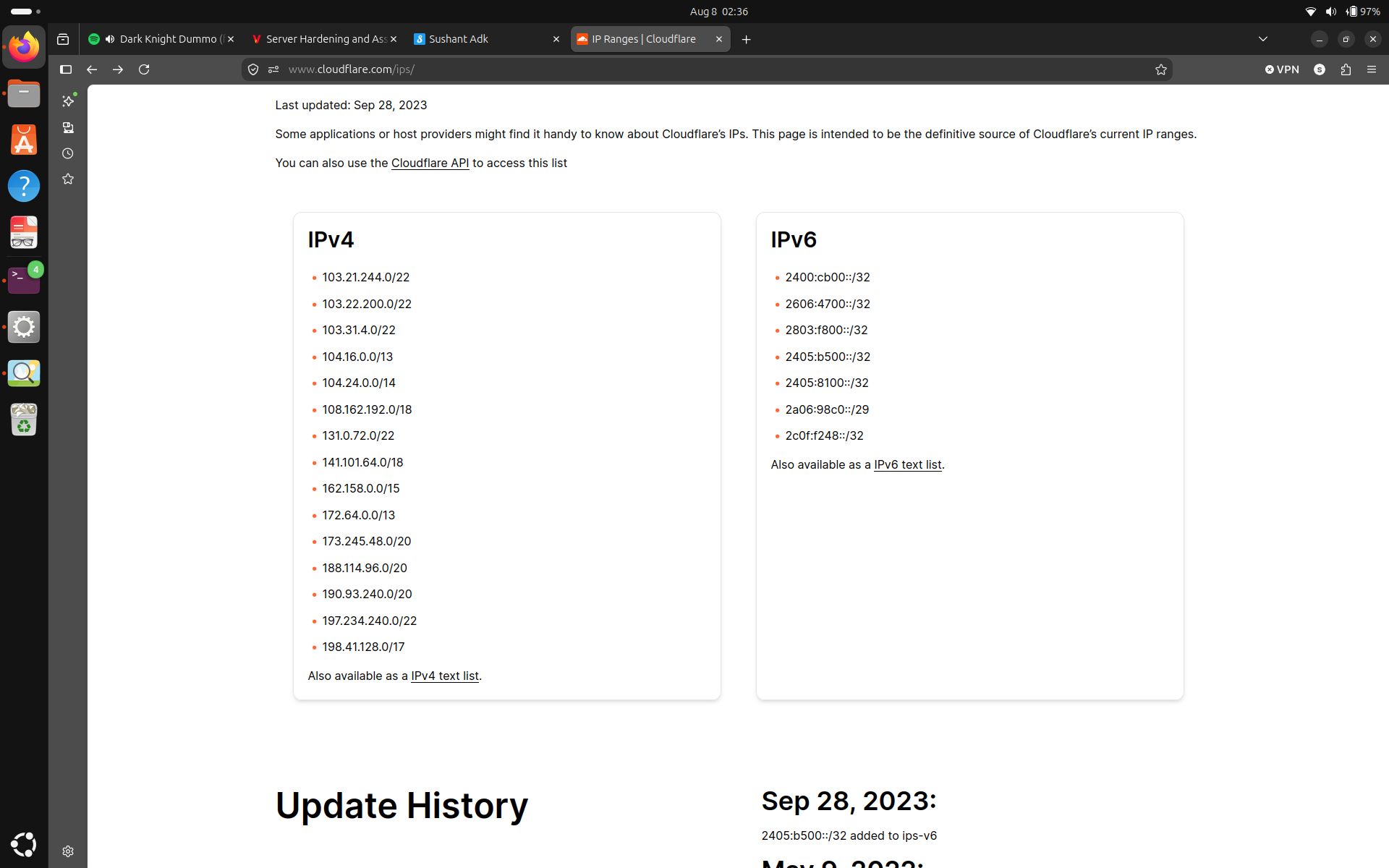 With this range, here is how I modified my firewall:
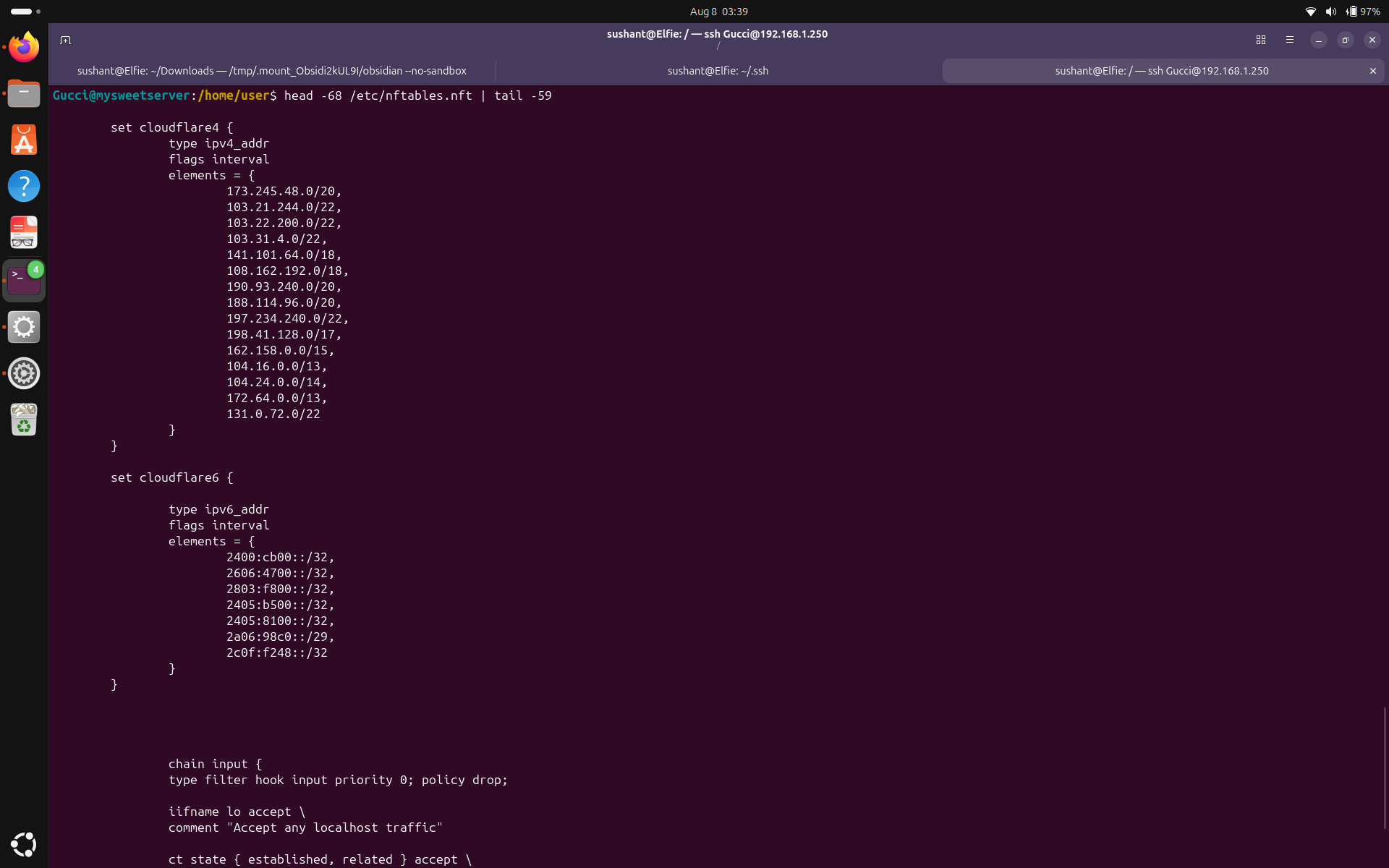
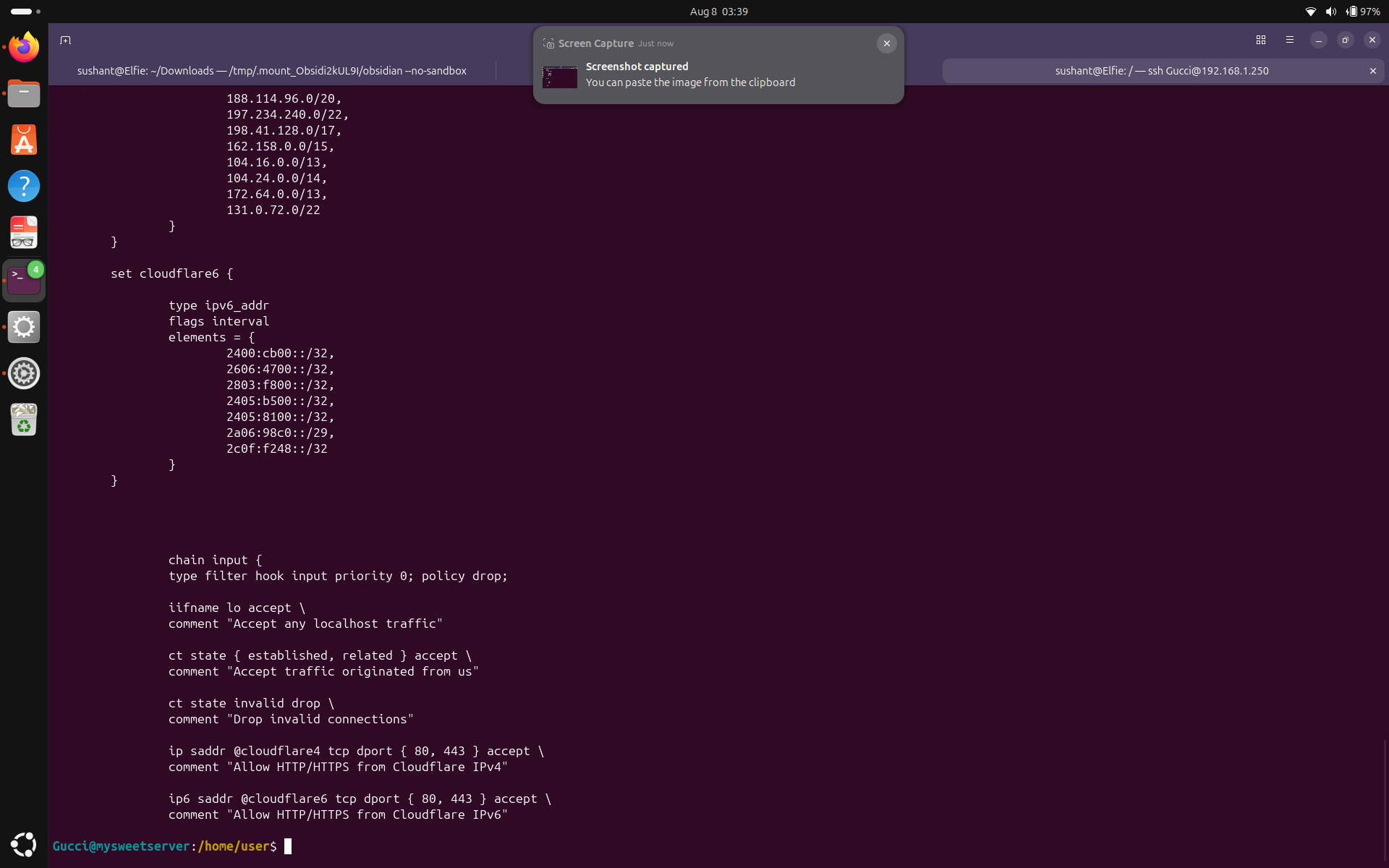 I made two sets with IPv6 and IPv4 addresses from Cloudflare's IP range, and configured port 80 and 443 to only accept traffic from these addresses. Let's try curl on my public IP from my laptop to see if the connection is accepted or dropped.
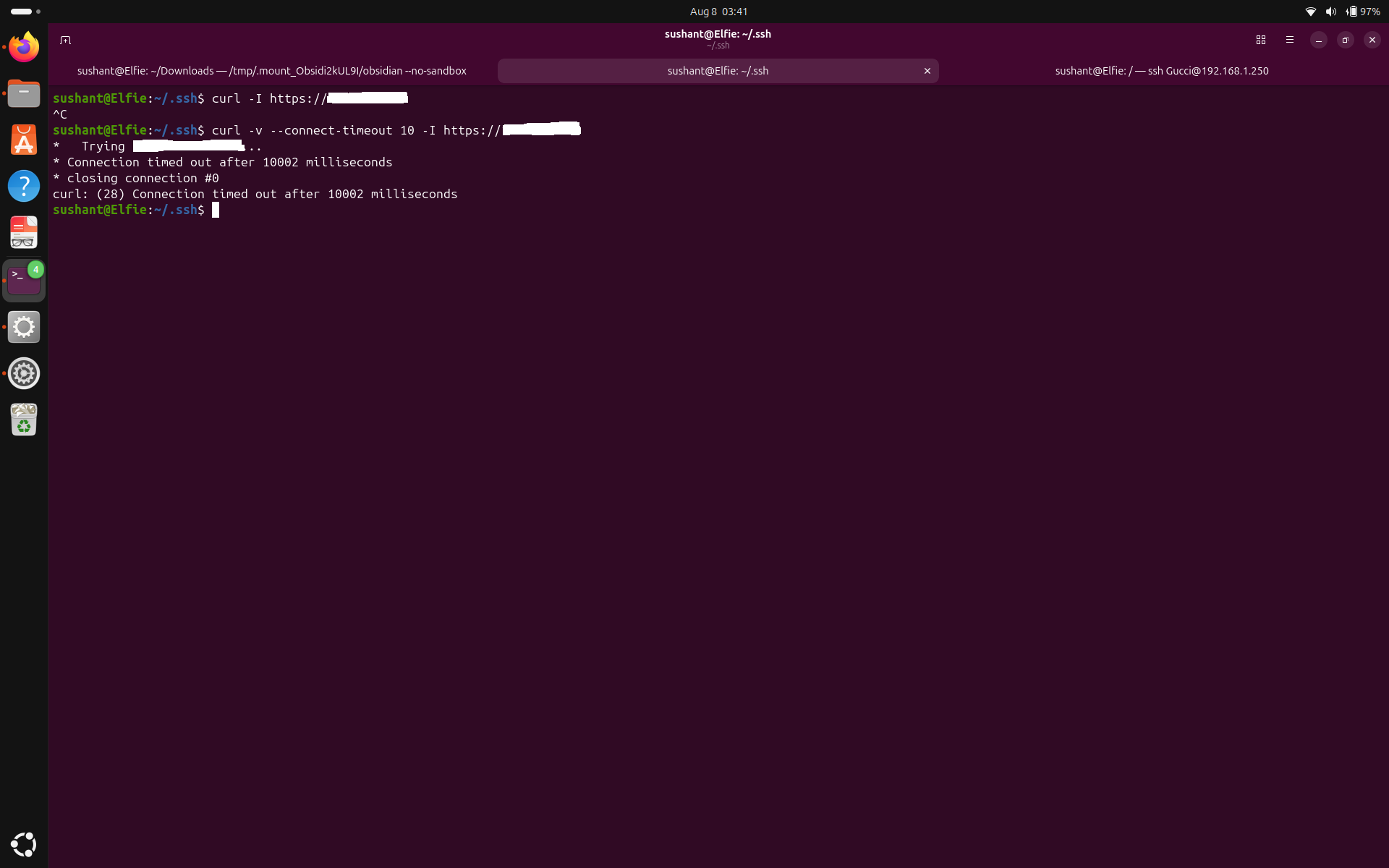 We can see that my HTTPS connection request is no longer accepted. From now on, any HTTP/HTTPS request from IP address outside of Cloudflare's IP range for instance, an attacker trying to connect directly to my server, will be dropped.
Listening Ports and Firewall - Conclusion
We can see that my HTTPS connection request is no longer accepted. From now on, any HTTP/HTTPS request from IP address outside of Cloudflare's IP range for instance, an attacker trying to connect directly to my server, will be dropped.
Listening Ports and Firewall - Conclusion
sudo apk update to update your repository, and sudo apk upgrade --simulate | grep postmarketOS to see if there is any postmarketOS files on the upgrade simulation.
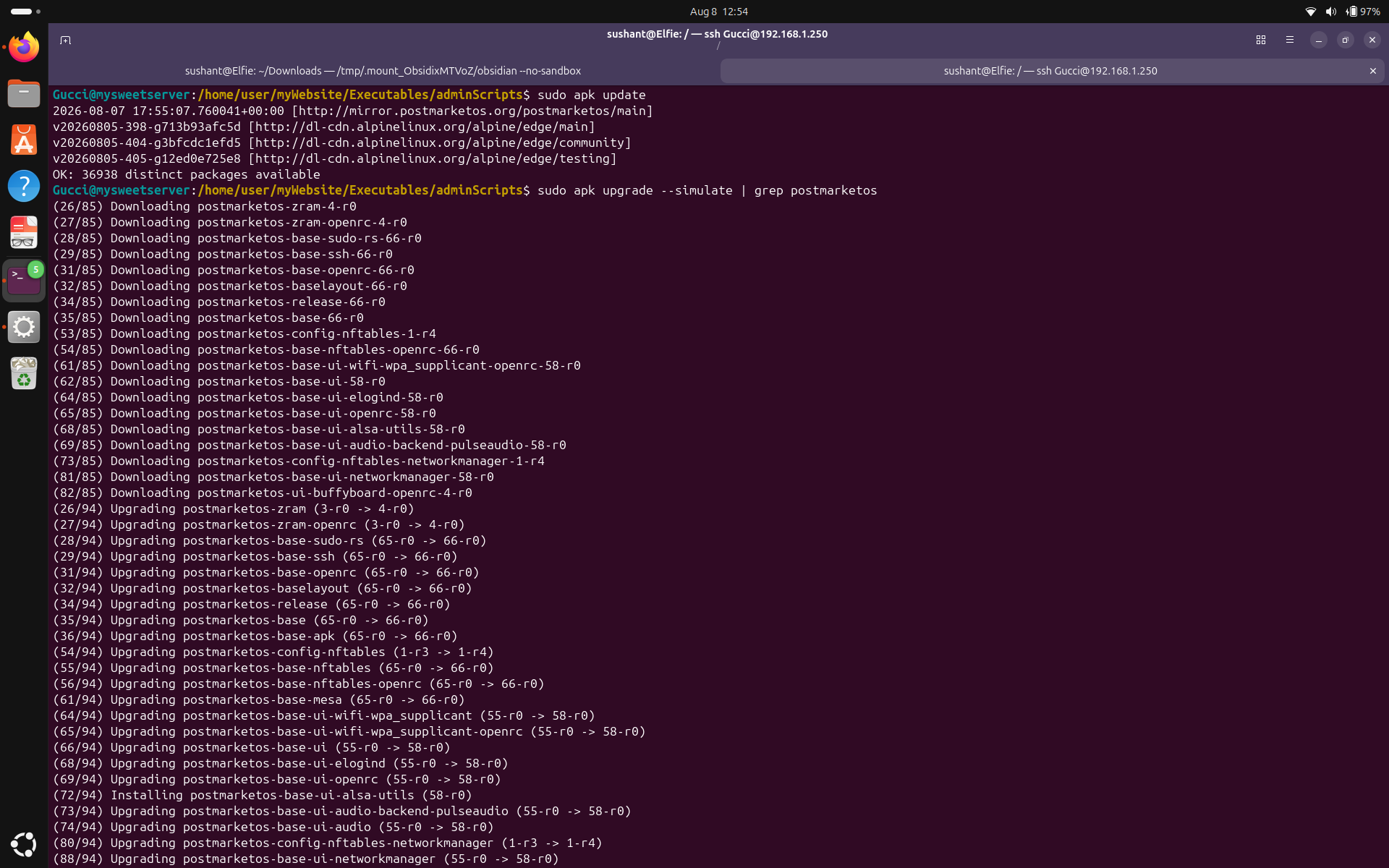 We see that there is an update available. Now, let's refer to the postmarketOS for installation instructions. I found the instructions here:https://wiki.postmarketos.org/wiki/Upgrade_to_a_newer_postmarketOS_release
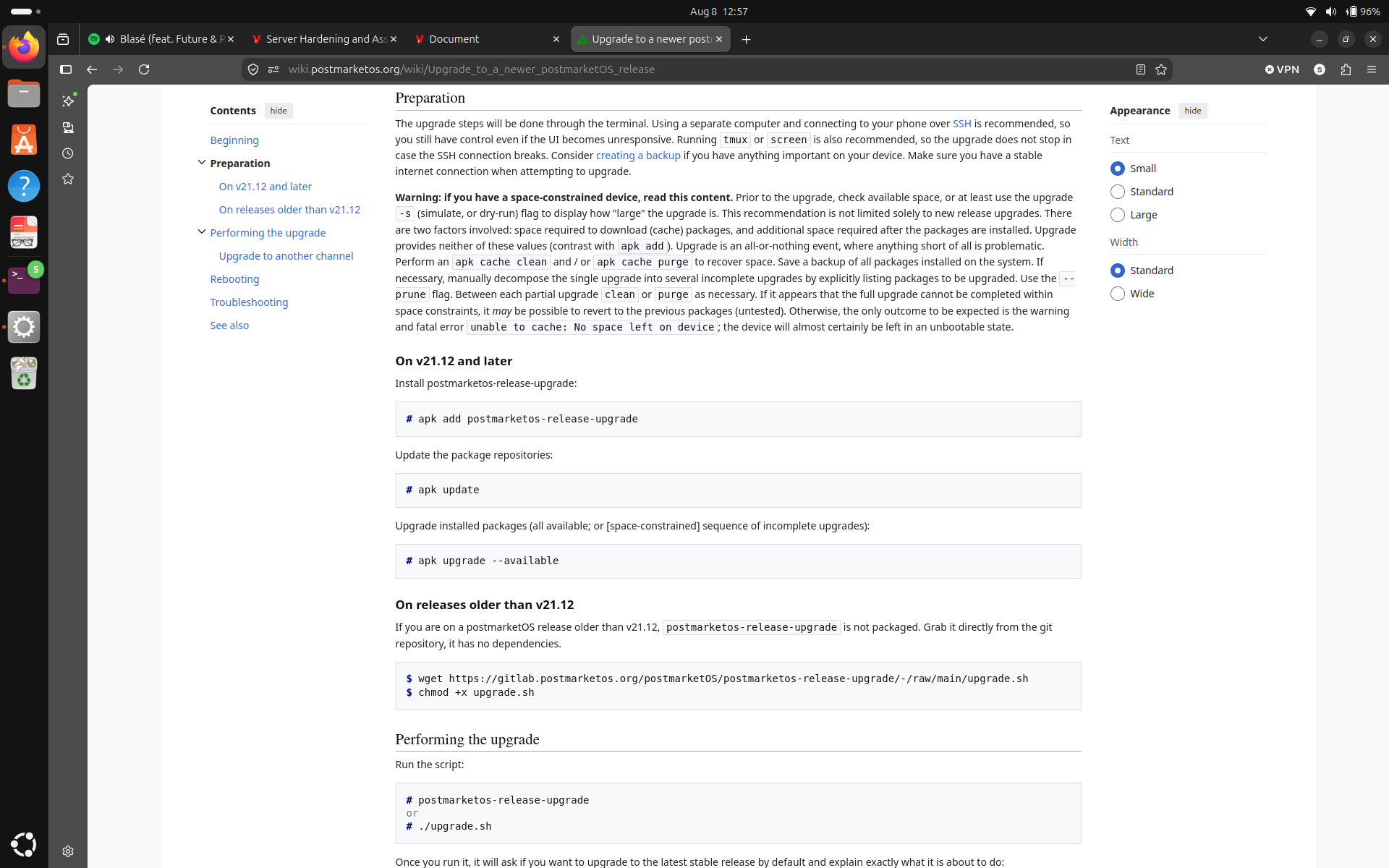 It is a really quick 3 step process but before we do it tho, let's see if our postmarketOS version is 21.12 and later or not. Run
 apk info -W /os-release to see who owns the current os-release, and run apk info postmarketos-release to see what postmarketOS packages are known to apk.
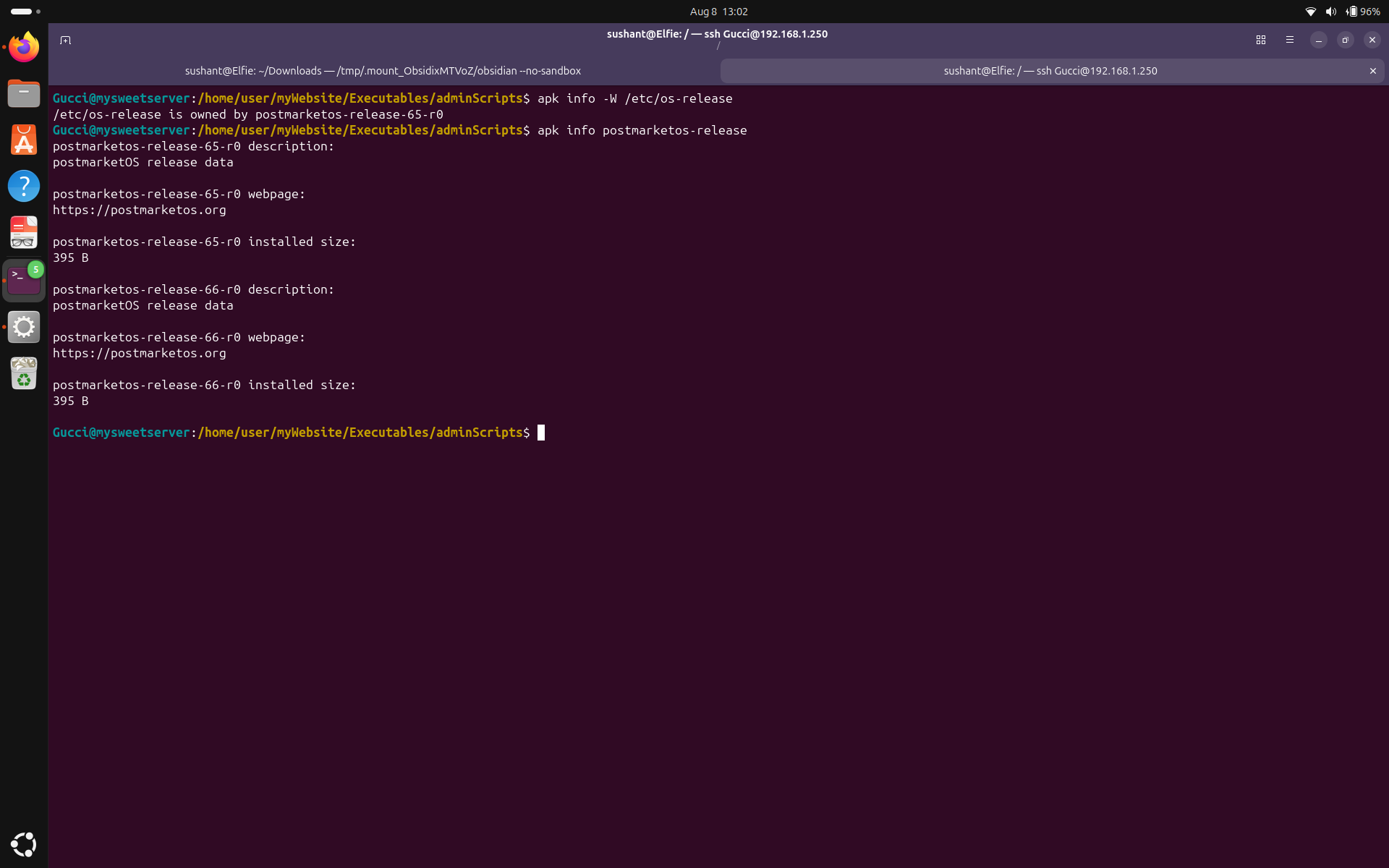 We see that I am running postmarketos-release-65-r0, and an upgrade is available to postmarketos-release-66-r0. The three step process given by postmarketOS upgrades all the available files. I was trying to see if there is any way to just upgrade postmarketOS files but I was unable to find it. Maybe there are dependencies which requires you to update all the files or whatever.
Let's run them.
We see that I am running postmarketos-release-65-r0, and an upgrade is available to postmarketos-release-66-r0. The three step process given by postmarketOS upgrades all the available files. I was trying to see if there is any way to just upgrade postmarketOS files but I was unable to find it. Maybe there are dependencies which requires you to update all the files or whatever.
Let's run them. sudo apk add postmarketos-release-upgrade, apk update, sudo apk upgrade --available.
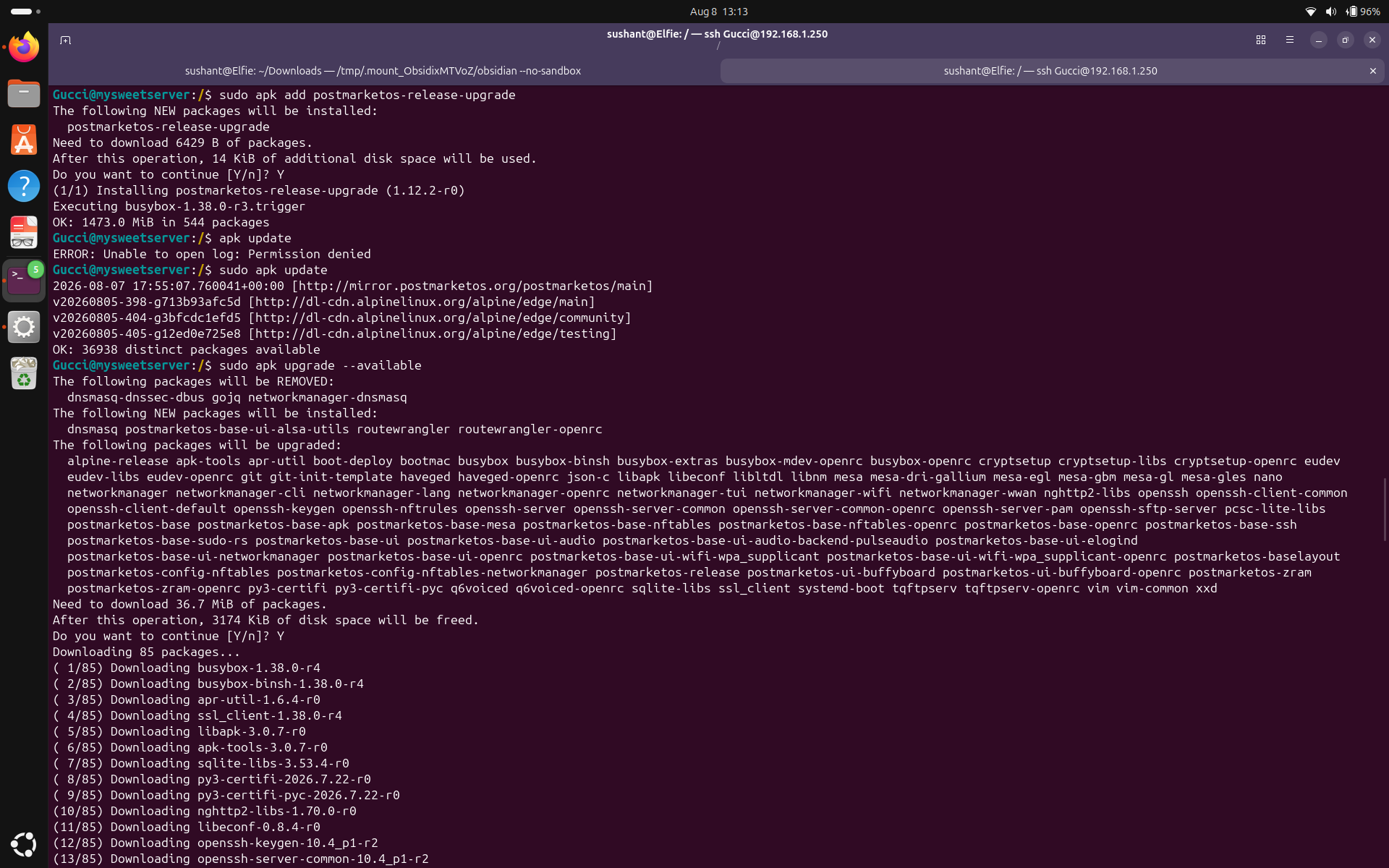 I see the update is removing some services. I am fairly certain I don't depend on them so I am going to hit accept. After upgrade completes, let's reboot and see if anything breaks.
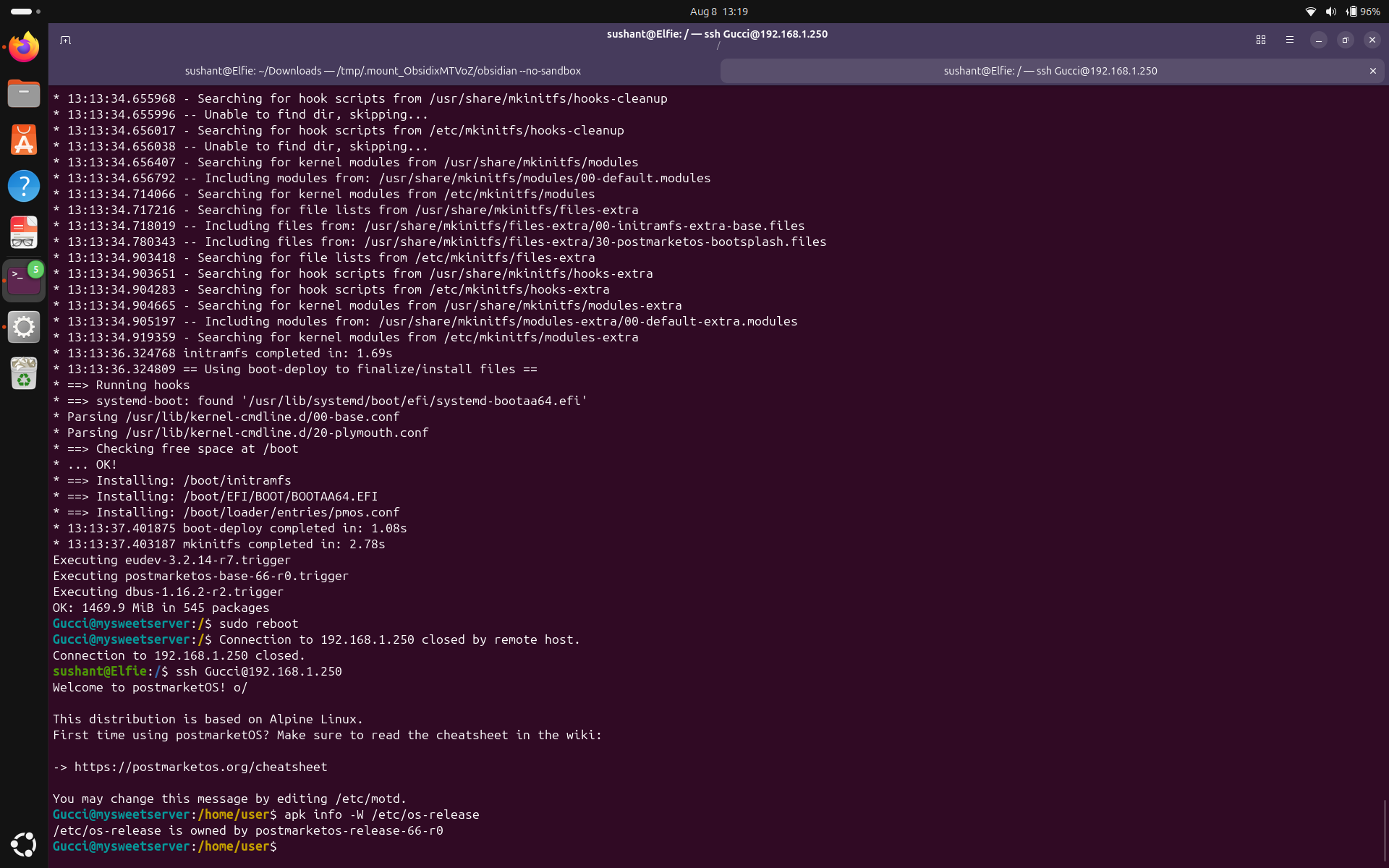 The server is okay and the website is also running. Now, the os-release file is owned by the upgraded postmarketos-release-66-r0. I am aware that one day amidst all this, I may break something but oh well, I am pretty sure I can build it back up.
OpenRC services
There are about 80 OpenRC services in the server. I cannot manually inspect all of them, so I am just going to verify that they are owned by OpenRC. Run
The server is okay and the website is also running. Now, the os-release file is owned by the upgraded postmarketos-release-66-r0. I am aware that one day amidst all this, I may break something but oh well, I am pretty sure I can build it back up.
OpenRC services
There are about 80 OpenRC services in the server. I cannot manually inspect all of them, so I am just going to verify that they are owned by OpenRC. Run for f in /etc/init.d/*; do apk info -W "$f"; done to see a rundown of all the services or to inspect an individual service, run for f in /etc/init.d/*; do apk info -W "$f"; done | grep fileName. I see that only service which wasn't owned by OpenRC was gunicorn. However, I was the one who created that service, and after some inspection, everything seemed to be in order.
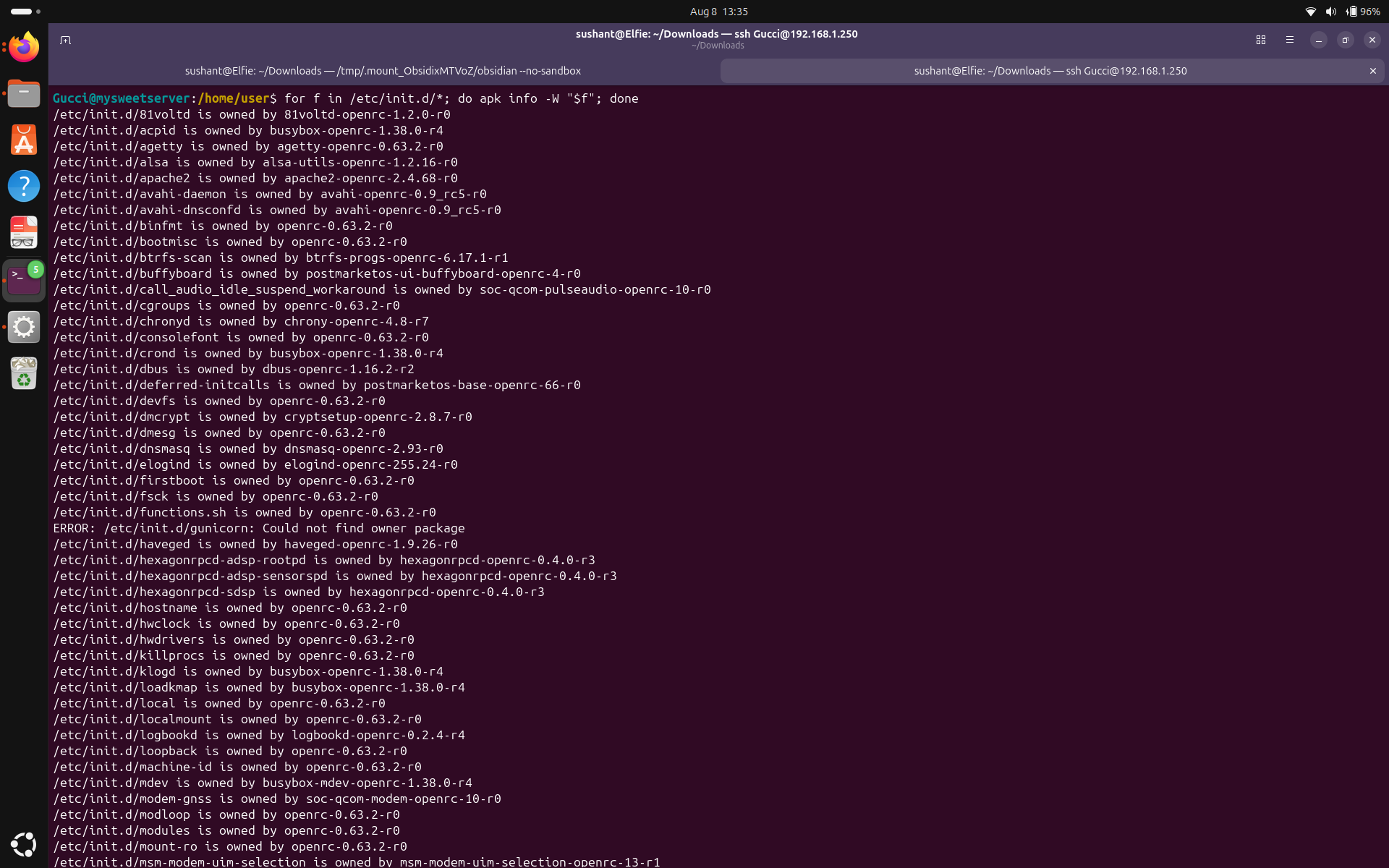 The OpenRC services which are just sitting on the init.d directory aren't a threat by themselves. They only add to the attack surface if they are started on default runlevel or if they are listening on a socket. Let's inspect just that.
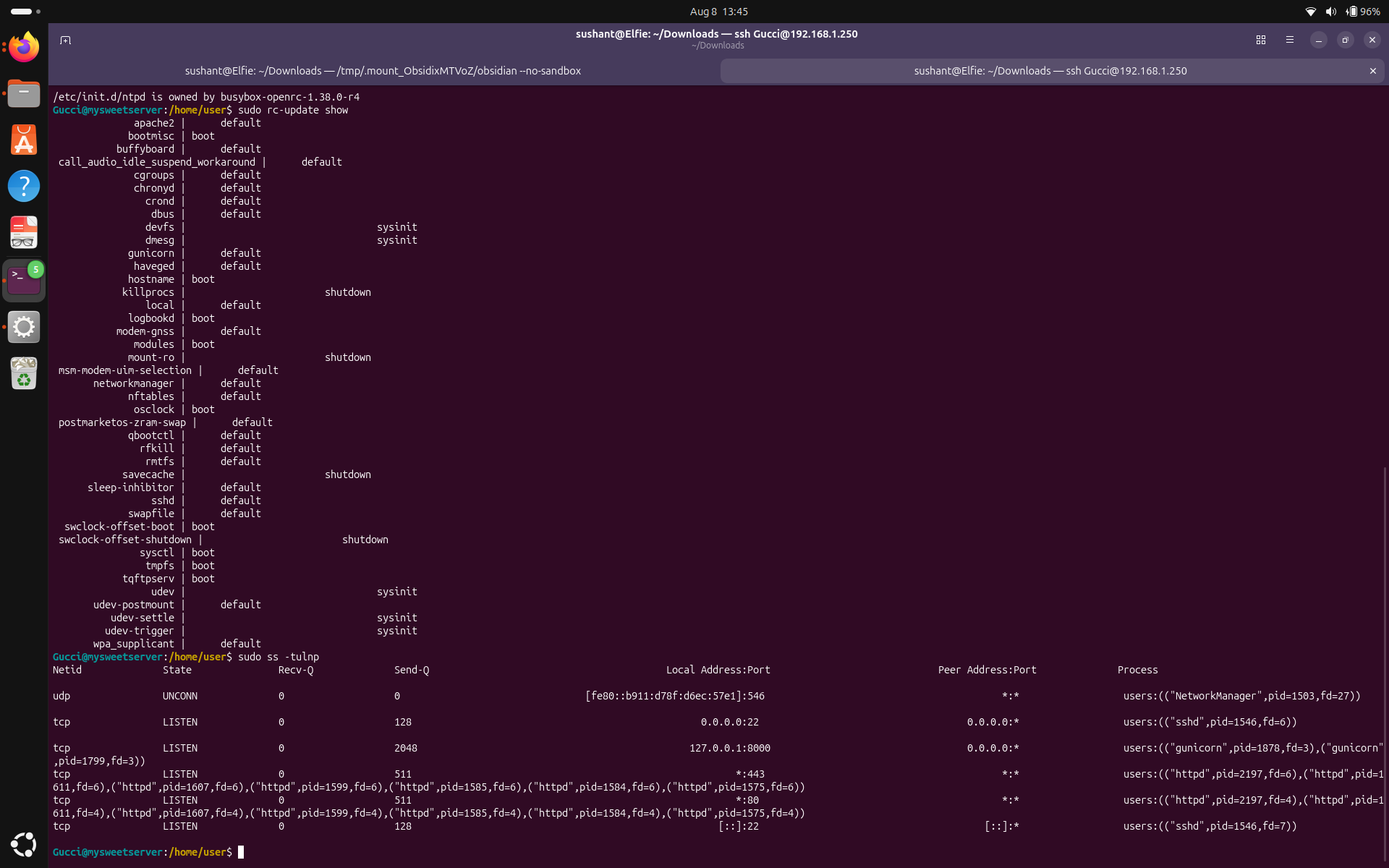 I reviewed the services enabled in the active runlevels and determined that each currently enabled service has an identified operational purpose. There are server critical services, hardware services, services necessary for my website, and postmarketOS specific services. Also, I already concluded that all the services using the listening services were necessary for normal operation and were deemed safe.
Server-Conclusion
I reviewed the services enabled in the active runlevels and determined that each currently enabled service has an identified operational purpose. There are server critical services, hardware services, services necessary for my website, and postmarketOS specific services. Also, I already concluded that all the services using the listening services were necessary for normal operation and were deemed safe.
Server-Conclusion
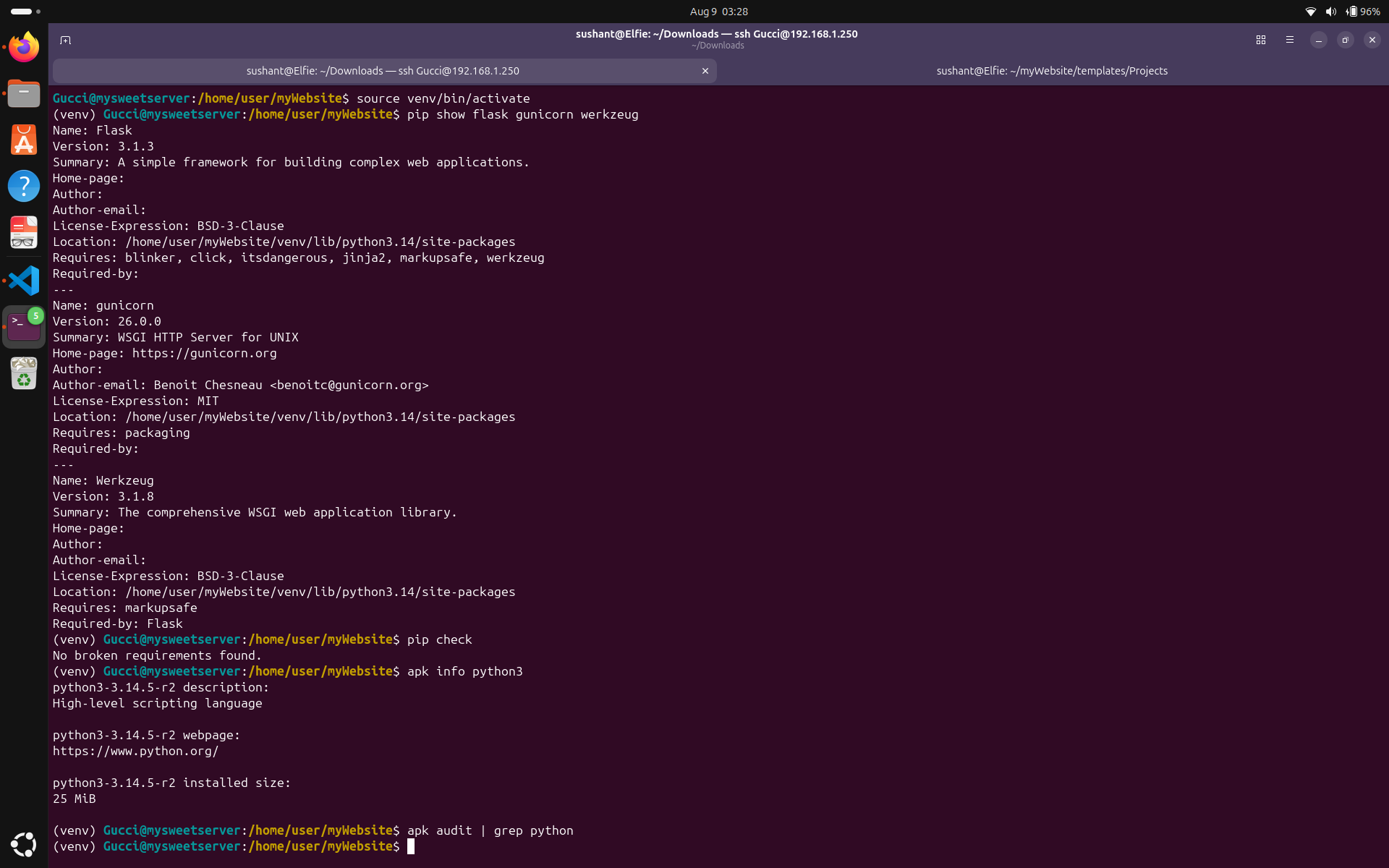
This was just a basic sanity check. The commands I ran were: pip show flask gunicorn werkzeug, pip check, apk info python3, and apk audit | grep python. These checks provided a quick overview of the installed versions, dependency consistency, Python package installation, and any reported changes to Python-related files.
| Finding | Severity | Remediation |
|---|---|---|
| Gunicorn running as root | High | Gunicorn's privileges were dropped to a service account. |
| Certificate renewal failure | High | Automated script was added for certificate renewal. |
| SSH root login | High | SSH root login was disabled. |
| Insufficient input validation | Medium | Basic input validation was implemented to reject unusually long inputs. |
| Unbounded user input logs | Medium | Writing to the log file was disabled once the file reached 100MB. |
| Direct HTTP/HTTPS access bypassing Cloudflare | Medium | The firewall was configured to access HTTP/HTTPS traffic only from Cloudflare's IP ranges. |
| Direct HTTP access | Medium | HTTP to HTTPS redirection was implemented on the server. |
| Outdated OS | Medium | OS was updated to the latest release. |
| Unnecessary users and groups | Low | Unnecessary users and groups were removed. |
| Excessive File permissions | Low | Files permissions were configured according to the principle of least privilege. |
The external assessment can be found here: Initial External Assessment of an Alpine Linux Server.
I tend to write my papers in the blockchain way (a method I just pulled out of my donkey), where if I make an error, I don't edit the error to correct it, but I add a new update block of information. Any updates on this paper can be found here:
As I began venturing outside my house, need arose for me to access my server from the internet. The one reason I dropped SSH connections in my router is because I feared that people could figure out my public IP address, and brute force my password. However unlikely it may be for anyone to succeed because of the complexity of my password (yea I'm like that), I didn't want them to even try (cause what if?). So I guess I reached a progressive compromise where I decided to forward SSH connections to my server from my router, but disable password authentication and enable public key authenticaion. But what about my recovery procedure then when I lose my key? First, I went to my router and retrieved IPv4 address distribution. It read "Subnet Mask: 255.255.255.0, Dynamic IP Range: 192.168.1.2 - 192.168.1.254". Second, I went to postmarketOS website and retreived: "Out of the box, a postmarketOS device uses a static address of 172.16.42.1/24 on any USB network interface and runs the unudhcpd DHCP server, offering one address, 172.16.42.2/24, to the USB network.". These two addressess ranges will be the recovery access to my server. I figured Match Address can be used to create exceptions in the global SSH rule, so I added my two recovery IP address to the exception and turned password authentication on.
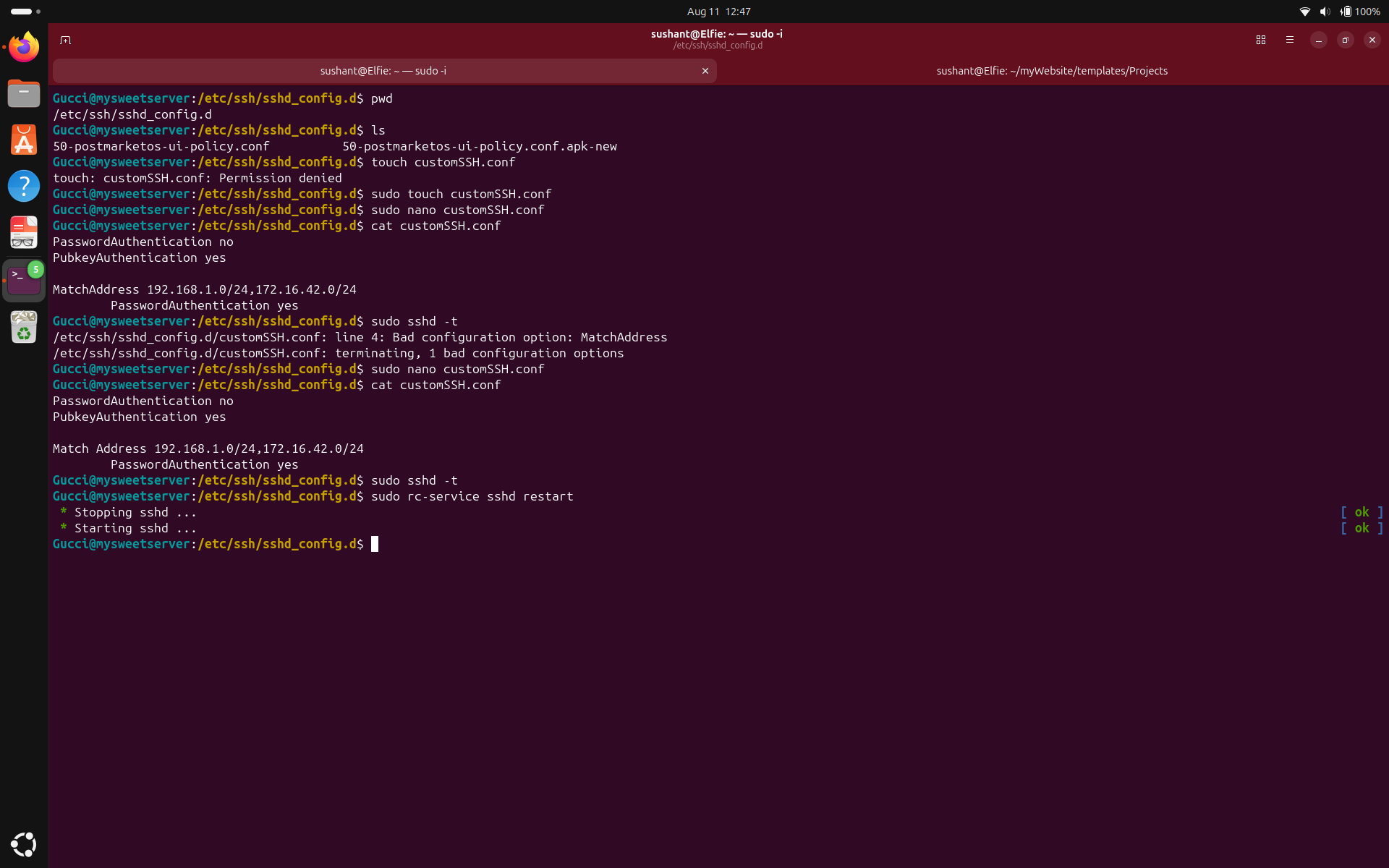
This is what my final configuration looks like. Basically, every SSH connection now requires an authorized cryptographic key except for when connections come from 172.16.42.0/24 or 192.168.1.0/24 where password can be used for recovery purposes. But what if someone steals my server and brute-forces the password offline using USB, or some malicious insider inside my house does the same? I have enabled port forwarding for these kind of questions to the president. But what I can tell you is that my current setup doesn't fully protect against server theft (very different threat model not discussed below) or an attacker who gains physical access to my home network. With the time and frequency login controls in my server, and the complexity of my password, I suspect they will successfully brute force my password sometime after the sun dies.